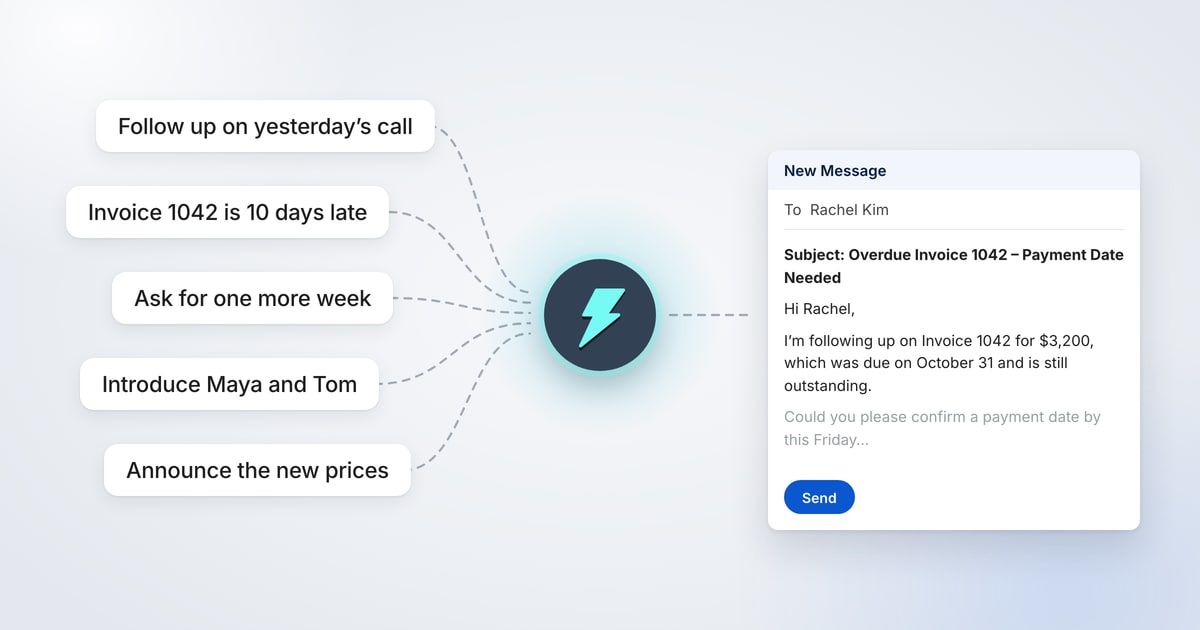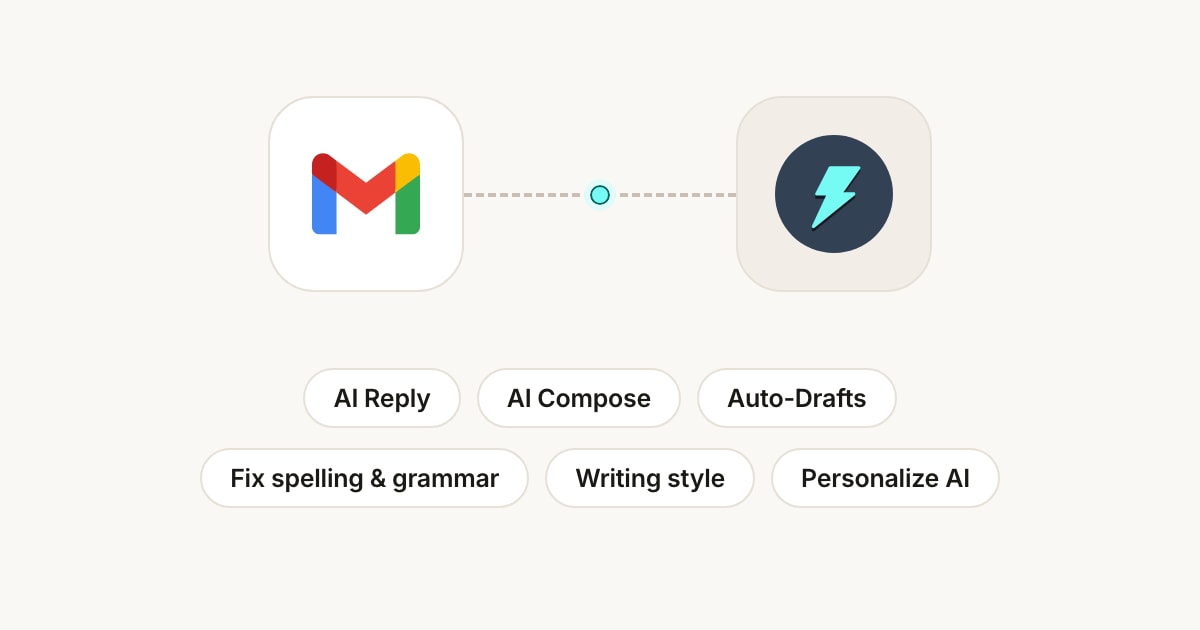
To use AI in Gmail, add the free Jetwriter AI extension to your browser and open Gmail. Click AI Reply under any email, type in a few words what you want to say, and Jetwriter AI writes the whole reply. In a new email, AI Compose writes it from your notes, and selecting text you wrote lets you fix its spelling and grammar, rewrite it or translate it.
It works in Gmail on a computer, in Chrome, Edge, Brave, Opera or Vivaldi. On paid plans, Auto-Drafts goes a step further: it writes replies to new emails before you even open them. Jetwriter AI never sends an email: you read it and send it yourself. This guide covers what it does in Gmail, from your first reply to emails that sound like you.
Prefer a walkthrough with sound? Watch How to Use AI in Gmail (Free): Replies That Sound Like You, a tutorial on YouTube that takes under two minutes.
Get Started in Three Steps
- Add Jetwriter AI to your browser. It's free.
- Sign in, or create a free account.
- Open Gmail and open any email. AI Reply is under it, between Reply and Forward.
The Free plan includes 15 AI responses a month. Each reply, new email or fix uses one.
Reply to an Email from a Few Words
Open the email and click AI Reply. Gmail's reply box opens, and the Jetwriter AI window opens over it, already knowing the email you're answering. Type in a few words what to say, the facts and your decision, and press Enter. Jetwriter AI writes the whole reply and leaves the sign-off to you. Click Insert to put it in Gmail's reply box, then read it, sign it the way you usually do and send it.
The situation: Maya Chen, Head of Operations at a home goods brand, asks Ben Carter, who runs a small web design studio, to move their website review call to Thursday afternoon and to send the updated timeline before then.
What Ben typed
Thursday 3pm works. Updated timeline by Wednesday.
What Jetwriter AI wrote
Hi Maya,
Thursday at 3pm works well for me, so I'll plan on that for our review call.
I'm glad the team likes the product pages and the new photo layout. I'll send over the updated timeline by Wednesday, so you'll have it before we meet.
Talk to you Thursday.
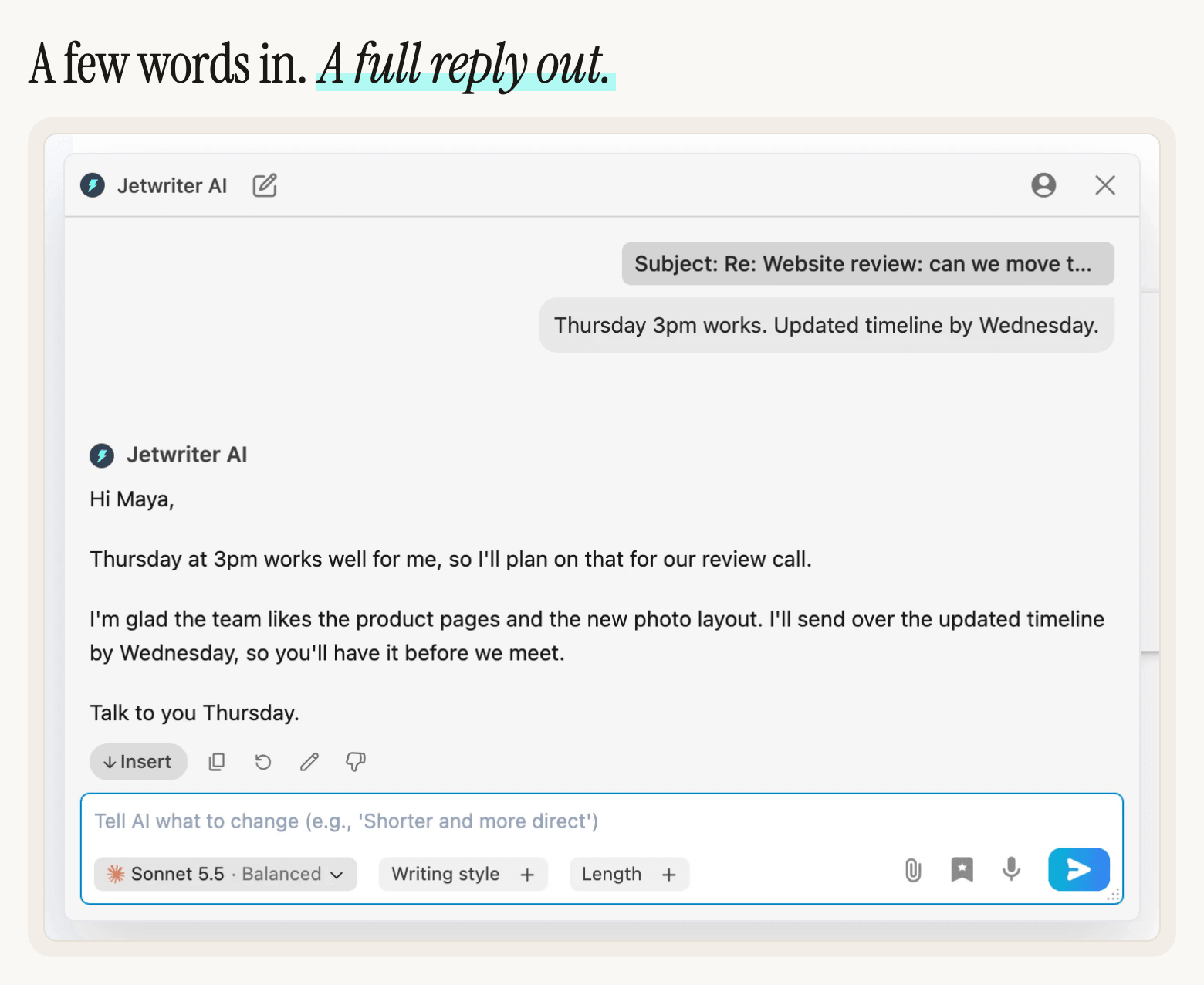
To change the reply, type what to change in the box under it, such as "Make it shorter" or "More formal", and press Enter. For every setting in the window, see Reply to an email in Gmail with AI Reply.
Write a New Email with AI Compose
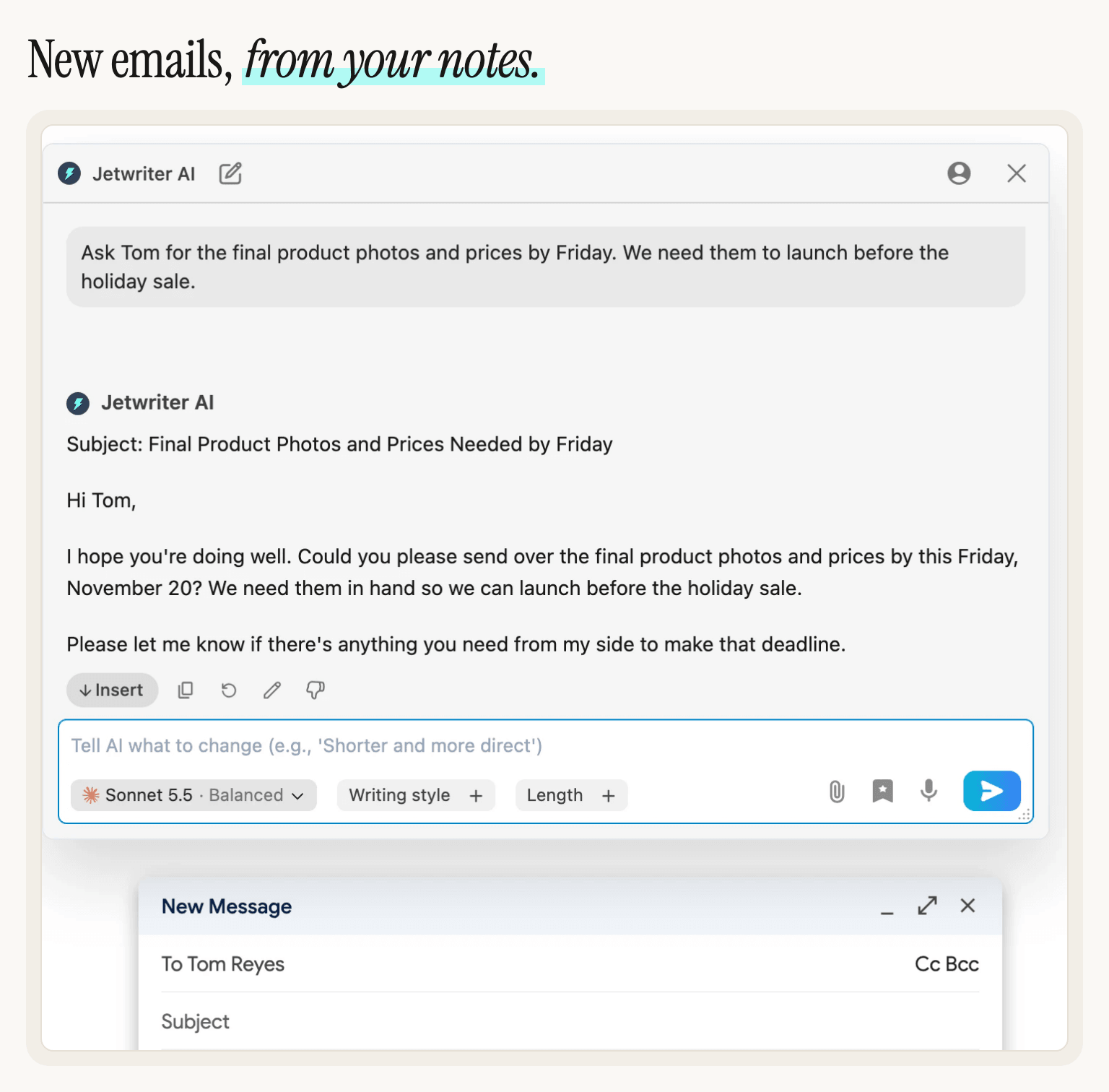
Click Compose in Gmail, add who the email is for, and click AI Compose, next to Send. Say in a sentence or two what the email is for. Jetwriter AI writes it, starting with a suggested subject line. Click Insert to put it all in the new email, then move the subject line into Gmail's Subject field and send it. If you type a subject first, Jetwriter AI uses it.
What Ben typed
Ask Tom for the final product photos and prices by Friday. We need them to launch before the holiday sale.
What Jetwriter AI wrote
Subject: Final Product Photos and Prices Needed by Friday
Hi Tom,
I hope you're doing well. Could you please send over the final product photos and prices by this Friday, November 20? We need them in hand so we can launch before the holiday sale.
Please let me know if there's anything you need from my side to make that deadline.
For five more, from a payment reminder to a price increase, see How to Write an Email with AI in Gmail: 5 Examples.
Get Replies Drafted Before You Open the Email with Auto-Drafts
With Auto-Drafts on, you don't even click AI Reply. Jetwriter AI writes a reply to each email that needs one as it arrives in your inbox, and saves it as a draft in that conversation. When you open the email, the reply is waiting: you check it, change what you want and click Send. Nothing is ever sent for you.
Each draft answers the newest message in the conversation, in your style, using your past emails and what you've told Jetwriter AI in Personalize AI. If you've connected Google Calendar, a draft that answers a request to meet can suggest times you're free.
- Which emails get a draft: questions for you, and requests for an action, a decision, an approval or information. Newsletters, promotions, receipts, automatic alerts and conversations you've already answered don't, and neither do emails in Gmail's Promotions, Social, Updates and Forums tabs. To narrow it further, describe which emails should get drafts under Customize draft filters.
- Where the drafts show: in the email's conversation and in Gmail's Drafts folder, on your computer and in the Gmail app on your phone, since they're saved in your Gmail account.
- Who gets it: the Elite and Ultra plans, and the Pro plan for people already on it. The Free plan and the free Elite trial don't include it.
To turn it on, open the web app's Gmail Integration settings, click Enable next to Auto-draft, and allow the two permissions Google asks for: Jetwriter reads new emails and saves drafts, and it never sends one.
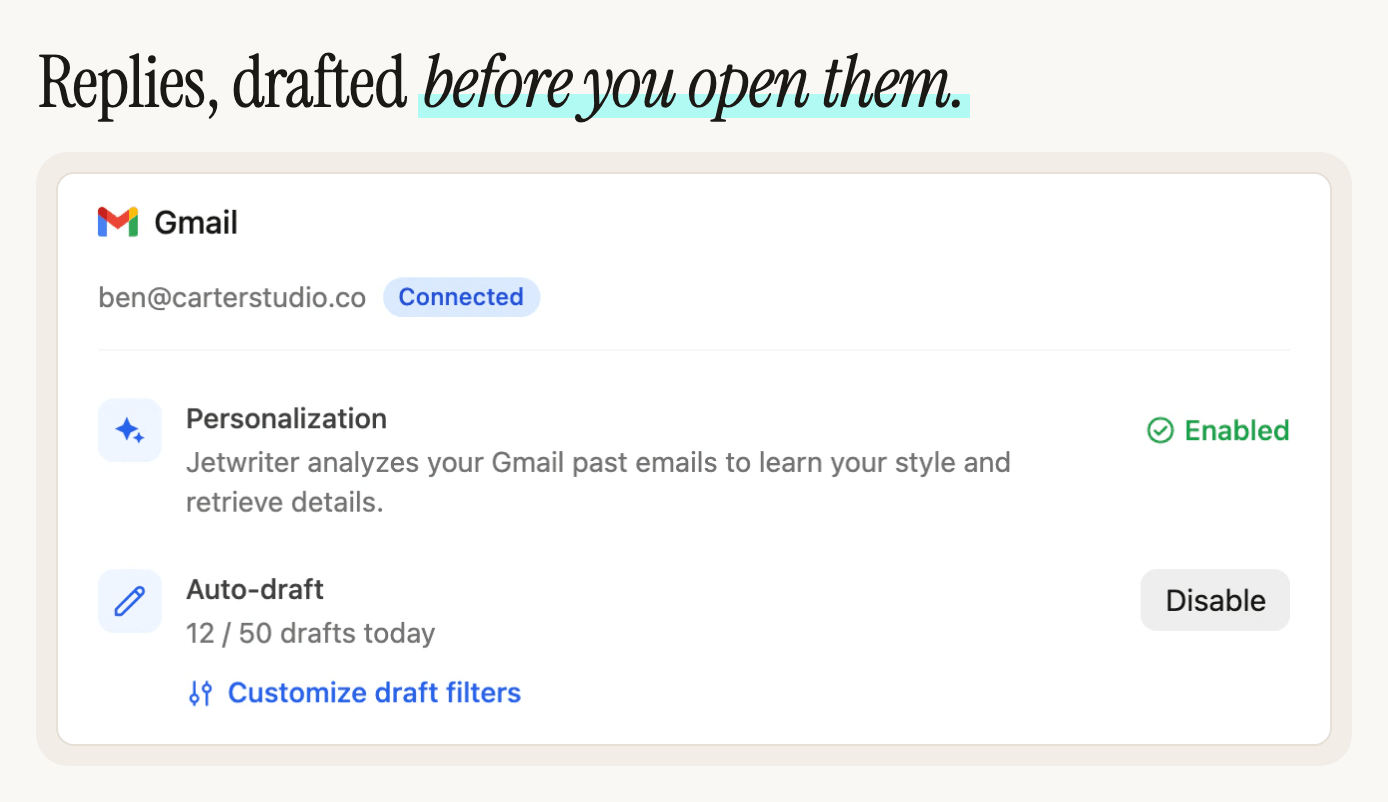
See Set up Auto-Drafts and Auto-Draft Feature: Perfect Email Replies Ready Before You Even Click.
Fix Spelling and Grammar in What You Wrote
Prefer to write the email yourself? Select what you wrote. A small blue dot appears next to the pointer: point at it within 2 seconds, and click Fix spelling & grammar on the toolbar that opens. Jetwriter AI corrects the spelling and grammar mistakes. Click Replace to put the corrected text in your email.
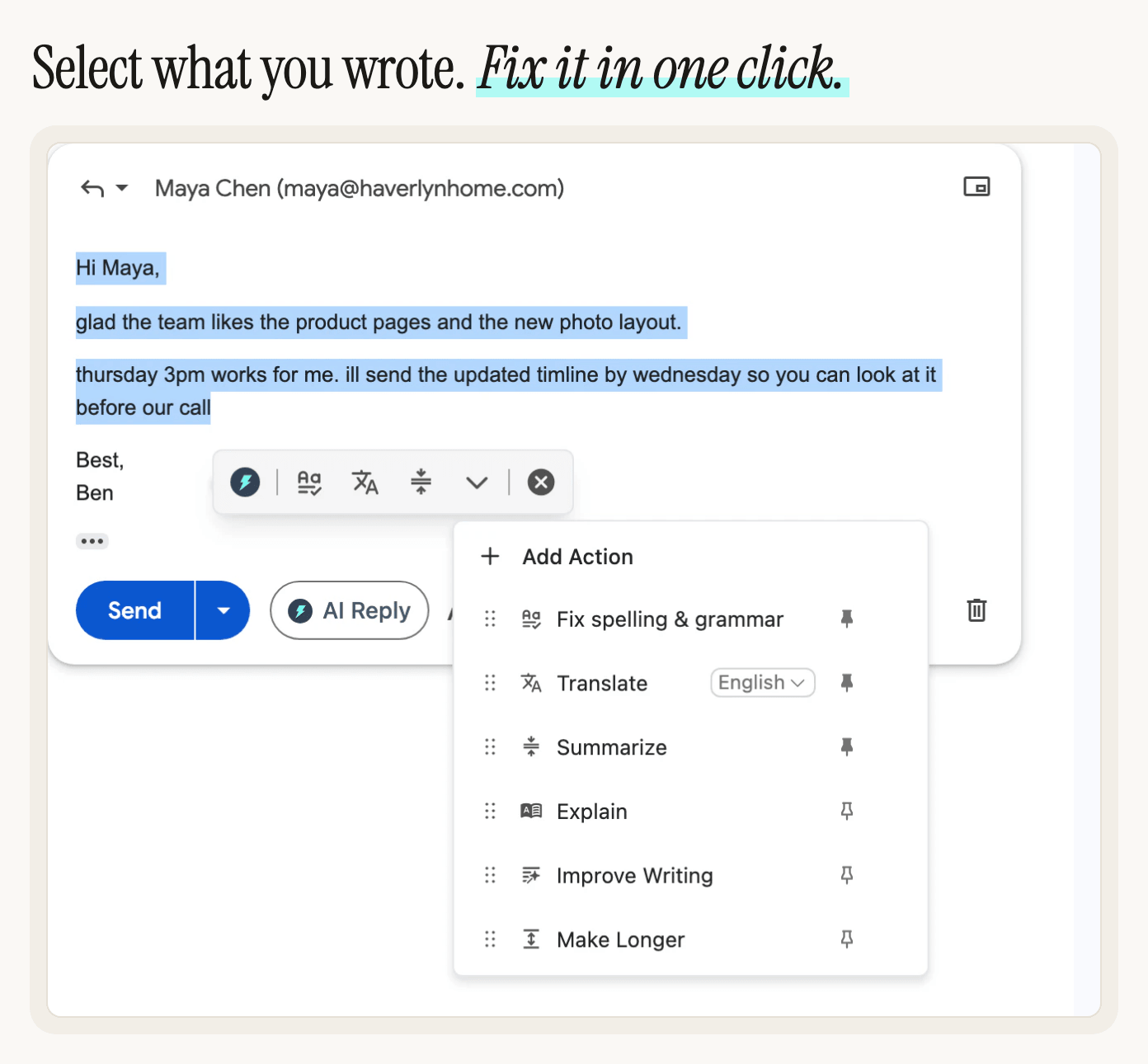
To select everything in the email at once, click in it and press Ctrl+A (Cmd+A on a Mac).
Rewrite, Translate or Summarize Any Text
The toolbar that opens on text you select does more than fix it:
- Improve Writing rewrites it so it's clearer and easier to read.
- Translate puts it in the language you pick.
- Summarize turns a long email into a short title and a list of its main points, in the Jetwriter AI window. Nothing changes in the email.
- Explain puts it in simple, everyday words.
- Make Longer adds detail.
Fix spelling & grammar, Translate and Summarize are on the toolbar. The others are under More actions, the down arrow, where a pin keeps any of them on the toolbar. To add your own, such as "Make it professional", click Add Action, then give it a name and a prompt. See How to Make Emails Sound Professional with AI and Fix, rewrite or translate selected text.
Reply in Another Language
Jetwriter AI writes in the language you ask for. End your note with it, such as "Reply in Spanish", and the reply comes back in Spanish, whatever language the email is in. See How to Reply to Emails in Another Language with AI and Write in another language, or stop unwanted translation.
Save Requests You Use Often
If you ask for the same kind of email again and again, save the request as a prompt template. In the Jetwriter AI window, click the bookmark icon next to the paperclip, under the box, then Add Prompt Template, and give it a name and the text. After that, one click puts it in the box, and a template you set as the default is there every time the window opens. See How to Use Prompt Templates to Speed Up Your Daily Writing Tasks.
Make Every Email Sound Like You
Two settings, set once, shape every email you write with AI Reply and AI Compose:
- Writing style, under the box in the Jetwriter AI window. Pick Professional, Casual, Straightforward, Persuasive or Friendly, or click Add Style and describe your own.
- Personalize AI, in the profile menu at the top of the window. Tell it who you are and how you like to write, such as your role, your company and your tone.
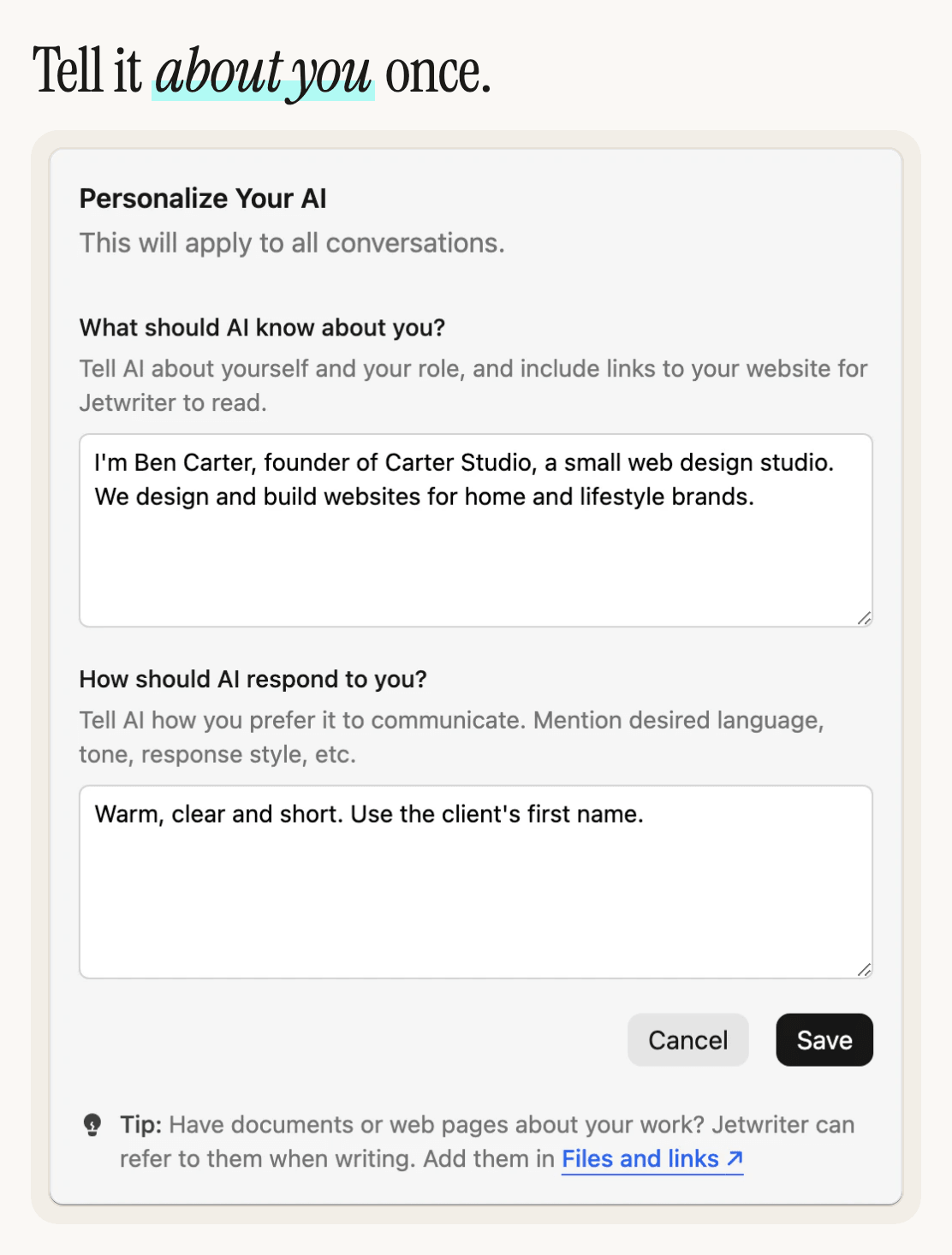
See Tell Jetwriter about you, and how to reply (Personalize AI).
Let It Learn from Your Past Emails
Connect Gmail and Jetwriter AI learns how you write from your past emails, so replies sound like you wrote them. Open the profile menu in the Jetwriter AI window, click Settings, click Connect under Gmail Personalization, and then Connect Gmail in the window that opens. The connection is read-only, and it costs nothing extra: replies that use your past emails count like any other reply.
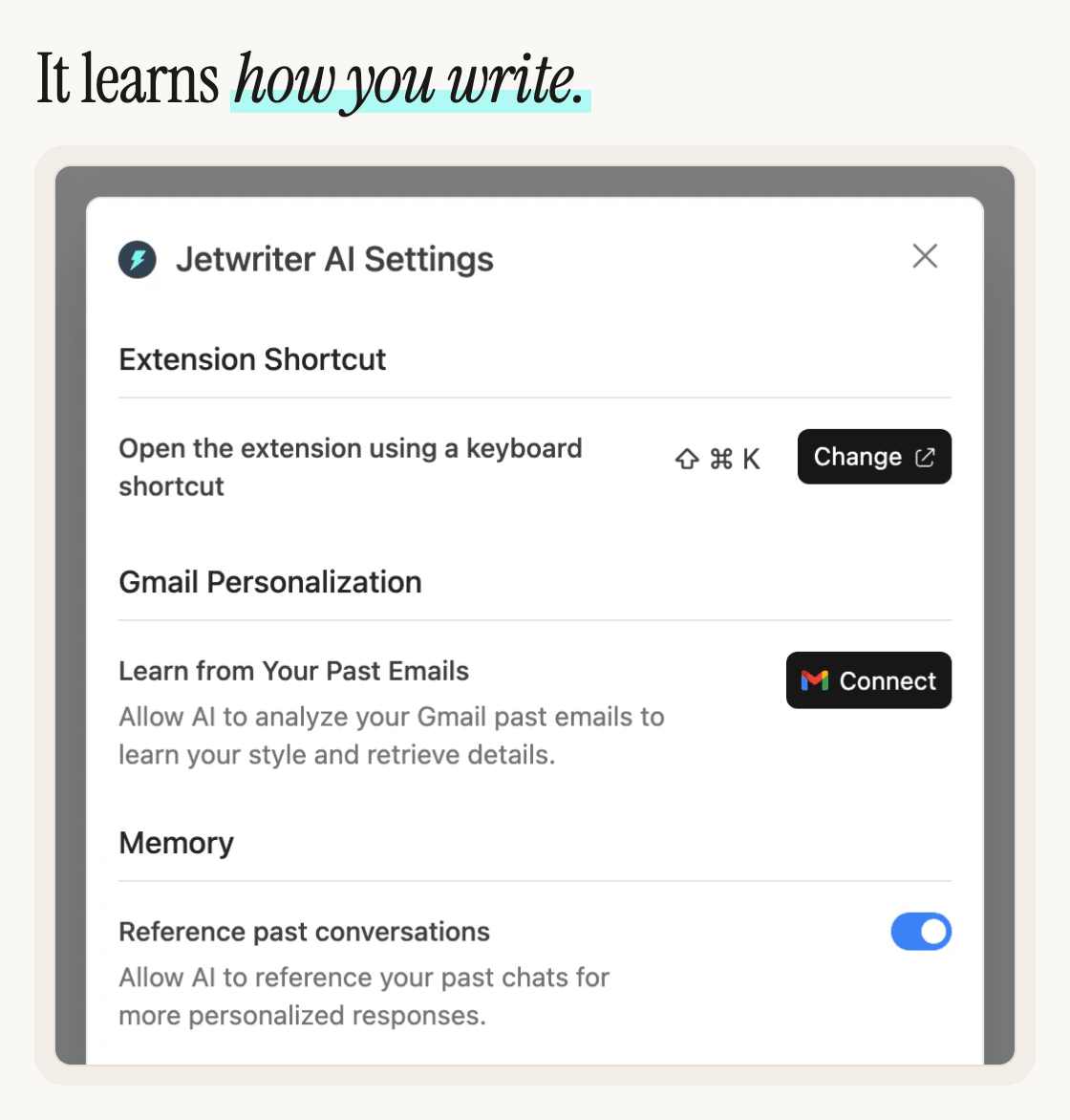
See Connect Gmail so replies use your past emails, or disconnect it.
Let It Remember What You've Told It
With Memory on, Jetwriter AI can use details from your past chats with it to make replies more relevant. It's on by default: the switch is Reference past conversations, in the extension's Settings (the profile menu at the top of the Jetwriter AI window, then Settings). See Memory Feature: Uses Past Conversations to Deliver Smarter, More Personalized Responses.
Check Your Calendar Before It Suggests a Time
When an email asks to meet, Jetwriter AI can check your Google Calendar first and suggest times you're actually free. Connect your calendar once in the web app's Calendar Integration settings. Jetwriter only reads your calendar and never changes it. See Calendar-Aware Replies: AI That Checks Your Google Calendar Before It Replies.
Answer with Your Own Prices and Policies
On paid plans, add your price list, FAQ or policy pages in the web app, under Personalize AI's Files and links. When a reply needs one of those facts, Jetwriter AI checks them first, so it answers with your real prices and policies. See Jetwriter AI Can Now Check Your Files and Links Before It Replies.
What Jetwriter AI Doesn't Do in Gmail
- It doesn't send emails. Insert and Replace put the text in your email, and Auto-Drafts saves drafts. You send every email yourself.
- AI Reply works in Gmail on a computer. The extension doesn't run in the Gmail app on your phone, though drafts from Auto-Drafts show up there.
- It doesn't read the rest of your inbox when you reply. AI Reply reads the email thread you click it in, and the toolbar's actions read only the text you select. Only Auto-Drafts, if you turn it on, reads each new email as it arrives, to draft a reply.
Frequently Asked Questions (FAQ)
Can I use AI in Gmail for free?
Yes. Jetwriter AI's Free plan includes 15 AI responses a month, and each reply, new email or fix uses one. Connecting Gmail so replies sound like you is free too. Paid plans add advanced AI models, Auto-Drafts and Files and links: see the pricing page.
Can AI answer my emails automatically?
Jetwriter AI never sends an email on its own. On paid plans, Auto-Drafts writes replies automatically as emails arrive and saves them as drafts in Gmail, so each one is ready when you open the email. You check it and click Send.
Does Jetwriter AI send emails for me?
No. It writes the email and puts it in Gmail when you click Insert or Replace. You read it and send it yourself.
Does Jetwriter AI read my emails?
AI Reply reads the email thread you click it in, not the rest of your inbox, and the toolbar's actions read only the text you select. If you connect Gmail, Jetwriter AI also reads your past emails, read-only, to learn how you write. With Auto-Drafts on, it also reads each new email as it arrives, to draft a reply that waits in Gmail until you send it. See Is Jetwriter AI safe? What it reads and keeps.
Can I use it in the Gmail app on my phone?
The extension runs in a browser on a computer, so AI Reply doesn't appear in the Gmail phone app. On a phone, paste an email into the Jetwriter AI web app and copy the reply back. On paid plans, drafts from Auto-Drafts also wait for you in the Gmail app. See Use Jetwriter on your phone.
Does it work in Outlook too?
Yes. AI Reply also works in Outlook on the web, and Jetwriter AI works in WhatsApp Web, LinkedIn and any other website where you write. See Use Jetwriter in Outlook on the web.
New to Jetwriter AI? Add the free extension, open Gmail and click AI Reply under any email.