To reply with Jetwriter AI in Gmail, open the email and click AI Reply under it. Type what the reply should say in a few words, for example "Yes, Thursday 3pm works", and Jetwriter writes the whole reply from the email thread. Click Insert to put it in Gmail's reply box, check it, and send it yourself: Jetwriter never sends anything on its own.
You need the Jetwriter AI extension (formerly ChatGPT Writer) in Chrome, Edge, Brave, Opera or Vivaldi on a computer, and you need to be signed in to it. If you signed up with an email and password on the Free plan, verify your email first. Each reply uses one AI response from your plan; the Free plan includes 15 a month.
Write the reply
- In Gmail, open the email you want to answer.
- Click AI Reply (1), under the email next to Gmail's Reply and Forward buttons. Gmail's reply box opens, and so does the Jetwriter window.
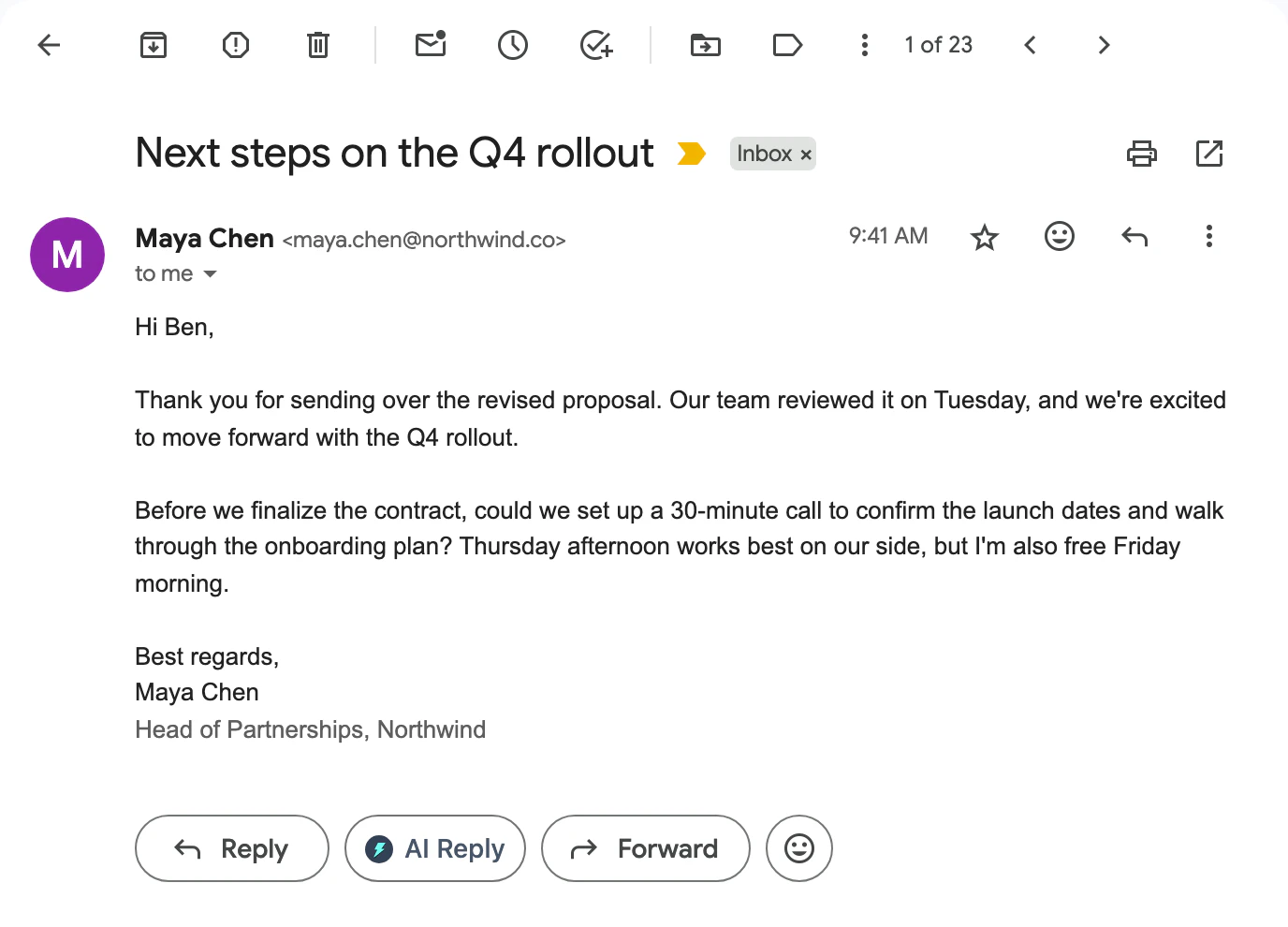
AI Reply shows under every email you open in Gmail, next to Reply and Forward.
- AI Reply
- In the box that says "Tell AI what to write (e.g., 'Politely decline')", type what the reply should say (1). A few words are enough: Jetwriter already reads the email thread. You can also send the box empty and let it decide.
- If you like, pick a Writing style, such as Professional or Friendly, and a Length (2).
- Press Enter, or click the send arrow (3). The reply appears in a few seconds.
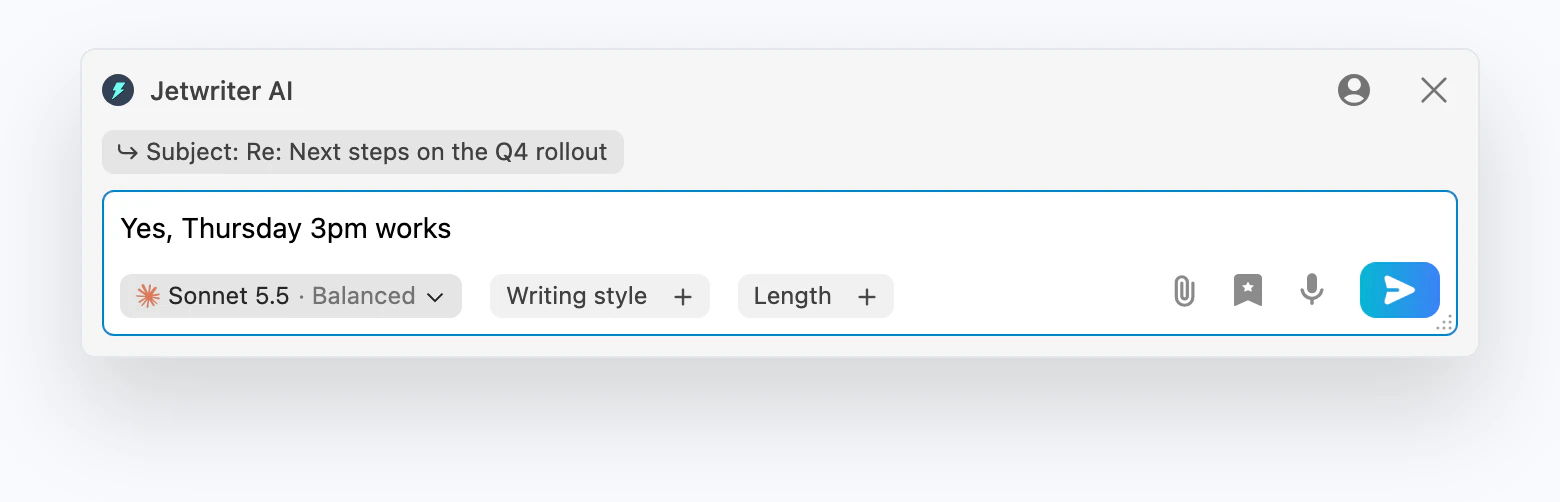
A few words are enough: Jetwriter writes the rest from the email you're replying to.
- What the reply should say
- Writing style and Length
- Send
Put the reply in Gmail and send it
- Read the reply. To change it, type what to change in the box that says "Tell AI what to change (e.g., 'Shorter and more direct')" (1) and send again.
- Click Insert (2). The reply goes into Gmail's reply box and the Jetwriter window closes.
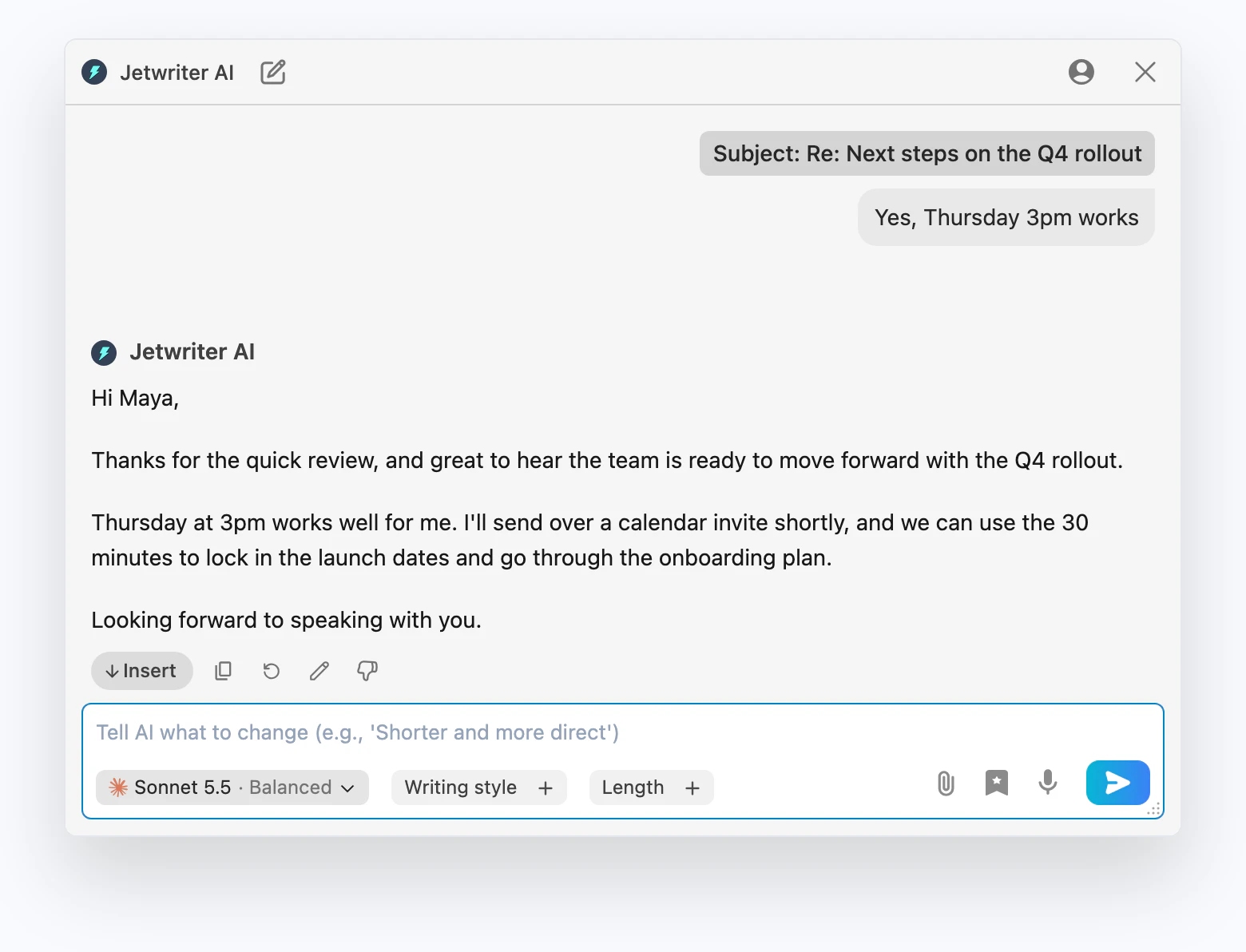
Insert puts the reply into Gmail. Nothing is sent until you click Send.
- Ask for changes
- Insert
- Check the reply in Gmail and edit it like any email. When it's right, click Gmail's Send (1). To start over, click AI Reply (2) in the reply box's toolbar.
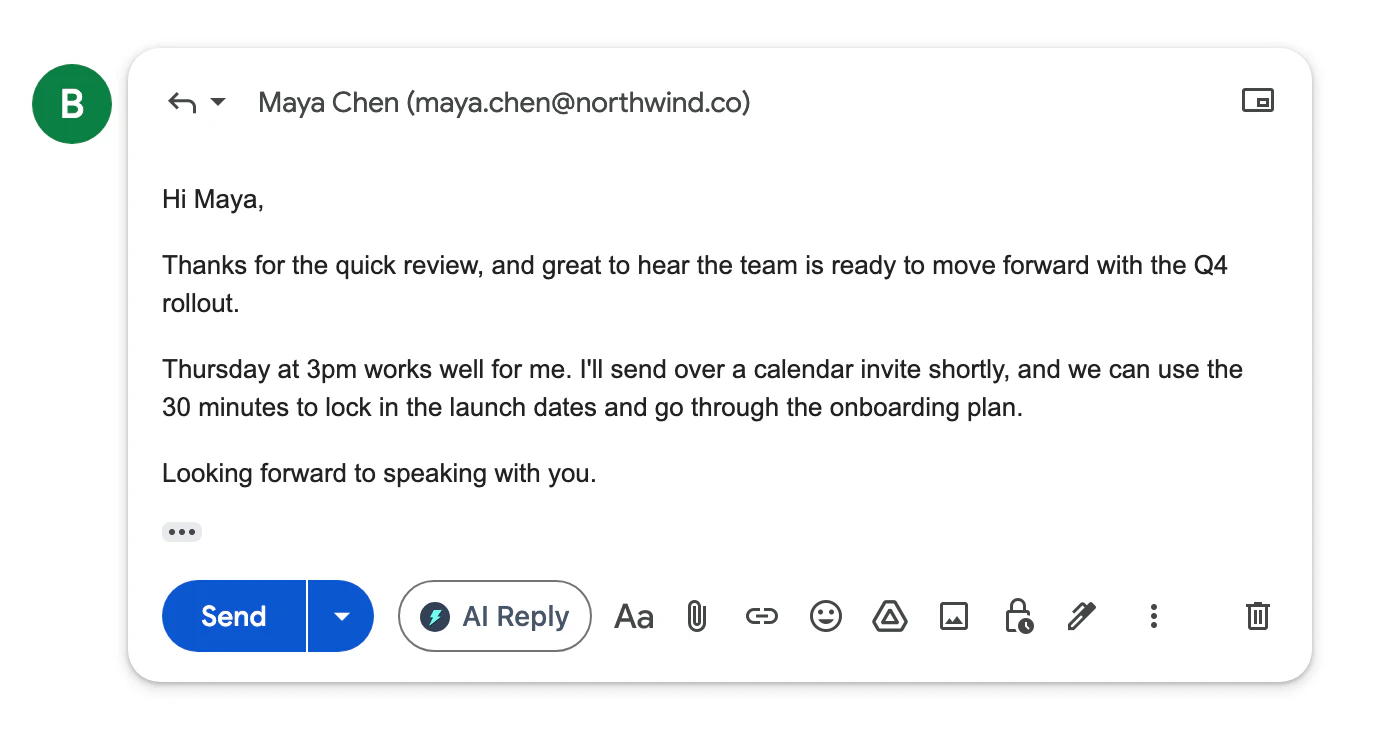
The reply waits in Gmail's reply box, so you can edit it and send it like any email.
- Send
- AI Reply
What AI Reply reads
AI Reply reads the email thread you clicked it in: the earlier messages, who they're from and to, and the subject, plus your name so it can sign the reply. It doesn't read the rest of your inbox. If you've connected Gmail in Jetwriter's settings, replies can also follow the way you write and the details you've given in past emails.
Write a new email instead
To write a new email rather than a reply, open a new message in Gmail and click AI Compose, next to Send in the message window's toolbar. Describe the email in a few words, then click Insert.
If the AI Reply button isn't there
Reload the Gmail tab first. That fixes it in most cases, especially right after you install or update Jetwriter. If it's still missing, see The AI Reply button isn't showing.