To write a new email with Jetwriter AI in Gmail, click Gmail's Compose, then AI Compose next to Send in the new message window. Describe the email in a few words, for example "Invite the team to our Lisbon offsite on March 12–13, RSVP by Friday", and Jetwriter writes a subject line and the whole email. Click Insert to put it in the message, check it, and send it yourself: Jetwriter never sends anything on its own.
You need the Jetwriter AI extension (formerly ChatGPT Writer) in Chrome, Edge, Brave, Opera or Vivaldi on a computer, and you need to be signed in to it. Each email uses one AI response from your plan; the Free plan includes 15 a month.
Write the email
- In Gmail, click Compose. The New Message window opens.
- If you know them, add the people in To and type a Subject. Jetwriter uses both, so the email fits.
- Click AI Compose (1), next to Send at the bottom of the window. The Jetwriter window opens.
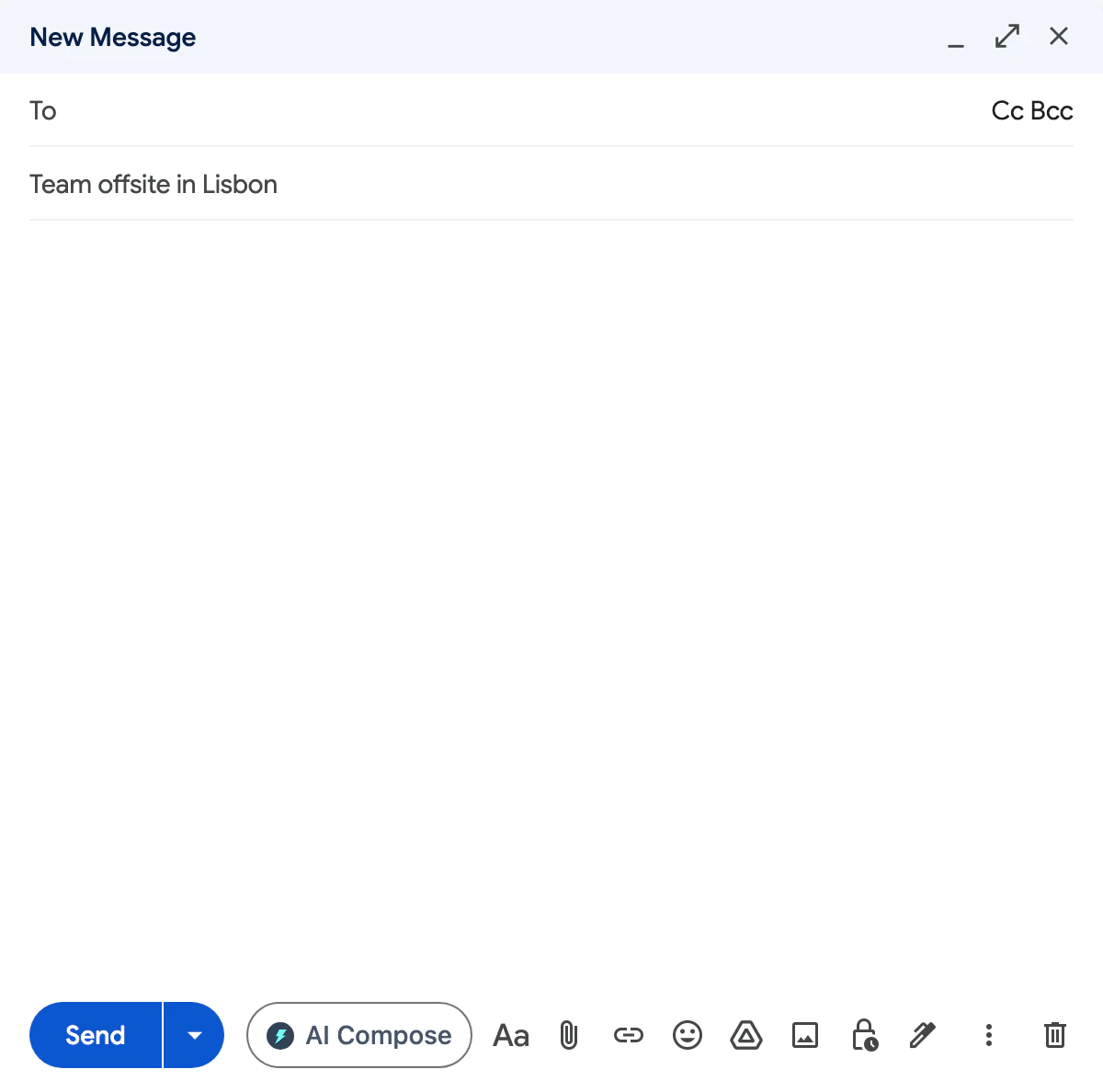
AI Compose sits next to Send in every new message you open in Gmail.
- AI Compose
- In the box that says "Tell AI what to write (e.g., 'Politely decline')", type what the email is for (1). If you typed a subject, it shows above the box as "Email subject: …".
- If you like, pick a Writing style, such as Professional or Friendly, and a Length: Short, Medium or Long (2).
- Press Enter, or click the send arrow (3). The email appears in a few seconds.
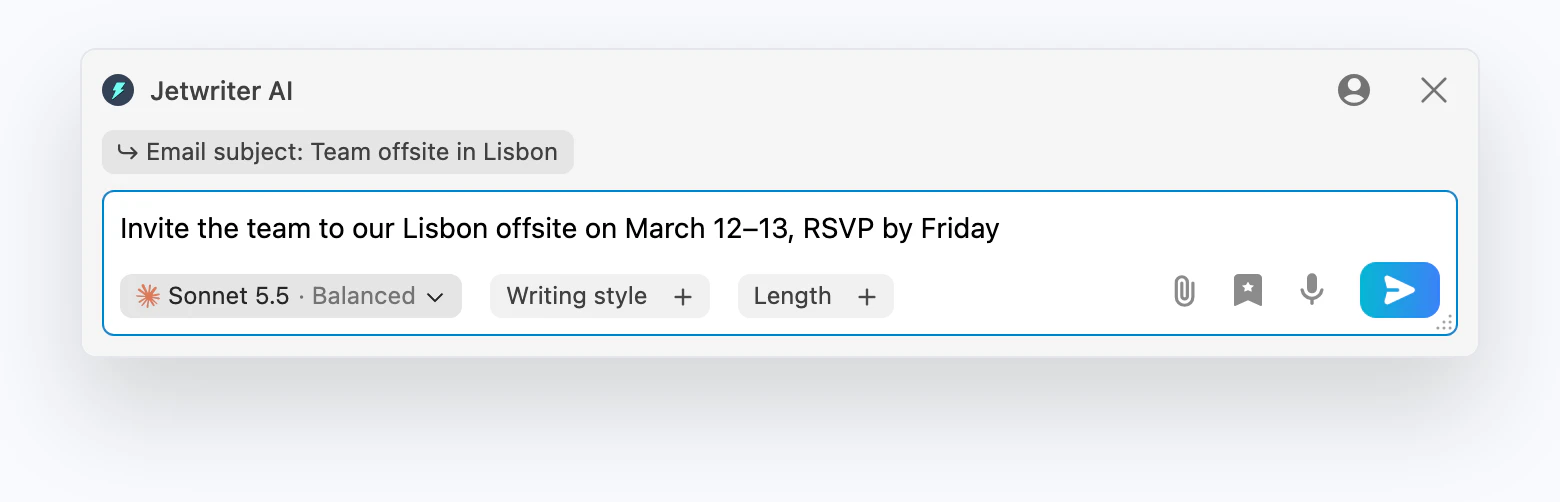
One line about what the email is for is enough. Jetwriter also uses the subject you typed in Gmail.
- What the email should say
- Writing style and Length
- Send
Put the email in Gmail and send it
- Read the email. It starts with a suggested subject line (1), then the email itself.
- To change it, type what to change in the box that says "Tell AI what to change (e.g., 'Shorter and more direct')" and send again.
- Click Insert (2). The email goes into Gmail's message and the Jetwriter window closes.
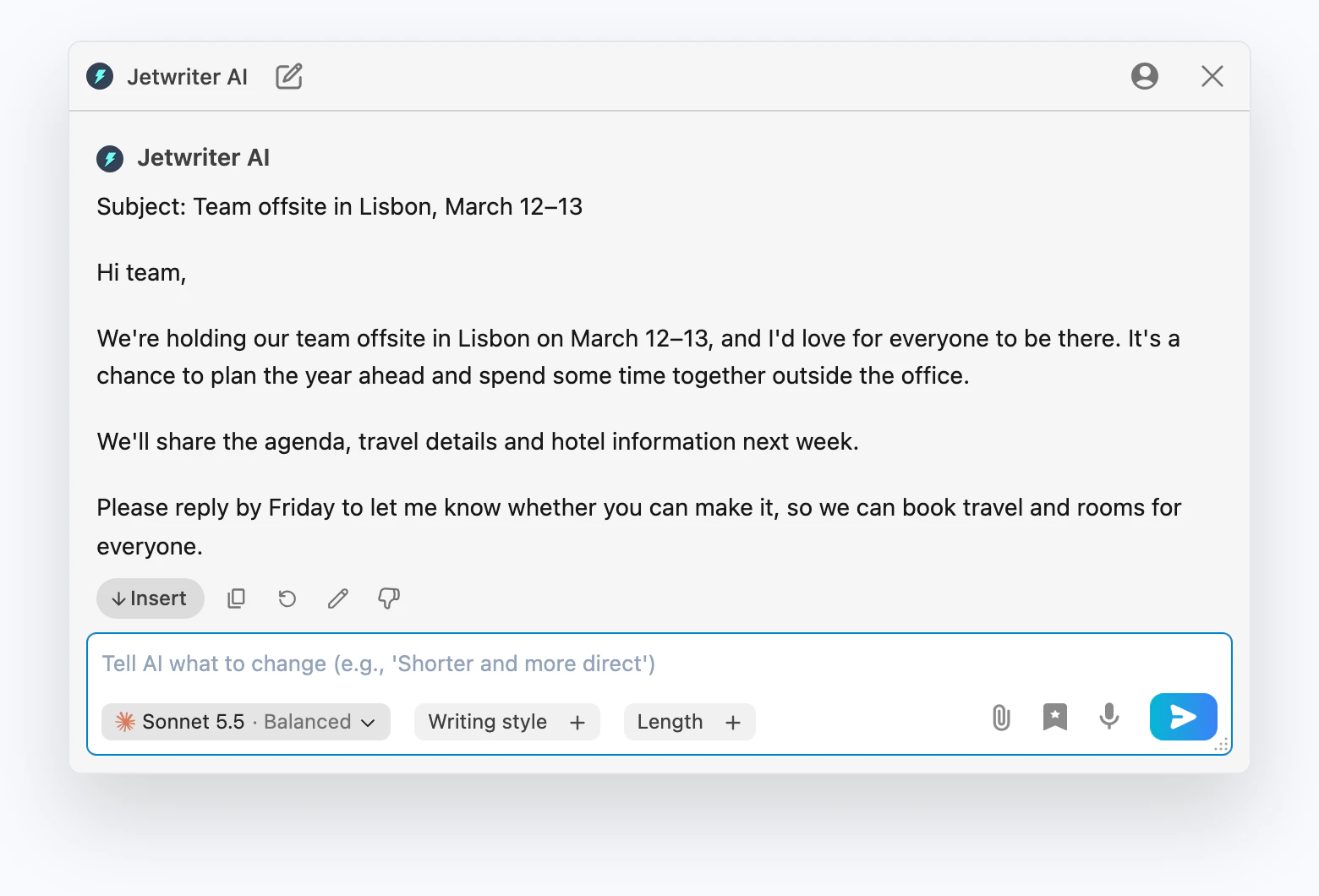
The email starts with a subject line. Insert puts all of it into the message, subject line included.
- Subject line
- Insert
- In Gmail, move the subject line: copy the text after "Subject:" into Gmail's Subject field, or keep the subject you typed, then delete that line from the message.
- Add your sign-off. Jetwriter ends the email without a closing such as "Best regards" or your name, so add your own, or let your Gmail signature end it.
- Check the people in To, edit anything you like, then click Gmail's Send.
What to type
Say who the email is for, what you want from them, and any facts it must get right. For example:
- "Ask Maya for the signed contract by Friday"
- "Remind a client that invoice 1042 is two weeks overdue, polite but firm"
- "Tell customers our office hours change to 9 to 5 from May 1"
Jetwriter writes the rest. Put dates, prices and names in your words, so it doesn't have to guess them. For more ways to get the email you want, see Get the reply you want.
What AI Compose uses
- What you type in the box, and the writing style and length you pick. Without a style, it writes in a professional tone unless your words call for another.
- The subject, if you typed one before clicking AI Compose.
- The people in To, and your name, so it can greet them and write as you.
- If you've connected Gmail, the way you write and details from your past emails: see Connect Gmail so replies use your past emails.
- What you've told it about yourself in Personalize AI: see Tell Jetwriter about you.
Without a Gmail connection, it reads nothing else in your inbox, not even an email you have open. To answer an email you received, open it and use AI Reply instead, which reads the whole conversation: see Reply to an email in Gmail with AI Reply.
If the AI Compose button isn't there
Reload the Gmail tab first, then open a new message again. That fixes it in most cases, especially right after you install or update Jetwriter. If it's still missing, see The AI Reply button isn't showing.