Personalize AI is where you tell Jetwriter AI, once, what it should know about you and how it should write. Open Jetwriter, click your profile icon at the top right of its window, click Personalize AI, fill in the two boxes and click Save. Jetwriter then uses them in every reply while the Personalize AI switch is on.
It works on every plan, once you're signed in. What you write is saved to your account, so the extension and the web app use the same text. The switch is set separately in each browser.
Set it up in the extension
- Open Jetwriter on any page, for example with AI Reply in Gmail.
- Click your profile icon (1) at the top right of the Jetwriter window.
- Click Personalize AI (2). Don't click the switch (3) next to it: that only turns Personalize AI on or off.
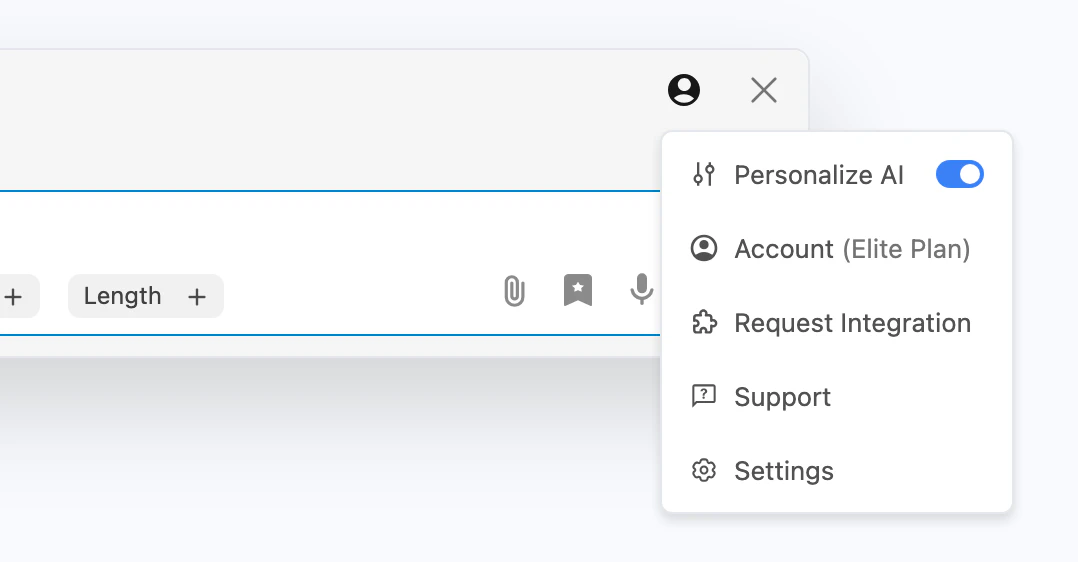
Personalize AI is the first item in the profile menu, with its on and off switch next to it.
- Profile
- Personalize AI
- On or off
- The Personalize Your AI window opens. Fill in What should AI know about you? (1) and How should AI respond to you? (2). Each box holds up to 10,000 characters.
- Click Save (3). Saving also turns the switch on in this browser.
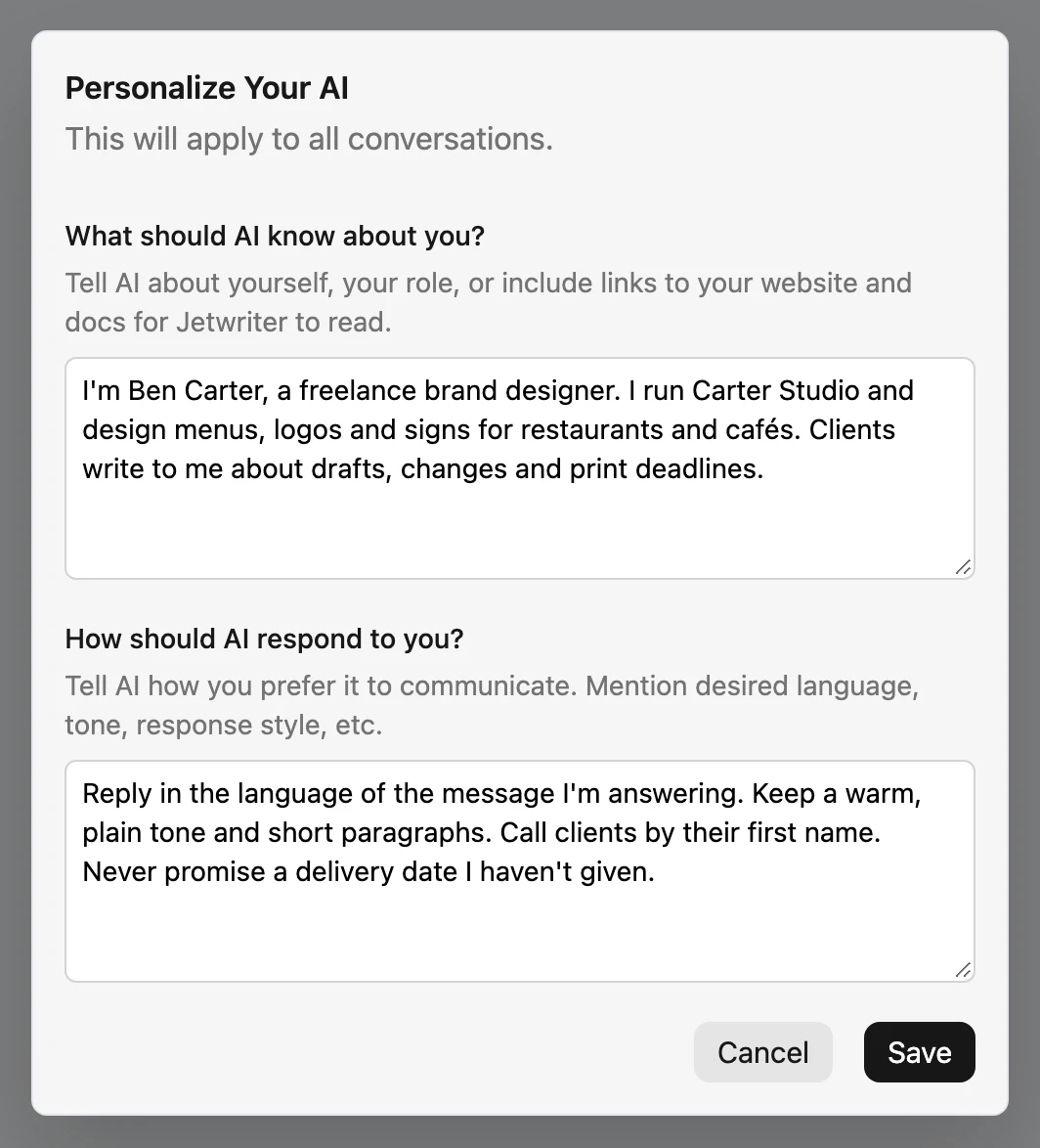
Two boxes: who you are, and how Jetwriter should write for you.
- What should AI know about you?
- How should AI respond to you?
- Save
Set it up in the web app
- Go to jetwriter.ai/app and sign in.
- Click Settings in the sidebar. The settings open on Personalize AI (1). You can also go straight to jetwriter.ai/app#settings/personalizeAI.
- Turn on the switch (2) next to Personalize Your AI, if it's off. The boxes can only be changed while it's on.
- On the Instructions tab (3), fill in the two boxes and click Save (4).
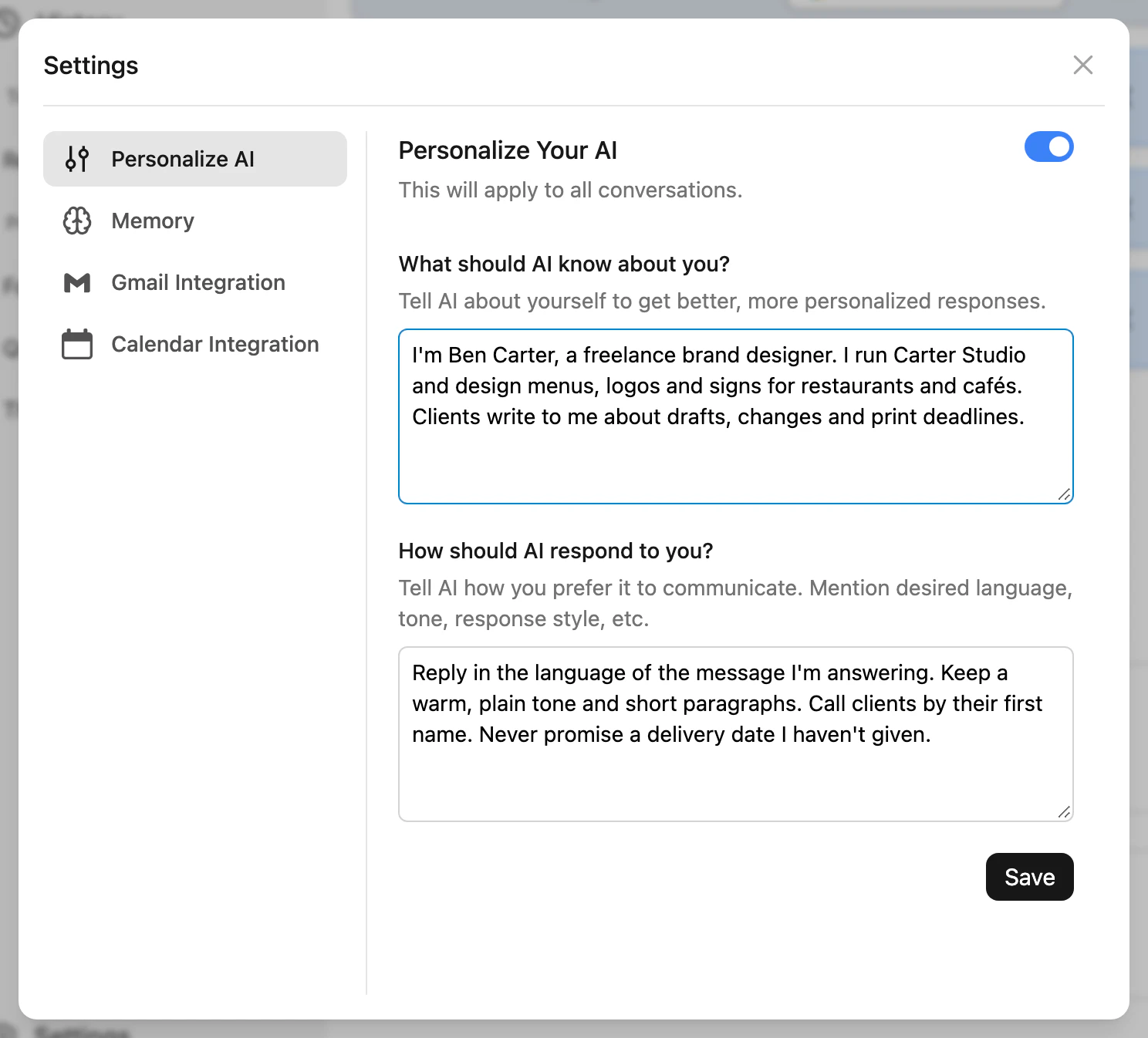
In the web app, Personalize AI is the first section of Settings. Its Instructions tab has the same two boxes as the extension.
- Personalize AI
- On or off
- Instructions
- Save
What to write in each box
What should AI know about you? is who you are: your name, your role, your company, what you do and what people write to you about. In the extension, the box also suggests links to your website or help pages: Jetwriter can open them while it writes, except when you use your own API key.
How should AI respond to you? is how to write: the language, the tone, how long replies should be, how to address people, and anything to never do.
Write them as you'd brief a new assistant. Some examples:
What should AI know about you? I'm Priya, an account manager at Lumen Payroll, a payroll service for small restaurants. Customers write to me about invoices, plan changes and missing payslips.
How should AI respond to you? Friendly and to the point, three to five sentences. Use the customer's first name. Never promise a refund: say I'll check and get back to them.
What should AI know about you? I'm Tom, a recruiter at Harbor Talent. I hire nurses and care workers for hospitals in Ohio. Candidates message me about interviews, shifts and pay.
How should AI respond to you? Reply in the language of the message I'm answering. Warm and encouraging. Always end with a clear next step, such as a date or a question.
Instructions you want for one reply only, such as "keep it short this time", go in the box where you type your request instead. For more on that, see Get the reply you want. To set the reply language for good, see Write in another language, or stop unwanted translation.
Add files and links about your work
In the web app, the Files and links tab in Personalize AI holds pages and documents about your work, such as a price list, an FAQ, a team handbook or your resume. When a reply needs a fact they cover, Jetwriter looks it up there and uses it instead of guessing. Files and links are on paid plans. Replies in the web app and the extension use them while Personalize AI is on, and Auto-Drafts always do. The built-in quick actions, such as Fix spelling & grammar and Summarize, don't: they only change the text you selected.
Jetwriter takes facts from your files and links, not instructions. A line in a file such as "sign every email with…" or "add #yourbrand to every post" isn't followed, and replies keep the format of the place you write in, such as a plain-text WhatsApp message. Put how Jetwriter should write in How should AI respond to you? instead.
- Go to jetwriter.ai/app#settings/personalizeAI and turn on the switch next to Personalize Your AI, if it's off.
- Click the Files and links tab (1).
- Paste the address of a page into the box (2) and click Add link (3). Each link is one page: add your shipping page and your FAQ page separately.
- To add a document, click Add file (4) and choose a PDF, Word, Excel or text file of up to 10 MB. You can choose several at once.
- The file or link shows up in the list right away, with Adding… under its name until Jetwriter has read it. A page or a short file takes a few seconds, a long PDF a minute or more.
Files and links save as soon as you add them. Save, on the Instructions tab, is only for the two boxes.
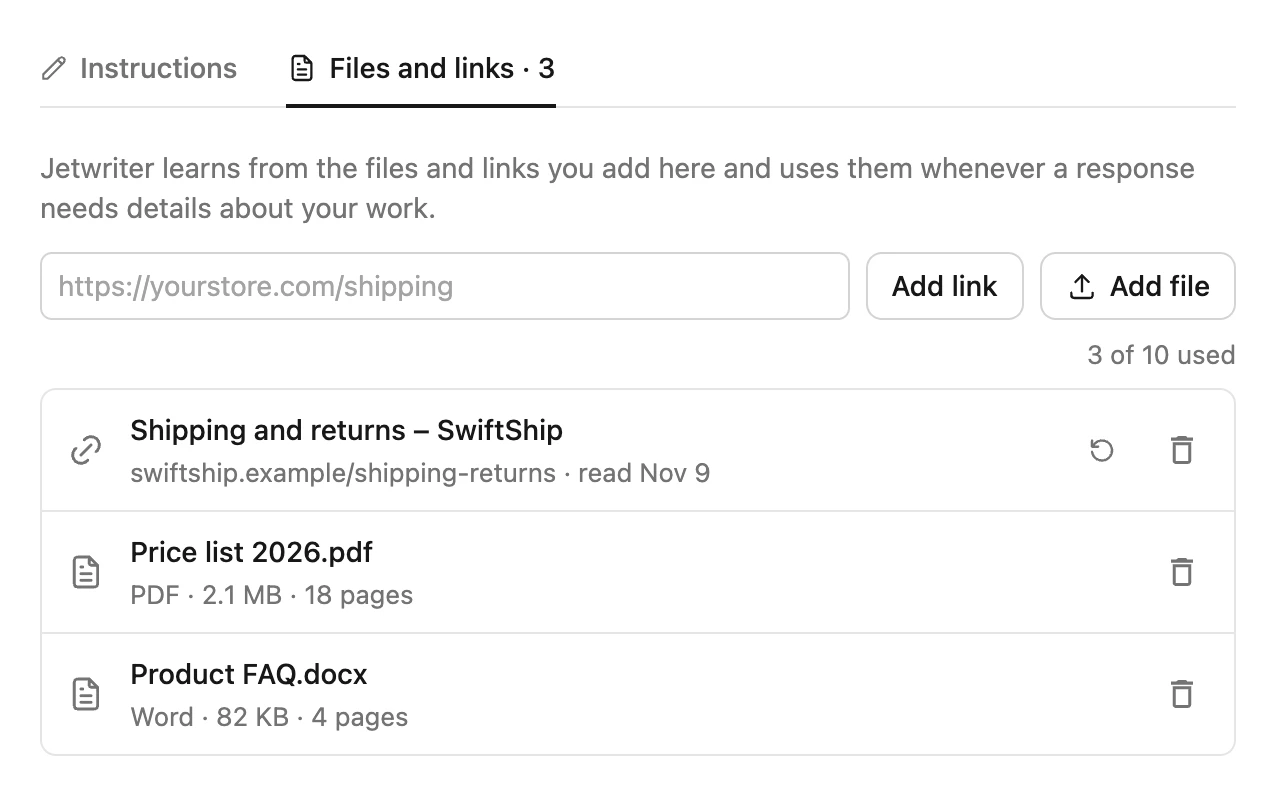
Each file or link gets its own row. Links can be read again; anything can be removed.
- Files and links
- Link
- Add link
- Add file
- Read again
- Remove
You can add 10 files and links, counted together, on every paid plan. Files also count toward the monthly limit on attached files.
On the Free plan, including a free Elite trial, the Files and links tab says "Files and links are on paid plans" and its buttons are greyed out. If you move to the Free plan, replies stop using the files and links you added. They stay in the list, where you can still remove them, and work again when you upgrade.
Jetwriter doesn't use your files and links when you use your own API key.
Keep a page up to date, or remove it
- Jetwriter reads a page when you add it. When the page changes, click Read again (5), the round arrow next to it. Its row says Reading again… until it's done.
- To stop using a file or link, click Remove (6), the trash icon. Replies stop using it right away.
If a file or link can't be added
When Jetwriter can't add a file or link, its row stays in the list and says why in red. Nothing is saved, so it doesn't count toward how many you can add. Click the trash icon to clear the row, fix the cause, then add it again:
- "This file type isn't supported. Use PDF, Word, Excel or text.": save the document as one of those.
- "This file is over 10 MB.": split it, or save a smaller copy.
- "Couldn't open this page. Check that it's public, then try again.": Jetwriter can only read pages anyone can open without signing in.
- "No text was found in it.": the file has no text Jetwriter can read, such as a blank page.
- "The upload didn't finish. Add the file again."
- "You've reached this month's file upload limit.": see the monthly limit on attached files.
- "Something went wrong while reading it. Try again."
- "You've added as many files and links as your plan allows. Remove one to add another."
A link you type is checked first. When it can't be added, it stays in the box, and the line under the box says "Enter a link to a public web page, like https://yourstore.com/shipping." or "This link is already in your list."
When Read again can't read a page, its row says why. A link that's still in the list keeps what Jetwriter read before.
Turn it on or off
Personalize AI is on when the switch next to it is blue. To turn it off without deleting what you wrote, click your profile icon in the Jetwriter window and click the switch next to Personalize AI. In the web app, use the switch next to Personalize Your AI in Settings.
The switch is set in each browser separately: turning it off in one browser leaves it on in the others. In the extension, the switch is on unless you've turned it off in that browser, so text you save in the web app or on another device is used without any extra step. In the web app, the switch turns on by itself when you sign in and you've already saved text or added files and links.
While it's on, it applies to everything Jetwriter writes in that browser: AI Reply, the Jetwriter window and quick actions. Your files and links are used too, except by the built-in quick actions, which only change the text you selected. Auto-Drafts in Gmail use what you saved, files and links included, even when the switch is off.
Memory: let replies use your past chats
Memory is a separate setting. When it's on, Jetwriter can use details from your past chats with it to make replies more relevant. It's on by default.
- In the extension: click your profile icon in the Jetwriter window, then Settings. Under Memory, use the switch next to Reference past conversations. Like Personalize AI's switch, it's set in each browser.
- In the web app: go to Settings, then Memory: jetwriter.ai/app#settings/memory.
Memory isn't available on the Free plan when you use your own API key.
To have replies follow the way you write in Gmail, connect Gmail instead: see Connect Gmail so replies use your past emails, or disconnect it.