Connect Gmail so Jetwriter AI's replies and new emails in Gmail follow the way you write and can use details from your past emails. In the Jetwriter window, click your profile icon, then Settings, and click Connect under Gmail Personalization. It's free on every plan, and each reply uses one AI response from your plan as usual. The access is read-only: Jetwriter can read your emails but can't send, delete or change them. You can disconnect at any time from the same place.
What connecting Gmail does
- Replies sound like you. Jetwriter learns how you write from your past emails, and can use details from them when they help a reply.
- It's used in Gmail only: with AI Reply, with AI Compose, and in Auto-Drafts if you turn them on. It isn't used on other sites, such as Outlook or WhatsApp Web, or in the web app's chat.
- It's read-only. Jetwriter can't send, delete or change your emails.
- Your emails are never used to train AI models.
- Without it, AI Reply still works. It reads the conversation you reply to, just not your other emails.
Connect Gmail from the extension
This works on every plan, including Free.
- Open the Jetwriter window, for example by clicking AI Reply under an email in Gmail.
- Click your profile icon at the top right of the window, then Settings.
- Under Gmail Personalization, click Connect (1). A window titled "Learn from Your Past Emails" opens.
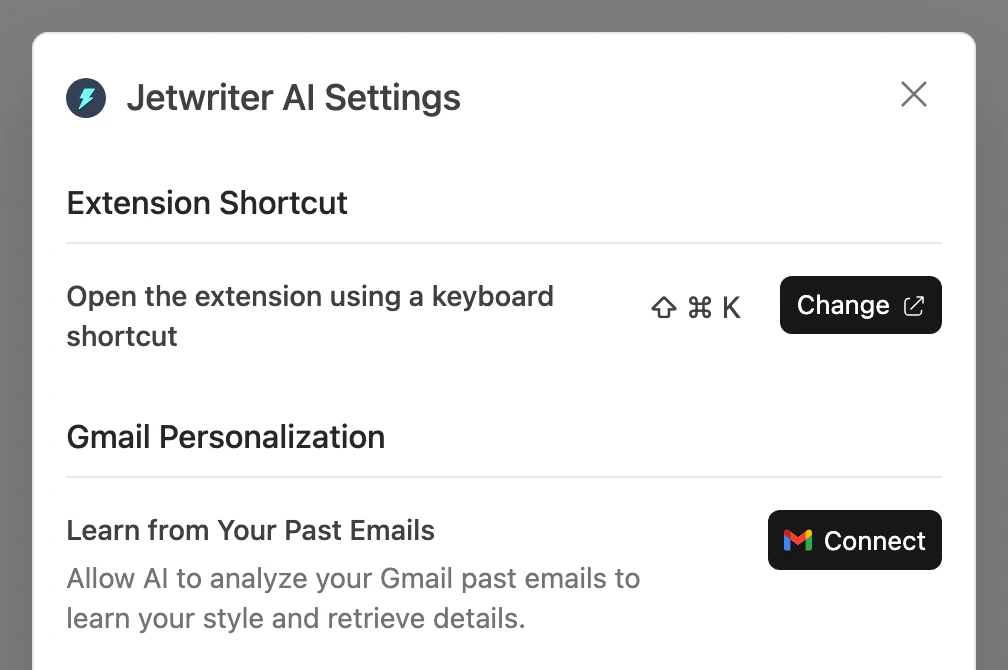
Connect, under Gmail Personalization in the extension's settings, works on every plan, Free included.
- Connect
- Click Connect Gmail. Google opens in a new tab.
- Choose the Google account of the Gmail you write from, and allow the access Google asks for. Finish within 3 minutes: after that the tab closes and you need to start again.
- The Google tab closes by itself. Gmail Personalization now shows your Gmail address and a Disconnect button.
In Gmail, the Jetwriter window can also show "Let AI reference past emails to learn your style and details." with a Connect Gmail link. It opens the same window as step 3.
Connect Gmail from the web app
This works on the Elite, Ultra and Pro plans. On Free, connect from the extension instead: the web app's Gmail Integration settings are for paid plans.
- Go to jetwriter.ai/app and sign in.
- Click Settings at the bottom of the sidebar, then Gmail Integration. While signed in, you can also open jetwriter.ai/app#settings/gmailIntegration directly.
- Next to Personalization, click Enable (1). Google opens in the same tab.
- Choose the Google account of the Gmail you write from, and allow the access Google asks for.
- You're back in Gmail Integration. It shows your Gmail address marked Connected, and Personalization marked Enabled.
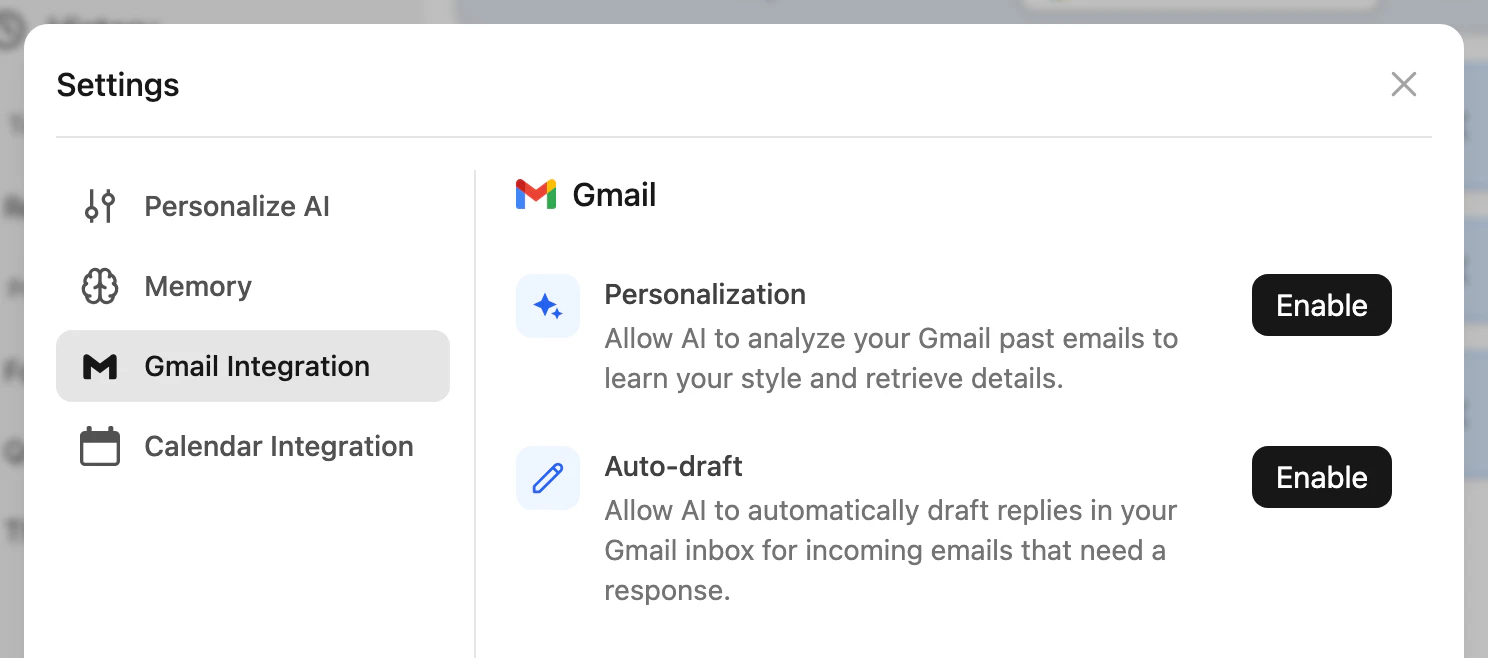
On a paid plan, Enable next to Personalization connects Gmail from the web app.
- Enable
What Google asks for
Google first asks which account to use. Pick the Gmail account you write from: it doesn't have to be the one you sign in to Jetwriter with.
Then Google asks you to let Jetwriter AI "View your email messages and settings". This is read-only access, and the only permission Jetwriter needs for personalized replies. If you don't allow it, nothing is connected.
Auto-Drafts, on paid plans, asks for one more permission, so it can save drafts in your Gmail: see Set up Auto-Drafts.
Disconnect Gmail
Disconnecting stops Jetwriter from using your Gmail: replies stop using your past emails, and Auto-Drafts stop. It happens right away, with no confirmation. There's no separate switch for personalization: disconnecting is how you turn it off.
From the extension, on every plan:
- In the Jetwriter window, click your profile icon at the top right, then Settings.
- Under Gmail Personalization, click Disconnect.
From the web app, on Elite, Ultra and Pro:
- Go to jetwriter.ai/app, click Settings at the bottom of the sidebar, then Gmail Integration.
- Click Disconnect Gmail (1), in red at the bottom of the pane.
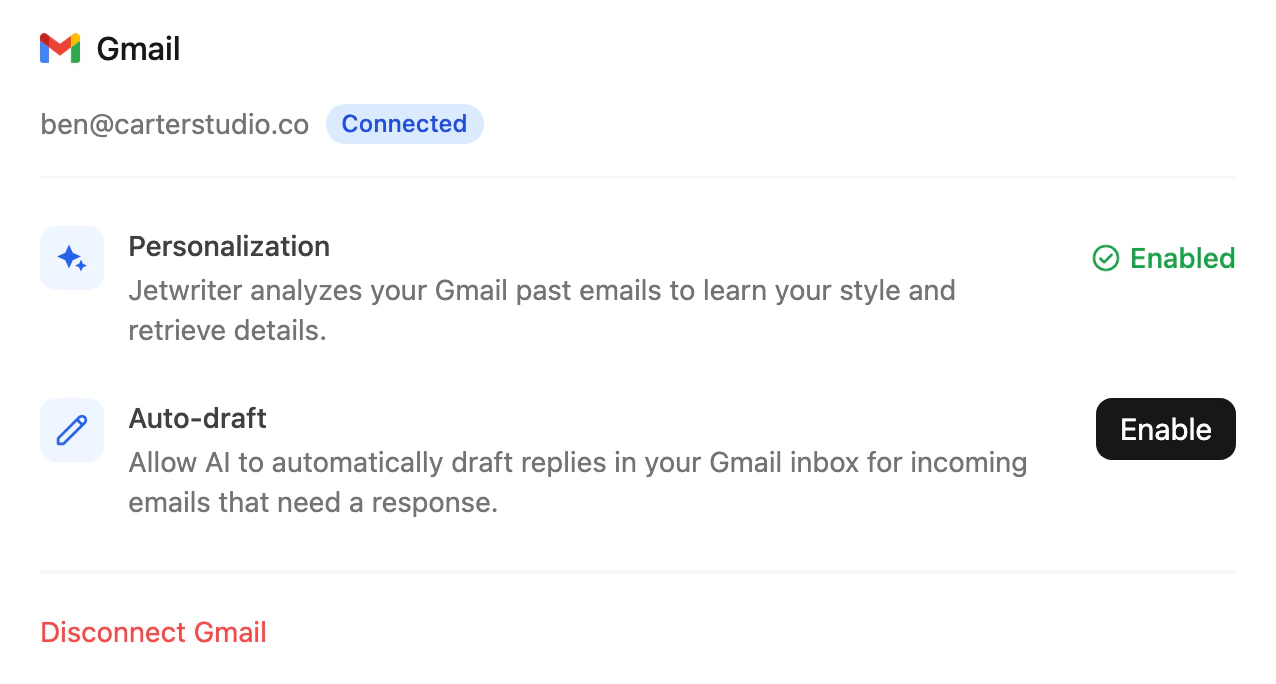
Disconnect Gmail, at the bottom of Gmail Integration, turns off personalization and Auto-Drafts together.
- Disconnect Gmail
To connect a different Gmail account, disconnect first, then connect again and choose the other account.
Remove Jetwriter's access in your Google Account
Disconnecting in Jetwriter stops it from using your Gmail. To also take the access away on Google's side:
- Go to myaccount.google.com/permissions, signed in to the Google account you connected.
- Choose Jetwriter AI in the list of apps. It may still show its former name, ChatGPT Writer.
- Remove its access.
Removing it there also stops Jetwriter from reaching your Gmail, so personalized replies and Auto-Drafts stop too.
If connecting doesn't work
From the extension, if the Google tab closes and the "Learn from Your Past Emails" window still shows Connect Gmail, nothing was connected. That happens when you cancel on Google's screen, don't allow the access, or take more than 3 minutes. Click Connect Gmail and try again.
From the web app, Google sends you back to a Jetwriter page that says what happened:
- "Connection cancelled": you stopped on Google's screen, and nothing was connected. Start again from the extension or the web app.
- "Permission needed": you didn't allow access when Google asked. Connect again and allow it.
- "Use your connected account": you chose a different Google account from the Gmail you'd already connected. Continue with that account, or disconnect first to switch.
- "Connection failed": try again.
If it keeps failing, email support@jetwriter.ai with the Gmail address you're connecting, your plan, and whether you started from the extension or the web app.