Reload the page: press F5, or Cmd+R on a Mac. That brings the AI Reply button back in most cases, especially right after you install or update Jetwriter AI. If it's still missing, go through the checks below in order.
You can use Jetwriter without the button while you look: click the Jetwriter icon in your browser's toolbar, or press Ctrl+Shift+K (Cmd+Shift+K on a Mac).
Where the button should be
| Site | Where AI Reply appears |
|---|---|
| Gmail | Under an open email, next to Reply and Forward; and in the reply box's toolbar, next to Send, once you click into the box. A new email shows AI Compose instead. |
| Outlook on the web | In the reading pane and in the reply box's toolbar, on outlook.live.com, outlook.office.com, outlook.office365.com and outlook.cloud.microsoft. |
| WhatsApp Web | In the message bar of an open chat. |
| In the messaging toolbar (AI Compose in a new message), and under a post's comment box. | |
| Slack, X, Zoho Mail, Zendesk, Freshdesk | In the reply or message box of each, in the browser. |
In Gmail it looks like this:
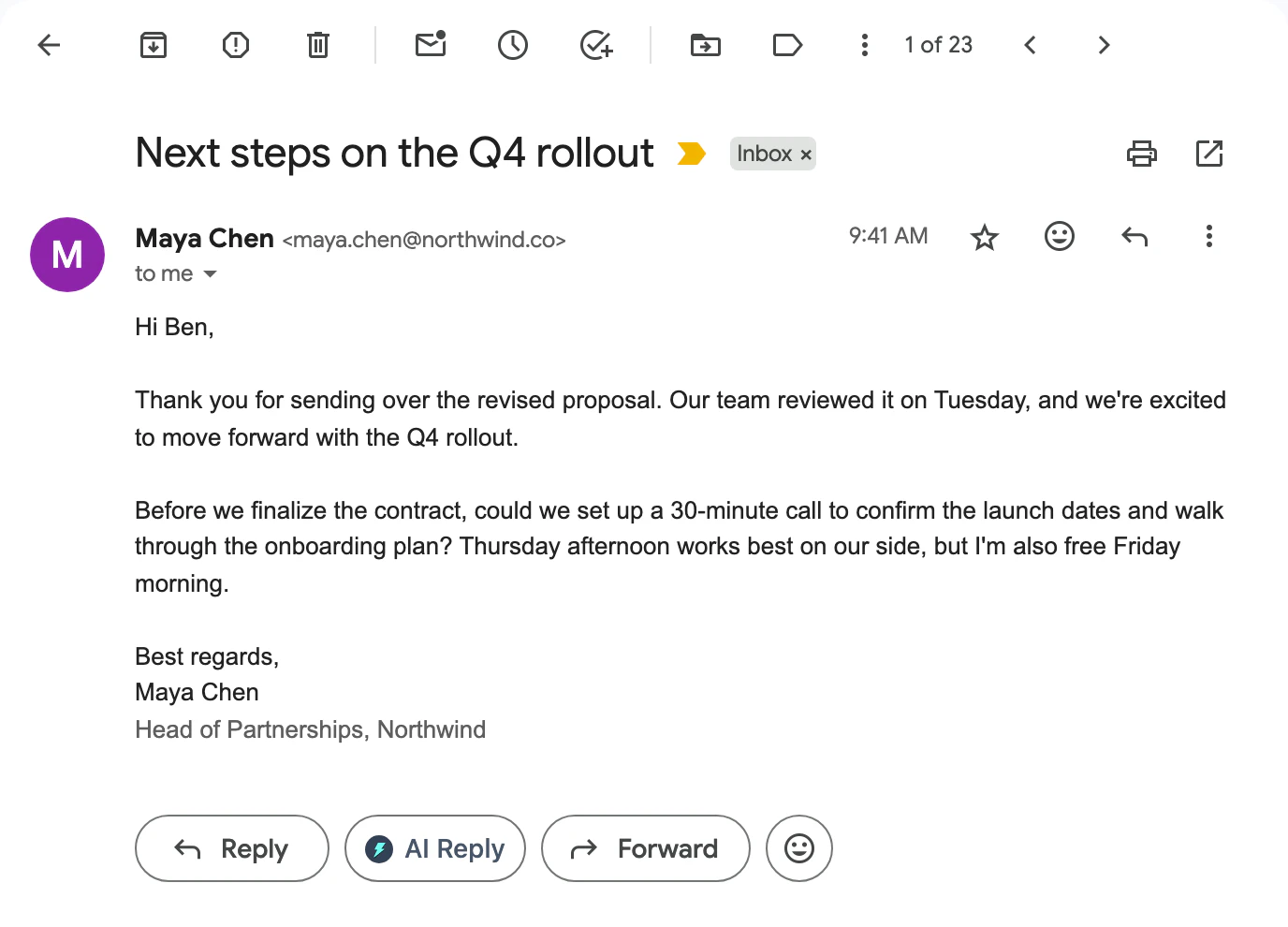
In an open email, AI Reply sits next to Gmail's Reply and Forward buttons.
- AI Reply under an open email
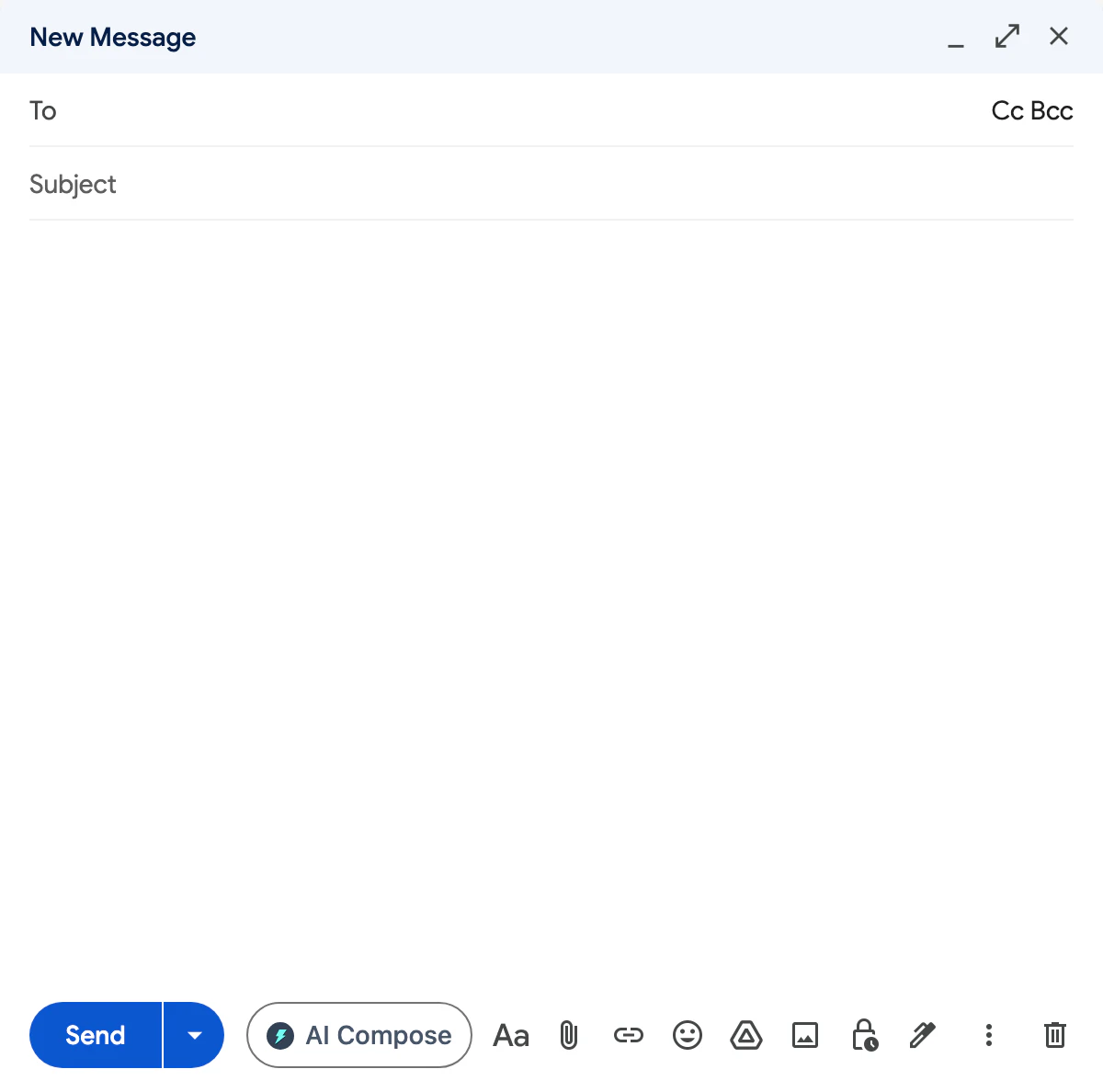
In a new email, the button is called AI Compose and sits next to Send.
- AI Compose in a new email
Reload the page after installing or updating
When you install or update Jetwriter, it starts itself in the tabs that are open, but a tab that was asleep or still loading can miss it, or keep the old version. Reload each tab you use, such as Gmail and WhatsApp Web. If the toolbar icon shows "Could not load the extension. Please reload the page and try again.", it's the same cause.
In Gmail, click into the reply box
The AI Reply button inside the reply box only appears after you click into the box. The one under the email shows as soon as you open the email. If neither appears, reload the tab.
Use the website in a browser on a computer
The button only appears in the website versions of these apps, in Chrome, Edge, Brave, Opera or Vivaldi on a computer. It doesn't appear in:
- desktop apps, such as Outlook for Windows or Mac, and the WhatsApp and Slack apps;
- phones and tablets, where the extension can't run;
- Firefox and Safari, which Jetwriter doesn't support.
On a phone, use the web app at jetwriter.ai/app instead.
Check that the site is supported
Only the sites in the table above have an AI Reply button. On any other site, select text and use the toolbar that appears, or press Ctrl+Shift+K (Cmd+Shift+K on a Mac) to open Jetwriter there.
To ask for a site, open Jetwriter, click your profile icon at the top of its window, choose Request Integration, and enter the site.
Make sure the extension is on and up to date
- Open your browser's extensions page: type
chrome://extensionsin the address bar (edge://extensionsin Edge,brave://extensionsin Brave) and press Enter. - Find Jetwriter AI and check its switch is on.
- To update it now, turn on Developer mode at the top right of the page, click Update, then turn Developer mode off again.
- Click Details under Jetwriter AI and check that Site access is set to On all sites. With less access, the button can't appear on the sites you use.
- Reload the tabs you use Jetwriter in.
Browsers also update extensions on their own within a few hours. When a site changes its page, the button can stop appearing until we release an update; updating as above gets the fix as soon as it's out.
Still not showing?
Email support@jetwriter.ai with:
- the site, and whether you were replying or writing a new message;
- your browser, and the version of Jetwriter AI from the extensions page (it shows next to the name while Developer mode is on);
- a screenshot of the page where the button is missing.
With these, the first reply can usually fix it.