To fix, rewrite or translate text with Jetwriter AI, select the text on any page and point at the small blue dot that appears next to the pointer. The Quick Actions toolbar opens: click Fix spelling & grammar, Translate, Summarize or another action. Jetwriter shows the result in its window. Click Replace to put it in place of the text you selected, or copy it.
You need the Jetwriter AI extension (formerly ChatGPT Writer) on a computer, and you need to be signed in. If you signed up with an email and password on the Free plan, verify your email first. Each result uses one AI response from your plan; the Free plan includes 15 a month.
Use a quick action
- Select at least 3 characters of text with the mouse, on any website. You can also click in a text box and press Ctrl+A (Cmd+A on a Mac) to select everything in it.
- A small blue dot appears next to the pointer. Point at it within 2 seconds, before it goes away. The Quick Actions toolbar opens.
- Point at an icon to see its name, then click the action you want (2). The Jetwriter window opens and writes the result.
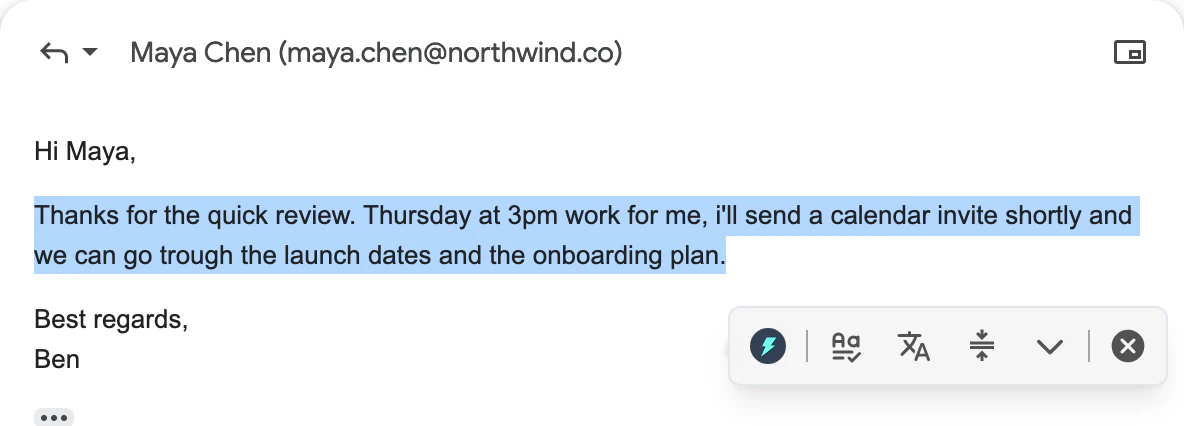
Select text and point at the blue dot: the toolbar shows your pinned actions, More actions and Close.
- Ask AI
- Pinned actions
- More actions
- Close
- Read the result. If the text you selected was in a box you can type in, such as an email or a message, click Replace under the result: Jetwriter puts it in place of your selection and closes. For text you can't edit, such as an article, click the copy button (two squares) to copy it.
To change the result, type what to change in the box at the bottom of the Jetwriter window, which says "Ask AI about the selected text", and press Enter.
What each action does
The toolbar starts with three actions pinned: Fix spelling & grammar, Translate and Summarize. The others are under More actions, the down arrow on the toolbar.
| Action | What it does with the selected text |
|---|---|
| Fix spelling & grammar | Corrects spelling and grammar mistakes, and changes nothing else. |
| Translate | Translates it into the language shown next to Translate in More actions. |
| Summarize | Gives a short title and a bulleted list of the main points, in plain words. |
| Explain | Explains it in simple, everyday words. |
| Improve Writing | Rewrites it to be clearer and easier to read. |
| Make Longer | Adds detail to make it longer. |
These built-in actions use a fast AI model, whichever model you picked in the Jetwriter window. Your own actions use the model you picked, and so do the built-in ones if you use your own API key.
Translate into another language
Translate starts with your browser's language. To change it:
- Select text, point at the blue dot, then point at More actions (1), the down arrow.
- Point at the language next to Translate (3) and pick another. Jetwriter remembers it in this browser.
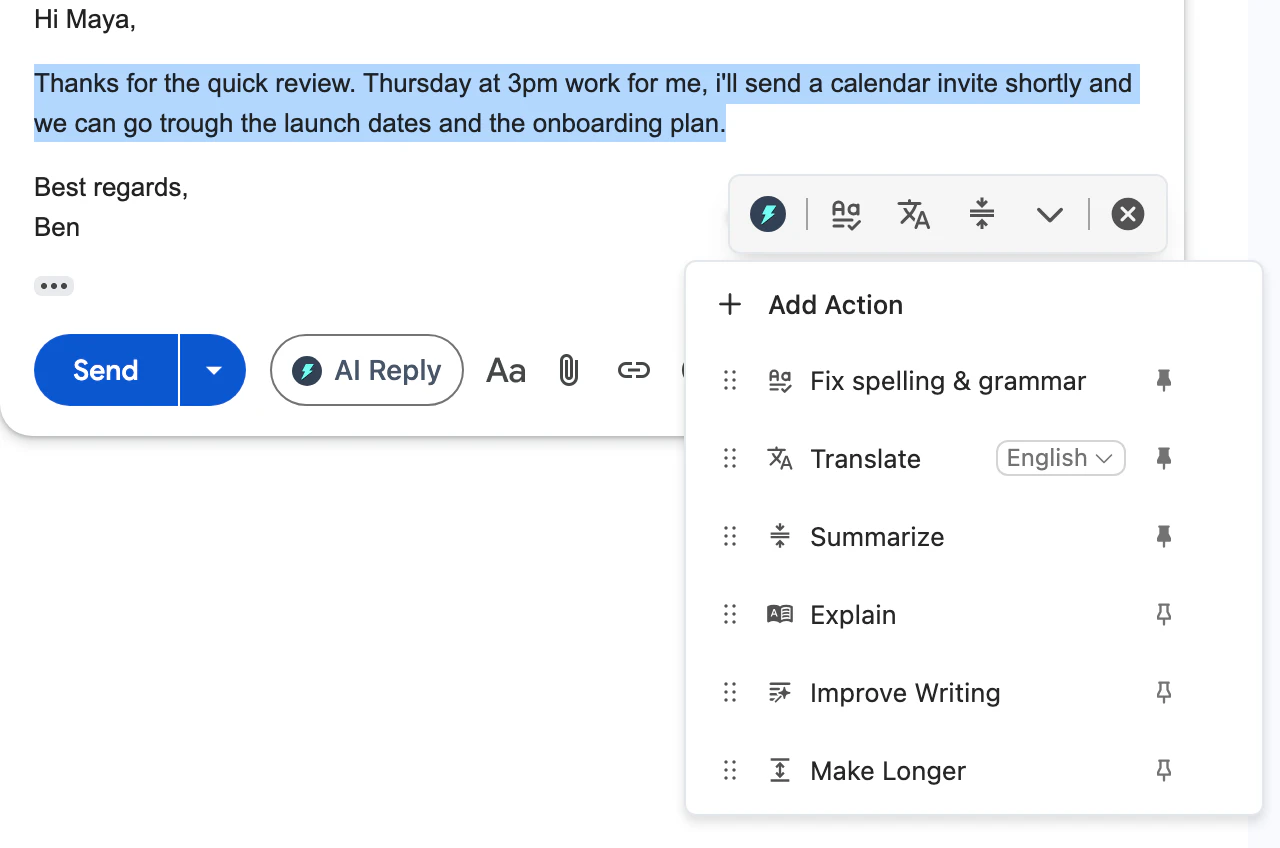
More actions lists every action. Pin one to put it on the toolbar, or add your own.
- More actions
- Add Action
- Translation language
- Pin
The list has Arabic, Chinese Simplified, Chinese Traditional, Dutch, English, French, German, Hebrew, Hindi, Indonesian, Italian, Japanese, Korean, Malay, Polish, Portuguese, Russian, Spanish, Thai, Turkish, Urdu and Vietnamese. For another language, or to write a reply in another language, see Write in another language, or stop unwanted translation.
Pin, unpin and reorder actions
Open More actions, the down arrow on the toolbar. Click the pin at the right of an action to put it on the toolbar, or click it again to take it off. Drag an action by the dots at its left to change its place. Your actions, pins and order are saved to your account, so they're the same in every browser where you sign in.
Add your own action
- Select text, point at the blue dot, then point at More actions.
- Click Add Action, at the top of the list.
- In Add Quick Action, enter a Name, such as "Rewrite for Clarity", and the Prompt: what Jetwriter should do with the selected text, such as "Rewrite this so it's clearer and more concise."
- Click Submit. The action appears at the end of More actions. Pin it to put it on the toolbar.
You can have up to 20 actions of your own. To change or delete one, click the three dots next to it in More actions and choose Edit or Delete. The built-in actions can be pinned and moved, but not edited or deleted.
Ask anything about the selected text
To do something no action covers, click Ask AI, the Jetwriter logo at the left of the toolbar. The Jetwriter window opens with your selection attached. Type what you want, such as "Make this sound friendlier" or "Turn this into three bullet points", and press Enter. If the text was in a box you can type in, Replace puts the result in its place.
You can also right-click the selected text and choose Jetwriter AI. The window opens with the text attached; type what to do with it. A result opened this way can be copied, but has no Replace button.
Hide the toolbar
To close the toolbar, click the X at its right end: it stays hidden on that page until you reload it. To turn it off on a site or everywhere, see Hide the Jetwriter popup on a site, or everywhere.