When you select text on a page, Jetwriter AI shows a small blue dot that opens its Quick Actions toolbar. To stop it, point at the X at the right end of the toolbar and choose Disable on this site or Disable on all sites. You can turn it back on, or make it appear only while you hold a key, in Jetwriter's settings.
What the popup is
When you select at least 3 characters of text with the mouse, or press Ctrl+A (Cmd+A on a Mac), a blue dot appears next to the pointer. It goes away after 2 seconds unless you point at it. Pointing at it opens the Quick Actions toolbar: Ask AI, actions such as Fix spelling & grammar, Translate and Summarize, and an X at the end.
To use the toolbar instead of hiding it, see Fix, rewrite or translate selected text.
Hide it on one site, or on every site
- Select some text on the site, then point at the blue dot that appears. The toolbar opens.
- Point at the X (1) at the right end of the toolbar. A menu opens under it.
- Choose one of the options (2):
- Hide until next visit hides it in this tab until you reload the page. Clicking the X does the same.
- Disable on this site stops it on this site's address, such as mail.google.com, until you turn it back on. Other addresses keep it, even those of the same company.
- Disable on all sites stops it everywhere. Jetwriter asks "Hide AI Quick Actions on all websites?": click Disable Everywhere.
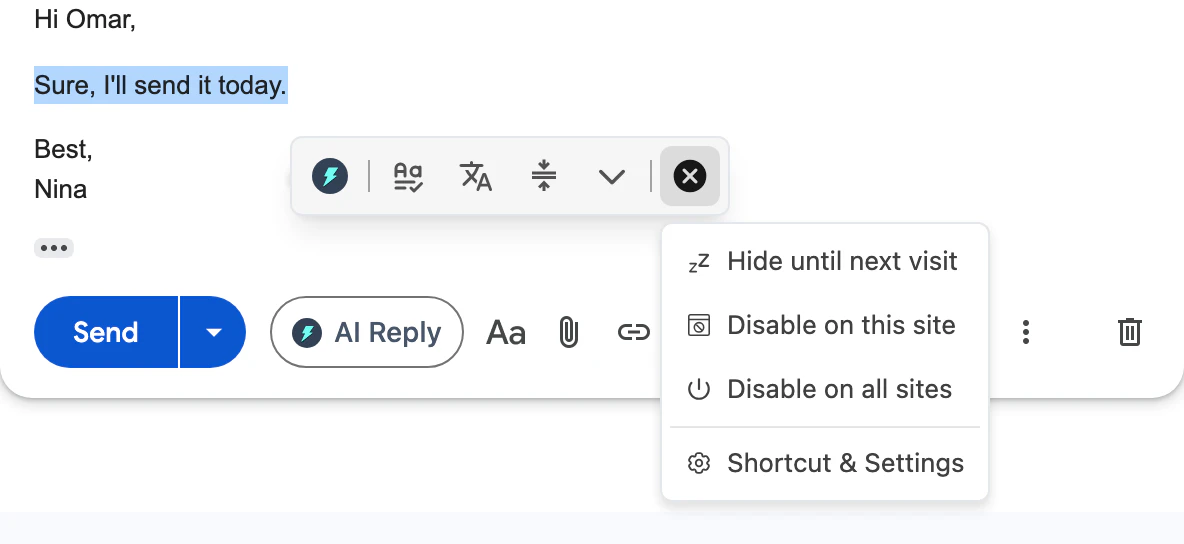
Point at the X at the end of the toolbar to choose where it stops showing.
- X (Close)
- Hide options
Show it only while you hold a key
If the toolbar gets in your way but you still use it, make it appear only when you hold a key as you select text.
- Open Jetwriter: click the Jetwriter icon in your browser's toolbar, or press Ctrl+Shift+K (Cmd+Shift+K on a Mac).
- Click your profile icon at the top right of the Jetwriter window, and choose Settings. You can also point at the toolbar's X and choose Shortcut & Settings.
- In Jetwriter AI Settings, under Show toolbar when selecting text, choose Only when holding a key while selecting.
- Next to Hold Key, pick the key. It starts as ⌘ Command on a Mac and Ctrl on Windows; the others are Option, Control and Shift on a Mac, and Alt, Win and Shift on Windows.
From then on, the blue dot appears only if you hold that key while you select text with the mouse.
Turn the toolbar back on
- Open Jetwriter: click the Jetwriter icon in your browser's toolbar, or press Ctrl+Shift+K (Cmd+Shift+K on a Mac).
- Click your profile icon at the top right of the Jetwriter window, and choose Settings. The profile icon shows only while you're signed in.
- Under Quick Actions Toolbar, do one of these:
- Turned off on all sites: turn on the switch next to Show Quick Actions Toolbar on Text Selection. The toolbar comes back on every site, including sites you had turned it off on one by one, and shows whenever you select text (Always).
- Turned off on one site: under Disabled Sites, click the bin icon next to the site.
After Hide until next visit, there's nothing to change: reload the page and the toolbar is back.
These settings stay in one browser
Jetwriter saves these choices in the browser where you make them. On another computer, or another browser on the same computer, the toolbar shows until you hide it there too.
Other things Jetwriter shows on pages
- "Pin for Quick Access": when you open Jetwriter with the keyboard shortcut or from the browser's extensions menu, and its icon isn't pinned to the toolbar, a dark tip shows how to pin it. It closes after 10 seconds, or click its X. It stops once you pin the icon, and after it has shown 10 times.
- The AI Reply and AI Compose buttons in Gmail, Outlook, WhatsApp Web, LinkedIn and other supported sites: Jetwriter's settings have no switch for them. To keep Jetwriter off a site completely, limit the extension's Site access on your browser's extensions page (click Details under Jetwriter AI). Jetwriter then doesn't work at all on the sites you leave out.
If the toolbar keeps appearing after you've hidden it, email support@jetwriter.ai with the site's address and your browser.