To write an email with AI in Gmail, open a new message, click AI Compose next to Send and say in a few words what the email is for. Jetwriter AI writes the subject line and the whole email. You check it, put it in your message and send it yourself.
It works in Gmail in Chrome, Edge, Brave, Opera or Vivaldi on a computer, on every Jetwriter AI plan.
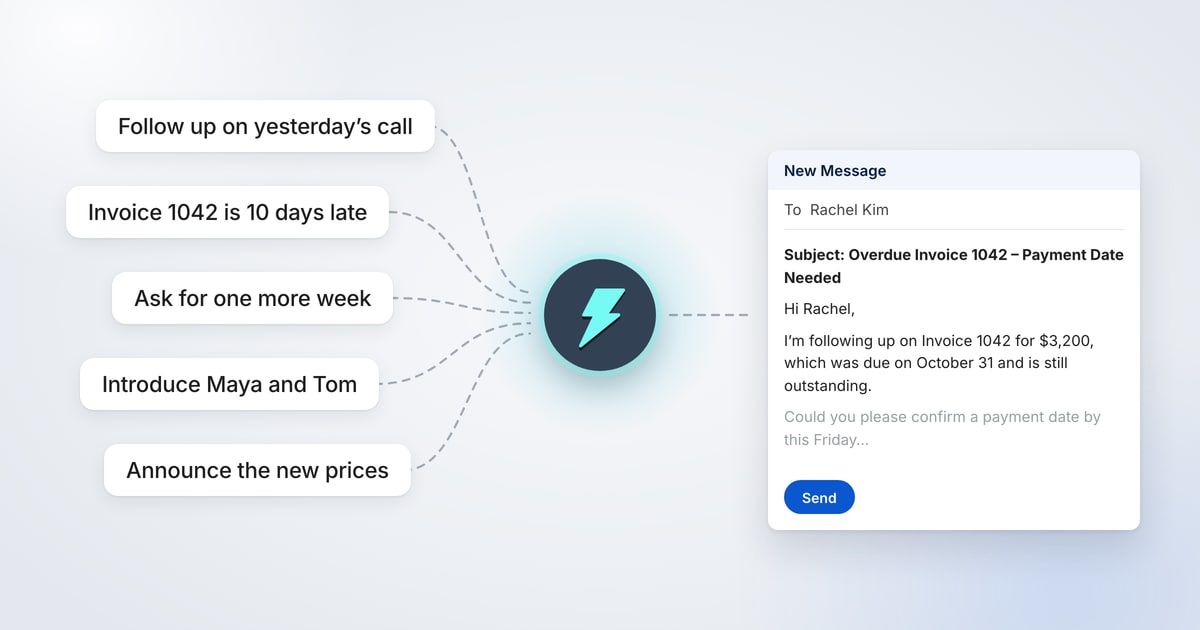
Some emails take a minute to write. Others sit in your drafts for a day: chasing an unpaid invoice, asking a client for more time, telling customers your prices are going up. Below are five of those emails, with the few words typed into Jetwriter AI and the email it wrote.
How AI Compose works in Gmail
AI Compose sits next to Send in every new message in Gmail. Jetwriter AI writes the email from what you type, the people in To, your name, and the subject if you've typed one.
- In Gmail, click Compose, add the people in To, then click AI Compose.
- Type what the email is for, in a few words, and press Enter.
- Click Insert. The email goes into your message. Check it, then send it.
The email starts with a subject line: copy it into Gmail's Subject field, or keep your own, and delete that line. Jetwriter AI also stops before the sign-off, so your Gmail signature, or your own "Best regards", ends the email. Nothing is sent until you send it. For every step and setting, see Write a new email with AI Compose.
The emails below were written by Jetwriter AI with Sonnet 5.5, the default model on paid plans, from exactly the words shown under "What you type into Jetwriter AI".
5 Examples of Emails Written with AI in Gmail
Follow-up email after a sales call
A good follow-up thanks the person, sums up your offer in a line or two, and makes the next step easy.
The situation: You sell software to delivery companies. Yesterday you had a call with Lena, who runs a team of 40 drivers. Now you're sending her your proposal, with the file attached in Gmail.
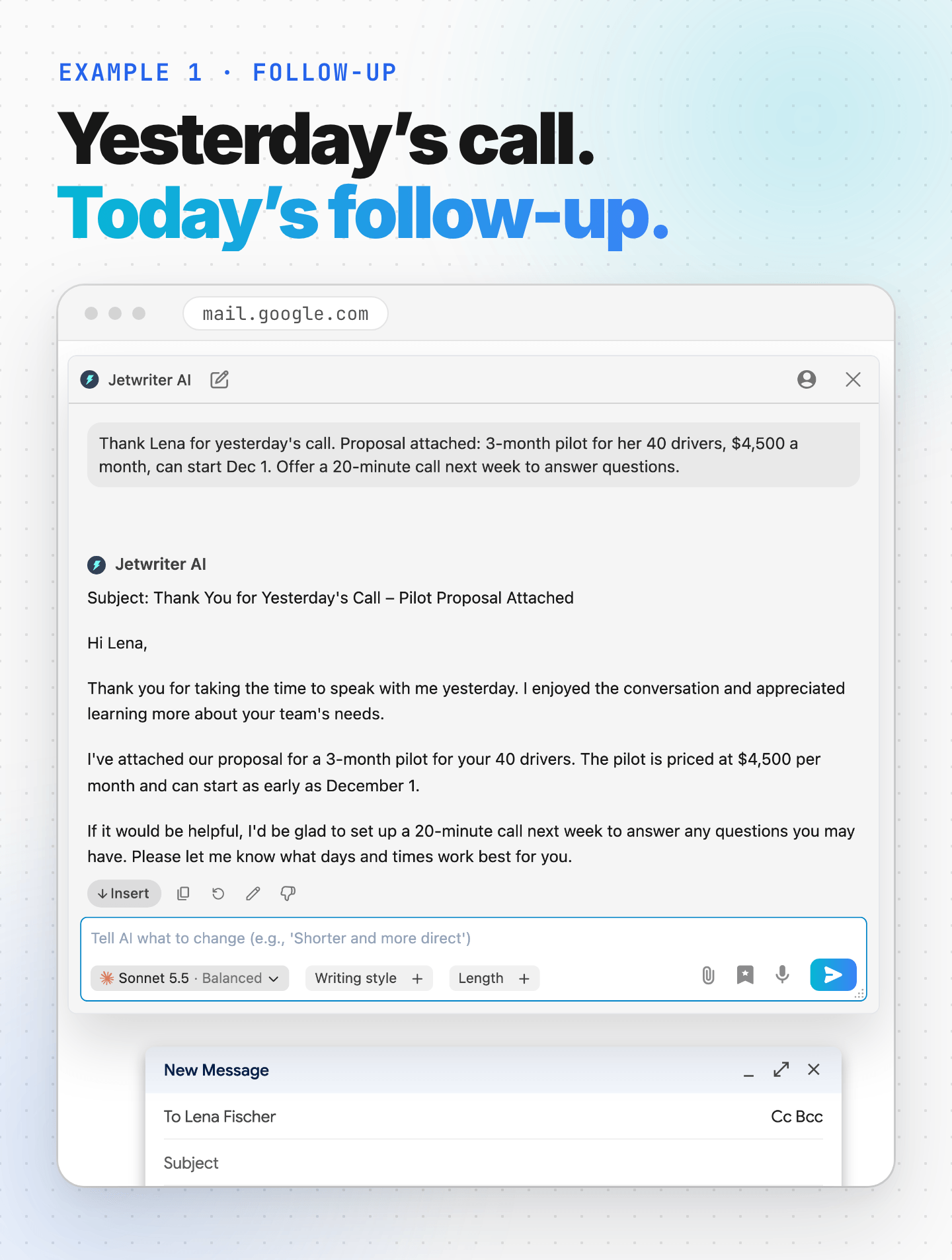
What you type into Jetwriter AI
“Thank Lena for yesterday's call. Proposal attached: 3-month pilot for her 40 drivers, $4,500 a month, can start Dec 1. Offer a 20-minute call next week to answer questions.”
Jetwriter AI's email
Subject: Thank You for Yesterday's Call – Pilot Proposal Attached
Hi Lena,
Thank you for taking the time to speak with me yesterday. I enjoyed the conversation and appreciated learning more about your team's needs.
I've attached our proposal for a 3-month pilot for your 40 drivers. The pilot is priced at $4,500 per month and can start as early as December 1.
If it would be helpful, I'd be glad to set up a 20-minute call next week to answer any questions you may have. Please let me know what days and times work best for you.
Why it works: Your notes had the facts: the pilot, the price, the start date. Jetwriter AI put them in a clear order, kept the email short and ended with an easy next step, a 20-minute call. All Lena has to do is reply with a time.
Tip: If you've already typed a subject in Gmail, Jetwriter AI uses it. Type the subject first, then click AI Compose.
Payment reminder for an overdue invoice
Name the invoice, the amount and the due date. Then ask for one thing, with a deadline.
The situation: You're a freelance designer. Marlbeck Foods hasn't paid invoice 1042, and it's now 10 days late. Rachel handles their payments.
What you type into Jetwriter AI
“Invoice 1042 for $3,200 was due Oct 31 and is now 10 days late. Polite but firm. Ask her to confirm a payment date by Friday. Invoice attached again.” Then set Length to Short.
Jetwriter AI's email
Subject: Overdue Invoice #1042 – Payment Date Needed by Friday
Hi Rachel,
I'm following up on Invoice #1042 for $3,200, which was due on October 31 and is now 10 days past due. I've attached it again for your reference.
Could you please confirm a payment date by this Friday, November 13? If payment has already been sent, please let me know so I can check on my end.
I appreciate your prompt attention to this.
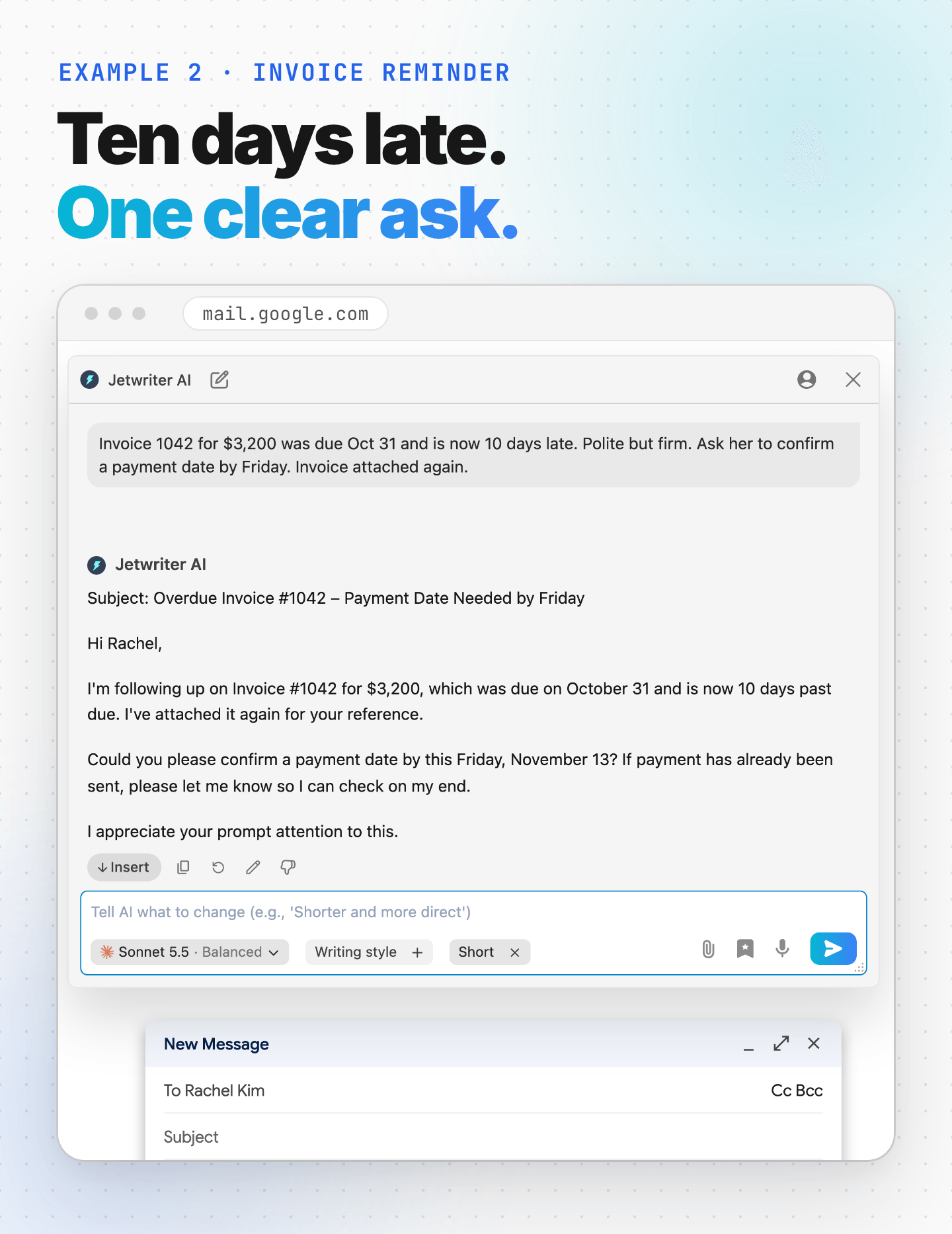
Why it works: Rachel doesn't have to look anything up: the invoice number, the amount and the due date are all there. The email asks for one thing, a payment date, and turns "Friday" into a date on the calendar. It also allows for a payment that's already on its way, which keeps it polite without going soft.
Tip: Keep Length on Short for reminders. A short email is easier to answer.
Asking a client for a deadline extension
Ask as early as you can. Give the new date, the reason in one sentence, and what's still on track.
The situation: You run a small web agency. Daniel's new website is due to launch on November 17, but the payment page failed testing.
What you type into Jetwriter AI
“Ask Daniel to move the website launch from Nov 17 to Nov 24. The payment page failed testing and needs another week. Everything else is ready. Offer a call Thursday to walk him through it.”
Jetwriter AI's email
Subject: Request to Move Website Launch to Nov 24
Hi Daniel,
I'd like to ask that we move the website launch from Nov 17 to Nov 24. The payment page failed testing and needs another week to fix and retest. Everything else is ready to go.
I'm happy to set up a call this Thursday to walk you through the details. Please let me know what time works for you.
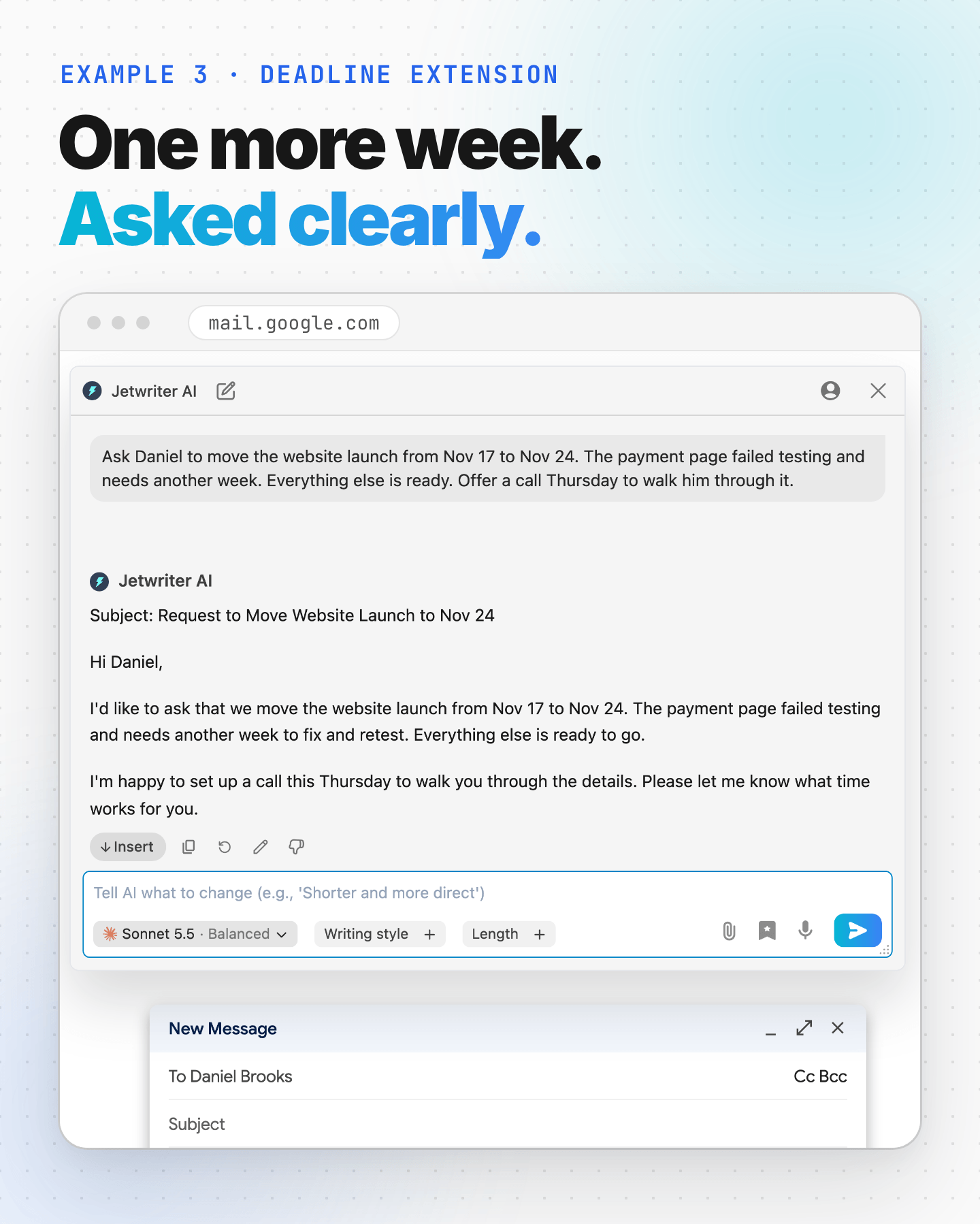
Why it works: Bad news is easier to read when it's short and specific. Daniel gets the new date first, then the reason, then the good news that everything else is ready. The offer of a call on Thursday shows you're on top of it.
Tip: Not quite right? Type what to change in the box under the email, such as "more apologetic", and press Enter. Or click Regenerate, the circular arrow under the email, for a new version.
Introduction email between two contacts
Say who each person is and why they should talk. Then step aside.
The situation: You run a design studio. Maya, a client, runs operations at Haverlyn Home and is looking for inventory software. Your studio has used Crateloom for two years, and you know its founder, Tom. Both of them are in To.
What you type into Jetwriter AI
“Introduce Maya and Tom. Maya runs operations at Haverlyn Home and is looking for inventory software. Tom founded Crateloom, which we've used for 2 years and love. Suggest they set up a call.”
Jetwriter AI's email
Subject: Introduction: Maya Chen (Haverlyn Home) and Tom Nguyen (Crateloom)
Hi Maya and Tom,
I'm glad to connect you both.
Maya, you run operations at Haverlyn Home and are currently looking for inventory software. Tom founded Crateloom, which we've used for two years and love. I thought he'd be a great person for you to speak with as you evaluate your options.
Tom, Maya is exploring inventory software for Haverlyn Home, and I thought you'd be a good resource for her.
I suggest the two of you set up a call to talk through what Maya is looking for. I'll leave it to you to find a time that works.
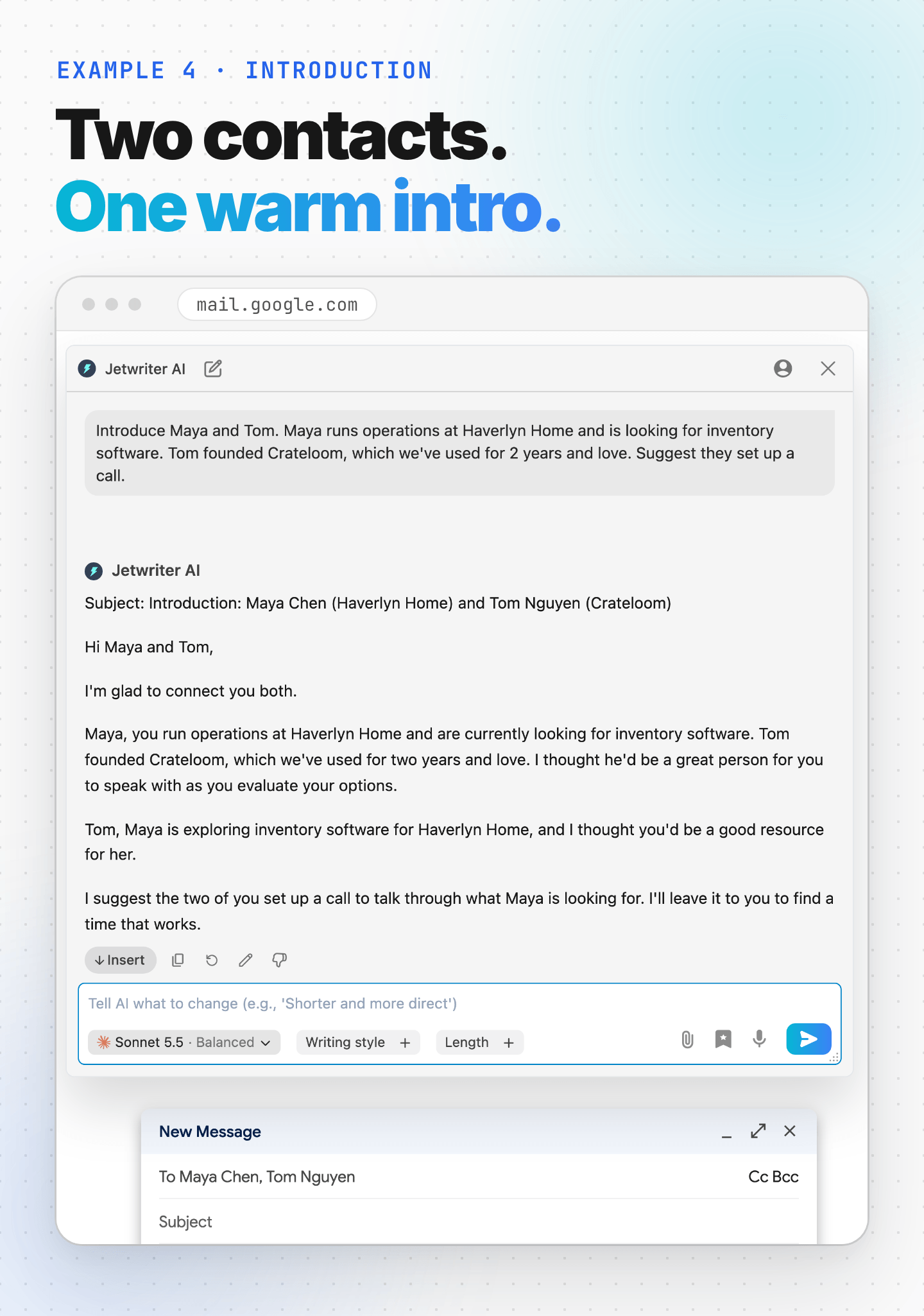
Why it works: It speaks to each of them. Maya learns why Tom is worth a call, and Tom learns why Maya is worth his time. The subject line has their full names, which Jetwriter AI took from To, and their companies, so both can find the email later. Then it gets out of the way.
Tip: Add everyone to To before you click AI Compose. Jetwriter AI reads the names there, so it greets the right people.
Price increase email to customers
Say what changes, when and why, in plain words. Then thank your customers.
The situation: You run Larkbook, a small software company. Your Studio plan is going up for the first time in three years, and you're writing to all your customers.
What you type into Jetwriter AI
“Tell our customers the Studio plan goes from $29 to $35 a month on January 1. First price increase in 3 years: hosting and support costs went up. Yearly customers keep their price until renewal. Thank them and invite questions.”
Jetwriter AI's email
Subject: Upcoming Studio Plan Price Update
Hello,
We're writing to let you know that the price of the Studio plan will increase from $29 to $35 per month, effective January 1.
This is our first price increase in 3 years. Our hosting and support costs have gone up, and this adjustment helps us keep providing the level of service you expect.
If you're on a yearly plan, your current price stays the same until your renewal date.
Thank you for being a Larkbook customer. We truly appreciate your support. If you have any questions about this change, please reply to this email and we'll be happy to help.
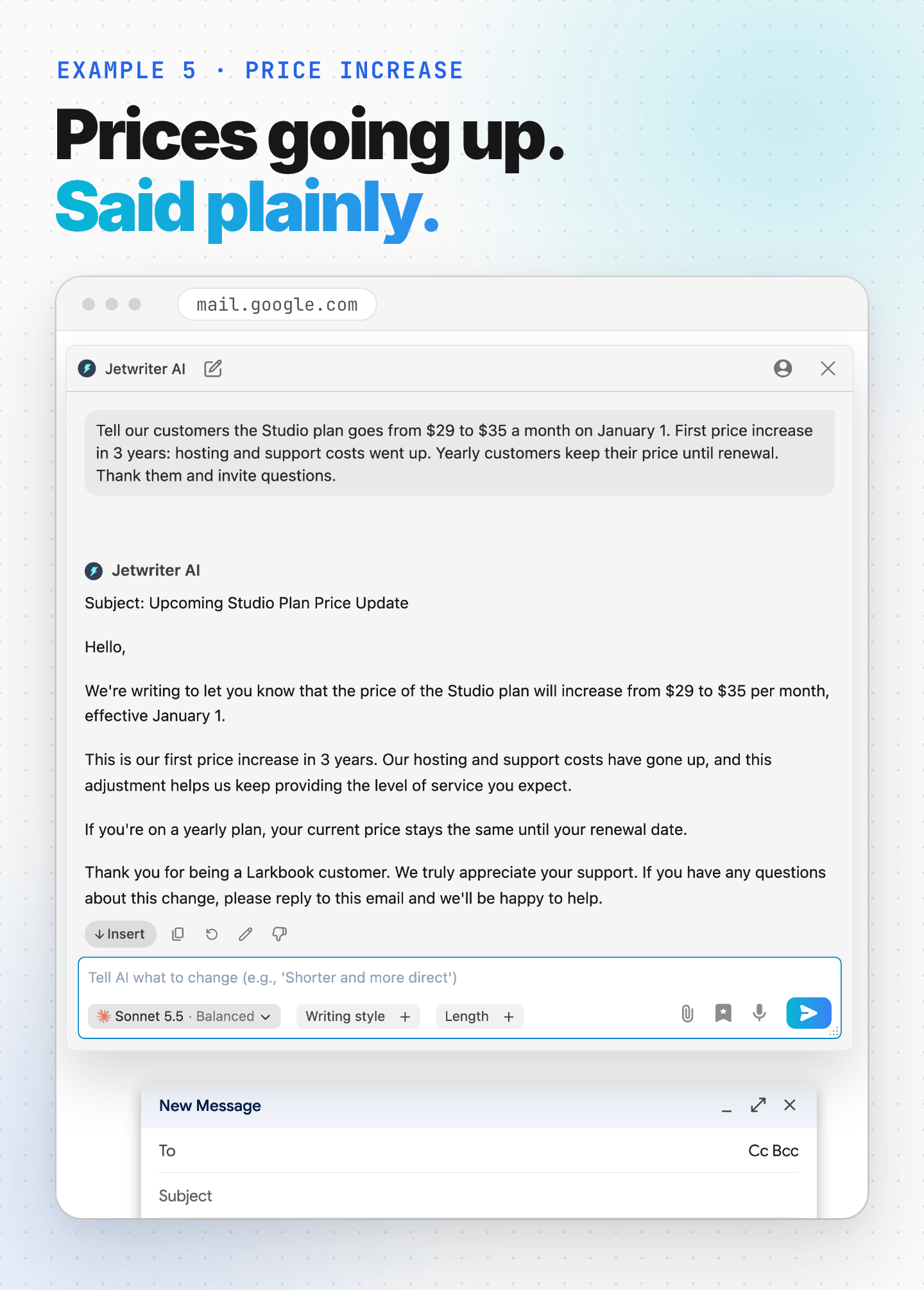
Why it works: Customers learn what changes and when in the first paragraph, and why in the second. The line about yearly plans answers the question many of them would ask. It ends with thanks and an easy way to ask questions: reply to the email.
Tip: If you send announcements like this often, save your request as a prompt template: click the bookmark icon under the box, then Add Prompt Template. Next time, it's one click. See Get the reply you want.
Why Write Your Emails with Jetwriter AI
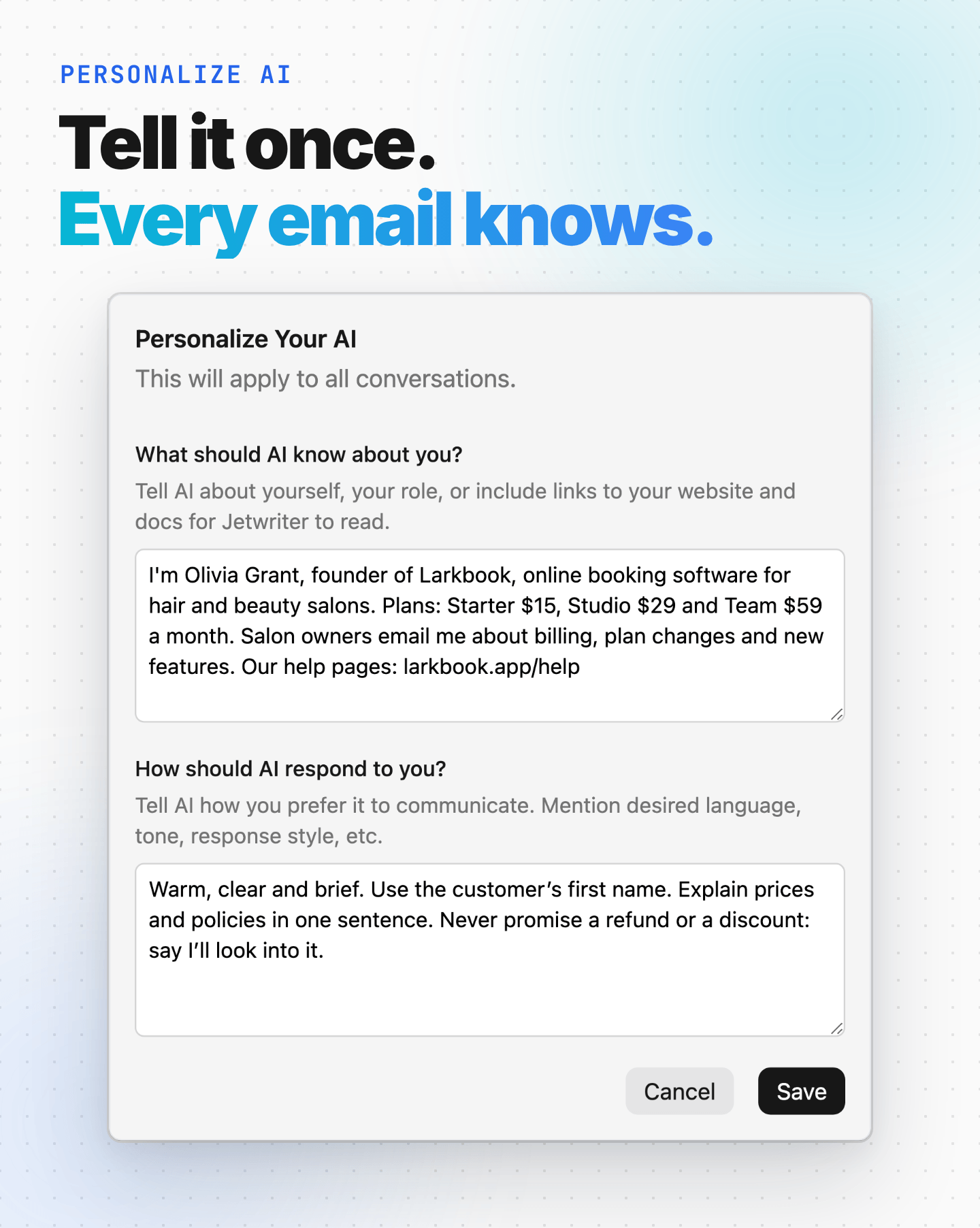
Jetwriter AI writes your email inside Gmail, from the names in To and the few words you type, so there's nothing to copy between tabs. It can also learn who you are, how you write and what your business does, so you don't have to explain it again in every request.
Tell it about you once, in Personalize AI
Personalize AI holds what Jetwriter AI should know about you and how it should write: your role, your company, what you sell, the tone you like and anything it should never say. You write it once, and every email and reply uses it while Personalize AI is on. You can add links to your website or help pages too: Jetwriter AI can open them when an email needs details like prices or policies, except when you use your own API key.
To set it up, click your profile icon at the top right of the Jetwriter window, then Personalize AI. Fill in the two boxes and click Save. It works on every plan. See Tell Jetwriter about you.
Pick a tone, or save your own writing style
Under the box where you type, Writing style sets the tone: Professional, Casual, Straightforward, Persuasive or Friendly. You can also make your own, such as your company's voice: click Writing style, then Add Style, and describe it, for example "Warm and direct. Short sentences. No exclamation marks." You can keep up to 20 styles of your own and switch between them in one click. See Get the reply you want.
Connect Gmail so emails sound like yours
When you connect Gmail, Jetwriter AI learns how you write from your past emails, and can use details from them when they help. It's free on every plan and read-only: Jetwriter can't send, delete or change your emails, and your emails are never used to train AI models. In the Jetwriter window, click your profile icon, then Settings, and click Connect under Gmail Personalization. See Connect Gmail so replies use your past emails.
Let Memory keep what you've told it
With Memory on, Jetwriter AI can use details from your past chats with it, so you don't have to repeat them. It's on by default. You'll find its switch in Settings, under Memory.
And you stay in control
Jetwriter AI never sends anything. You read the email, change what you like and click Send yourself. And it isn't only for Gmail: AI Reply also answers emails and messages in Outlook on the web, WhatsApp Web, LinkedIn, Slack and more. See Where Jetwriter works.
Try It on the Email You've Been Putting Off
Think of the email that's been sitting in your drafts. The invoice you need to chase. The deadline you need to move. The price change you haven't announced yet.
Write that one with Jetwriter AI first. Type the facts, read the email, and send it when it sounds like you. New to Jetwriter AI? Add the free extension, open Gmail, click Compose, then AI Compose.
Frequently Asked Questions (FAQ)
Does Jetwriter AI send emails for me?
No. It writes the email in its own window. You click Insert to put it in your message, check it, and click Gmail's Send yourself.
Does it write the subject line?
Yes. The email starts with a line that begins with "Subject:". Copy that text into Gmail's Subject field, or keep a subject you typed, then delete the line from the message. If you type a subject before you click AI Compose, Jetwriter AI uses it.
Why doesn't the email end with my name?
AI Compose stops at the end of the message, before the sign-off. Your Gmail signature, or the closing you add yourself, such as "Best regards" and your name, finishes the email.
Does Jetwriter AI read my inbox?
Not unless you connect Gmail. Without a Gmail connection, AI Compose doesn't read your inbox, not even an email you have open. If you connect Gmail, it learns how you write from your past emails. See Connect Gmail so replies use your past emails and Is Jetwriter AI safe? What it reads and keeps.
Can it answer an email I received?
Yes, with AI Reply instead of AI Compose. Open the email and click AI Reply, next to Gmail's Reply and Forward buttons. It reads the whole conversation before it writes. See Reply to an email in Gmail with AI Reply.
Does it work in Outlook?
Yes, in Outlook on the web. In a new email, the button is called AI Reply and sits next to Send. See Use Jetwriter in Outlook on the web.
Can it write emails in other languages?
Yes. Name the language in what you type, such as "in Spanish". Jetwriter AI's buttons are in English, but the emails it writes can be in other languages. See Write in another language.
Is it free?
Every plan can use AI Compose, including the Free plan, which includes 15 AI responses a month. Each email, and each new version of it, uses one. The paid plans are on the pricing page.