The Jetwriter AI extension only runs in a browser on a computer, so on a phone there's no AI Reply button inside Gmail, WhatsApp or other apps. On a phone, use the web app at jetwriter.ai/app in any browser, or the Jetwriter AI app for Android from Google Play: write or paste what you need there, then copy the result into your app. On a paid plan, Auto-Drafts also write replies straight into Gmail, so they wait as drafts in the Gmail app on your phone.
Use the web app in your phone's browser
- Open jetwriter.ai/app in Safari, Chrome or any other browser on your phone.
- Sign in with the same account you use in the extension. Your plan is the same on every device.
- Type what you need in the box that says "Ask anything..." (1), for example "Write a short thank-you note to a client for their order".
- Tap the blue send button with the arrow (3). On a phone, the return key adds a new line instead of sending.
- To use the answer somewhere else, tap the copy icon under it, then paste it in your app.
Under the box, you can also pick the AI model, a writing style (Style on a phone) and a Length, speak instead of typing with the microphone button, and open your prompt templates from the + button (2). On a paid plan, + also attaches files.
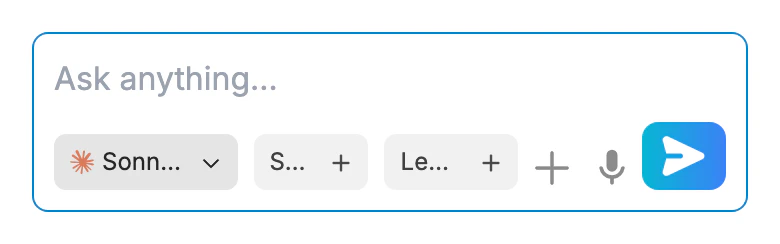
On a phone, you write in the box at the bottom of the web app; + opens your prompt templates and, on a paid plan, attaches files.
- Message box
- More options
- Send
Reply to WhatsApp, Gmail or other apps from your phone
There's no button inside phone apps, so you bring the message to the web app and the reply back:
- In WhatsApp, Gmail or any other app, copy the message you want to answer.
- In the web app at jetwriter.ai/app, paste it and say in a few words what to answer, for example "Reply to this message: yes, Thursday at 3pm works".
- Tap the send button, then tap the copy icon under the reply.
- Back in your app, paste the reply, check it and send it yourself.
On a computer, the AI Reply button does this in one click inside WhatsApp Web and Gmail: see Reply in WhatsApp Web with Jetwriter AI.
Install the Android app, or add the web app to your home screen
- Android: install Jetwriter AI from Google Play. It opens the same web app in an app of its own, where you sign in with the same account. When you use the web app in an Android browser, a banner may offer it: "Switch to the app for a faster, smoother experience.", with Install App.
- iPhone and iPad: there's no Jetwriter app in the App Store. Open jetwriter.ai/app in Safari, open Safari's Share menu and choose Add to Home Screen. Jetwriter then opens from your home screen like an app.
Get replies drafted in the Gmail app with Auto-Drafts
On a paid plan, Auto-Drafts write replies in your Gmail as emails that need an answer arrive, so the reply is already there when you open the email in the Gmail app on your phone. Read the draft, edit it if needed, and send it: nothing is sent without you. You turn Auto-Drafts on once, from Settings, Gmail Integration in the web app, which also works from a phone. See Set up Auto-Drafts.
What only works on a computer
The extension can't run on phones or tablets, so these need Chrome, Edge, Brave, Opera or Vivaldi on a computer:
- the AI Reply and AI Compose buttons inside Gmail, Outlook, WhatsApp Web, LinkedIn and other sites;
- the toolbar on selected text, the right-click menu, and asking about the page you're on;
- your own OpenAI, Gemini or Claude API key on the Free plan.
Jetwriter has no keyboard app for iPhone or Android either. For the full list of browsers and sites, see Where Jetwriter works: browsers, sites and devices.