You can open Jetwriter AI on any web page in five ways: click its icon in your browser's toolbar, press Ctrl+Shift+K (Cmd+Shift+K on a Mac), right-click and choose Jetwriter AI, select text and use the toolbar that appears, or click AI Reply in Gmail, WhatsApp Web, LinkedIn and other supported sites. To use different keys, change the shortcut on your browser's shortcuts page, chrome://extensions/shortcuts.
Each way opens the same Jetwriter window. What differs is what Jetwriter starts with:
| How you open it | What Jetwriter starts with |
|---|---|
| The toolbar icon or the shortcut | The page you're on, so you can ask about it or ask anything else. |
| Right-click, then Jetwriter AI | The text you selected, or the page if nothing is selected. |
| The toolbar on selected text | The text you selected. |
| AI Reply or AI Compose | The email or conversation you're answering. |
Click the Jetwriter icon in the toolbar
- Click the Jetwriter AI icon at the top right of your browser, next to the address bar.
- If you don't see it, click the Extensions icon (the puzzle piece) there and choose Jetwriter AI. To keep the icon in view, click the pin next to Jetwriter AI in that list.
The Jetwriter window opens over the page with a Page: tag showing the page's title: Jetwriter reads the page, so you can ask about it or have it summarized. To ask about something else, remove the tag with its × and type your question. Click the icon again to close the window.
Press the keyboard shortcut
Press Ctrl+Shift+K on Windows, Linux and ChromeOS, or Cmd+Shift+K on a Mac. It does the same as clicking the toolbar icon, on whatever page you're on. Press it again to close the window.
If the shortcut does nothing, your browser may have no shortcut set for Jetwriter, for example because another extension already uses those keys. Set one on your browser's shortcuts page, chrome://extensions/shortcuts (edge://extensions/shortcuts in Edge).
Change the keyboard shortcut
Your browser, not Jetwriter, keeps extension shortcuts, so you change it on the browser's shortcuts page:
- Type
chrome://extensions/shortcutsin the address bar and press Enter. In Edge, typeedge://extensions/shortcuts; in Brave,brave://extensions/shortcuts. - Find Jetwriter AI in the list and click the pencil icon next to its shortcut.
- Press the keys you want to use. If the browser doesn't accept them, try a combination with Ctrl or Alt (Cmd or Option on a Mac) and a letter.
The new keys open and close Jetwriter from then on.
You can also reach that page from Jetwriter: click your profile icon at the top right of the Jetwriter window, choose Settings, and click Change (2). Your current shortcut shows next to it (1); if no keys show there, no shortcut is set.
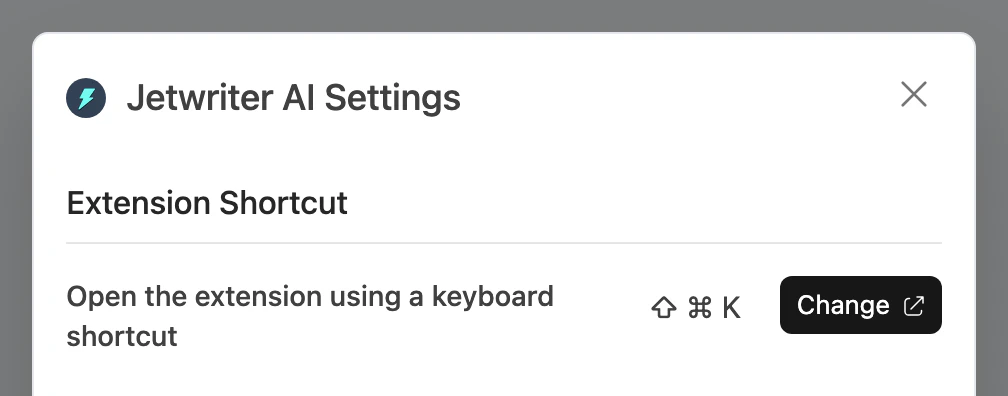
Jetwriter's settings show your current shortcut, and Change opens the browser's shortcuts page.
- Your shortcut
- Change
Right-click and choose Jetwriter AI
- Right-click anywhere on the page. To ask about some text, select it first and right-click it.
- Choose Jetwriter AI in the menu.
With text selected, Jetwriter opens with that text, ready for your question, such as "Explain this" or "Reply to this politely". With nothing selected, it reads the whole page, as the toolbar icon does.
Select text and use the toolbar
- Select some text on any page or in any text box.
- A small blue dot appears next to the pointer for 2 seconds. Move the pointer over it to open the toolbar.
- Click the Jetwriter logo at the start of the toolbar (1). When you point at it, it says Ask AI. Jetwriter opens with the text you selected, and the box says "Ask AI about the selected text".
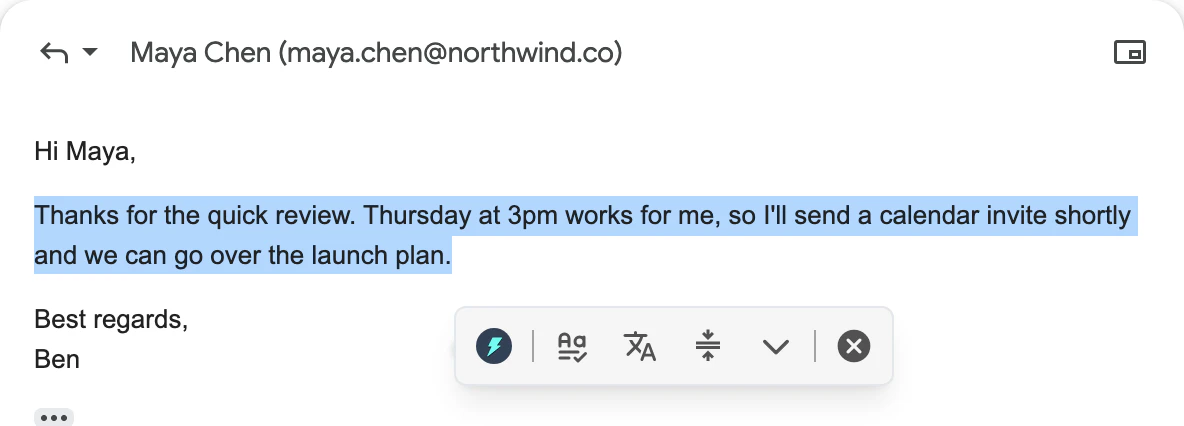
Select text and the toolbar appears; its first button, the Jetwriter logo, opens Jetwriter with that text.
- Ask AI
The other buttons in that toolbar fix, rewrite or translate the selected text in one click: see Fix, rewrite or translate selected text. If the dot never appears, the toolbar may be turned off for that site or set to show only while you hold a key: see Hide the Jetwriter popup on a site, or everywhere.
Click AI Reply or AI Compose in supported sites
In Gmail, Outlook on the web, WhatsApp Web, LinkedIn, Slack, X, Zoho Mail, Zendesk and Freshdesk, Jetwriter adds an AI Reply button to the page, and an AI Compose button where you write a new message. It opens Jetwriter with the email or conversation, so the reply fits it. See Reply to an email in Gmail with AI Reply, and The AI Reply button isn't showing if you can't find it.
If Jetwriter doesn't open
- "Extension is not supported on this page. Please visit a regular website like Gmail and then launch this extension." Browsers don't let extensions run on their own pages, such as a new tab, the settings and extensions pages, and the Chrome Web Store. Go to a website and open Jetwriter there.
- "Could not load the extension. Please reload the page and try again." The tab was open before Jetwriter was installed or updated. Reload it: press F5, or Cmd+R on a Mac.
- The shortcut does nothing. Check that Jetwriter has one on your browser's shortcuts page,
chrome://extensions/shortcuts, and that you're on a website rather than one of the browser's own pages.
For anything else, see Jetwriter isn't working or shows an error.