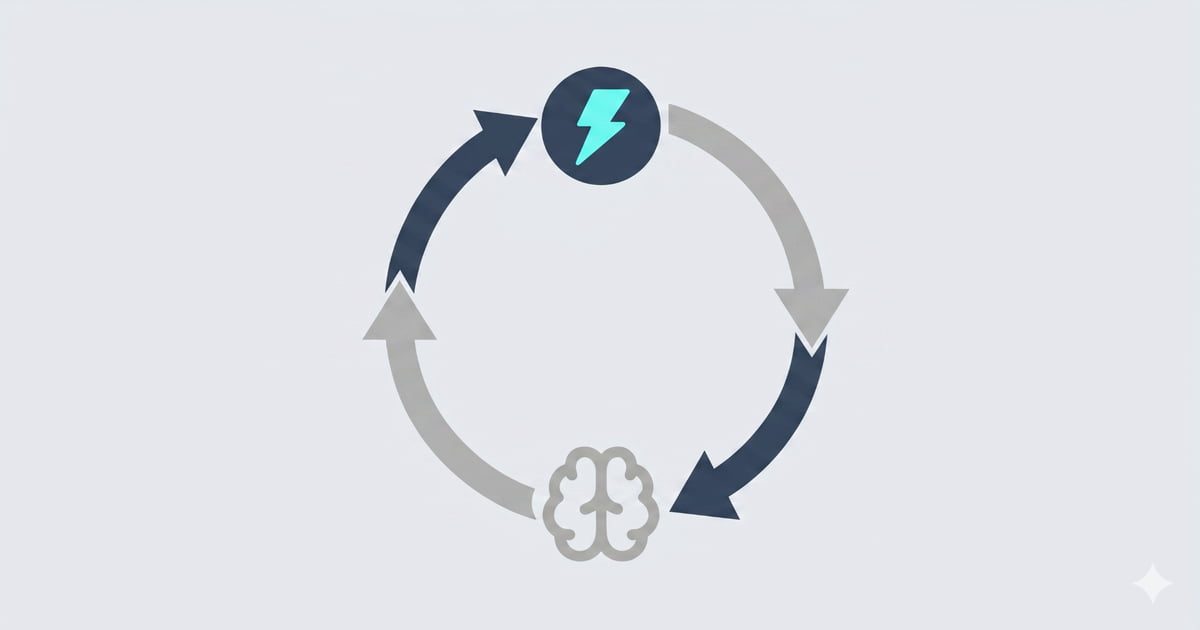
Have you ever asked an AI to write an email? You type all the details. You tell it what the email should include. And it drafts an email for you.
Then, an hour later, you need to write another email. You open a new chat. You ask the AI to write it. But the AI forgot everything! It does not know your company. It does not know what you do. You have to type all those details again.
This is very annoying. You just want to save time. Instead, you have to type the exact same things again and again.
We decided to fix this. We added a new feature to Jetwriter AI. It now remembers your past chats. It uses those old chats to generate new responses for you.
For example, let us say you sent an email to a customer yesterday. In that email, you shared your product pricing. Today, you need to send an email to a new customer about the same thing. You do not have to type the prices all over again. You just launch Jetwriter AI and say, "share pricing." The AI looks at your past emails. It finds the pricing, and then writes a perfect email for you. You just hit send. It is that easy!
How Jetwriter AI Memory Feature Works
When you ask Jetwriter AI to write something, it quickly checks your past chats. It looks for the facts and details you already shared.
For example, maybe you explained your refund policy to a customer in an email last week. The AI remembers it. When you need to reply to a new customer about a refund today, you just give a very short command, something like “write refund policy”. The AI then uses that old chat, and writes a perfect reply for you automatically. You do not have to open a new tab. You do not have to copy and paste the policy. The tool does all the hard work to give you a correct reply.
Privacy: Keeping Your Data Safe
You might be thinking, "Are my private chats safe?" Yes, they are very safe. This is our most important promise to you.
Here is what you need to know:
- Read-only access: The tool only looks at your past chats to help you write better drafts. It does not change anything.
- No AI training: We never use your private chats or information to train any AI models.
- No selling data: We do not sell your data to anyone, ever.
- Locked up tight: We use industry-standard encryption. This keeps all your information safe and secure.
Your private chats will always stay private. No one else will ever see them.
Real-World Examples
Now you know how Jetwriter AI Memory works. Let us look at how it helps you every day on different websites.
Gmail, Outlook, and Zoho Mail
Writing emails takes a lot of time. Jetwriter AI Memory feature makes it fast.
- Sending Sales Emails: Let us say you run a marketing agency. You want to email a new client, like UrbanKart, an online fashion store that needs help with social media marketing. You just tell Jetwriter AI, “Give details of UrbanKart, whom we pitched our social media services.” Jetwriter AI looks at your past emails where you discussed UrbanKart’s needs, pain points, and the social media plan you pitched before. Based on that, it writes a fresh sales email with the right offer, key benefits, and a message that fits the client.
- Answering Questions: A customer of a finance management SaaS product emails the sales team and asks, “Can I connect my bank account to track expenses automatically?” A sales team member just gives a short command, something like “reply.” Then the AI checks past emails where the team answered similar questions. Based on that, it quickly writes, “Yes, you can connect your bank account to automatically track your business expenses. Once connected, the system imports your transactions, sorts them into the right categories, and helps you see where your money is going. You can also review and edit any expense before finalizing your reports.”
You get a lot of messages on LinkedIn. You need to reply fast, but you still be accurate.
- Explaining Your Business: A client of a legal service management platform, Clio, messages a sales team member on LinkedIn and asks, “Does Clio help with Workflow Generation?” The sales team member just gives a short command, something like “write.” The AI checks past messages where Clio’s workflow automation features were explained. Based on that, it writes a clear reply: “Yes, Clio can help law firms with workflow automation. It can help automate routine steps like client intake, follow-ups, task assignment, appointment scheduling, and other repeat work. This helps law firms save time, reduce manual work, and make sure important steps are not missed.”
- Replying to Leads: Imagine you work for a school. A student lead messages you on LinkedIn, "Does your school provide a placement guarantee?" Jetwriter AI remembers your policy, on the basis of earlier messages. It writes, "We do not promise a 100% placement guarantee, but we do provide full placement support. This includes resume building, interview preparation, and job referrals."
Freshdesk and Zendesk
Customer support agents answer the exact same questions all day. This makes the job very tiring.
- Giving Help Steps: A user of a HR SaaS tool writes a ticket: “My employee is not able to mark attendance from the mobile app.” A support team member just gives a simple command, something like “reply.” The AI checks past chats where the team solved similar attendance issues. It reads the steps shared before and drafts a clear reply: “I’m sorry your employee is facing this issue. Please ask them to update the mobile app and check if location permission is turned on. If the issue still continues, ask them to log out and log in again. Also, please confirm if their employee profile is active in the admin dashboard.”
- Upgrading Accounts: A user of an AI video editing product writes a ticket: “How do I upgrade my subscription?” A support team member just gives a simple command, something like “reply.” The AI checks past chats where the team explained the upgrade steps for the product, and then drafts a clear reply: “You can upgrade your subscription from your account settings. Go to Settings → Billing → Manage Plan, then choose the plan you want. Once you confirm the upgrade, your new plan will be active. After upgrading, you may get access to more video export minutes, higher video quality, premium templates, and advanced AI editing features.”
WhatsApp and Slack
You chat with your team and customers on these apps. Jetwriter AI Memory feature works here too.
- Customer Refunds on WhatsApp: A customer cancels an order placed on an e-commerce website and messages the support team on WhatsApp: “When will I get my refund?” The support team member just gives a simple instruction, something like “reply.” Jetwriter AI checks past chats where the team explained the refund policy. Based on that, it drafts a polite reply: “Your refund has been initiated from our side. It usually takes 5–7 business days to reflect in your original payment method. We’ll also keep you updated if there is any change in the status.”
- Slack Team Chat: A new sales team member at your company asks the sales lead on Slack, “Do we have a case study where we helped an EdTech brand?” The sales lead just types “Give the details of LearnWave” into Jetwriter AI. Jetwriter AI checks past chats where the team discussed LearnWave’s case study. Based on that, it replies, “Yes, we can use LearnWave as the EdTech case study. They were struggling with slow lead follow-ups and missed demo opportunities. After using our tool, their team replied to leads faster, tracked conversations better, and improved demo scheduling.”
How to Disable the Jetwriter AI Memory Feature
The Jetwriter AI Memory feature is turned on by default. We made it this way so you can start saving time right away.
But, you are always the boss of your tool. If you do not want to use it, you can easily turn it off. It only takes a few seconds.
Here is how you do it:
- Go to your Jetwriter AI settings.
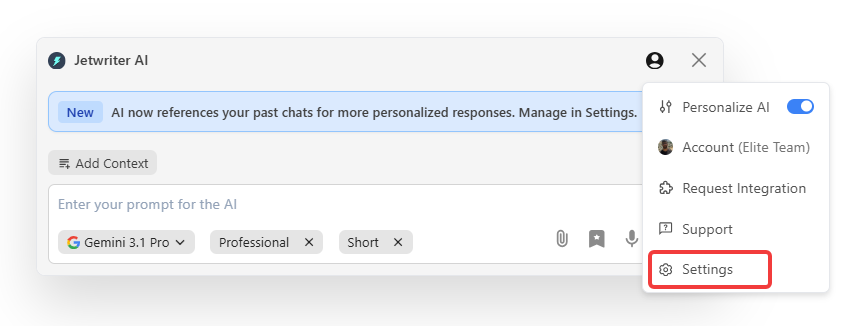
- Find the “Reference past conversations” option under “Memory”.
- Click the toggle to turn it off.
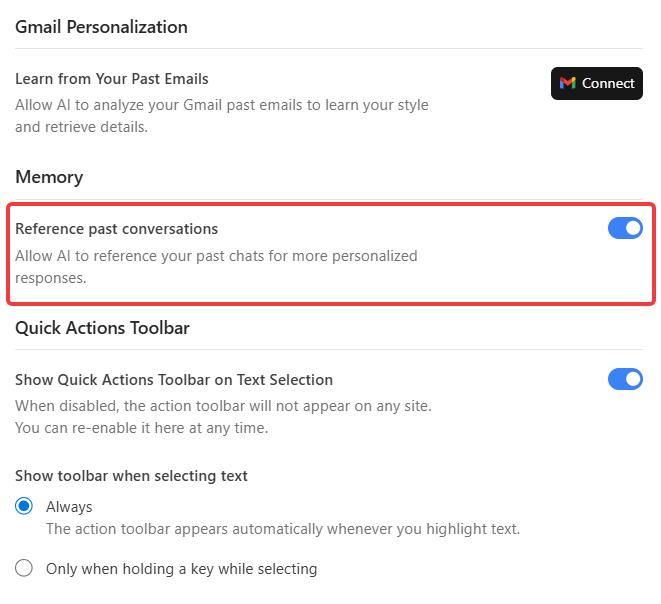
That is it! Jetwriter AI will stop looking at your past chats right away.
You are in full control of your data. You can use the tool exactly how you like it.
Conclusion
Writing takes a lot of time, whether you are replying to emails, sending messages, or working inside the web app. Standard AI tools are supposed to help. But they make you repeat yourself all day.
With Jetwriter AI Memory feature, you do not have to type the same things over and over. Finally, you have an AI that does not forget what you said five minutes ago!
This new feature helps you in three simple ways:
- You save time: You do not have to copy and paste old responses and searches.
- You get it right: The AI uses your real facts and business rules.
- You do less work: You just give a short command, and the AI does the rest.
You are still the boss of every word you send. But now, you have a smart helper that actually remembers your business.
Are you ready to stop repeating yourself? Try Jetwriter AI for free today. Let the tool do the hard work for you, so that you can finish your work faster!
Frequently Asked Questions (FAQ)
Is this feature included in the free plan?
Yes, it is included in the free plan. The Memory feature works for all Jetwriter AI plans, including the free ones.
What happens if my information changes but the AI remembers old details?
The AI always looks at your newest chats first. If you share new details in a fresh chat, it will learn them. You can also just tell it the new facts in your command, and it will use those instead.
Will the AI keep learning from the new chats I created today?
Yes, the tool keeps learning as you work. Every new chat you write today is saved in its memory safely. This helps your AI become even smarter and more helpful every single day.
If I don’t want the memory to be stored, what to do?
You can turn this feature off at any time. Just go to your Jetwriter AI settings and find the “Reference past conversations” option under “Memory”. Then, click the toggle to turn it off. The tool will stop using your past chats right away.
Are my chats completely safe and not used for AI training?
Yes, your private chats are very safe. We never use your messages to train any AI models. We also use strong encryption to make sure no one else can see your data.