A client emails you about a proposal. They want to set up a 30-minute call next week and ask which times work for you.
Before you can reply, you open your calendar. You check each day, find the gaps between your meetings, and then go back to the email to type the times. When you get a few emails like this every day, it takes a lot of time.
Most AI writing tools can write the reply for you. But they cannot see your calendar. So they either leave the times blank for you to fill in, or they suggest times that may not be free.
Jetwriter AI has a new feature to fix this. It is called Calendar-Aware Replies.
Connect your Google Calendar once. After that, whenever a reply involves a date or a time, Jetwriter checks your calendar first. Then it writes a reply with times when you are really free.
How Calendar-Aware Replies Work
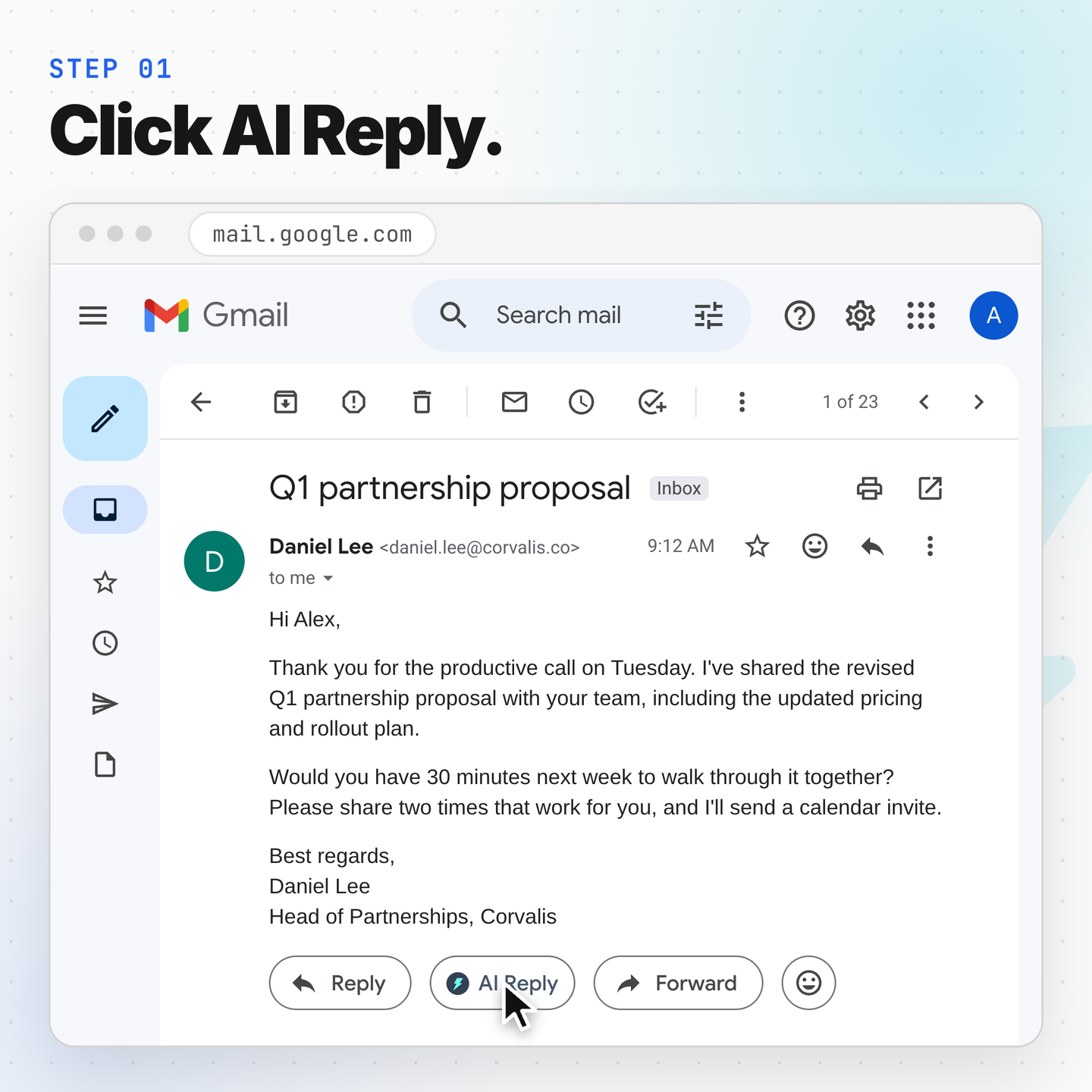
Let us see how it works with the Jetwriter AI extension in Gmail. Daniel, a partner, has emailed you about a proposal. He wants a 30-minute call next week and asks you to share two times that work.
Step 1: Click AI Reply
Open the email and click AI Reply, right next to Gmail's Reply button. Gmail's reply box opens, and the Jetwriter panel opens with the email already loaded.
Step 2: Ask for times
Tell Jetwriter what you want. For example: "Suggest two times I'm free next week."
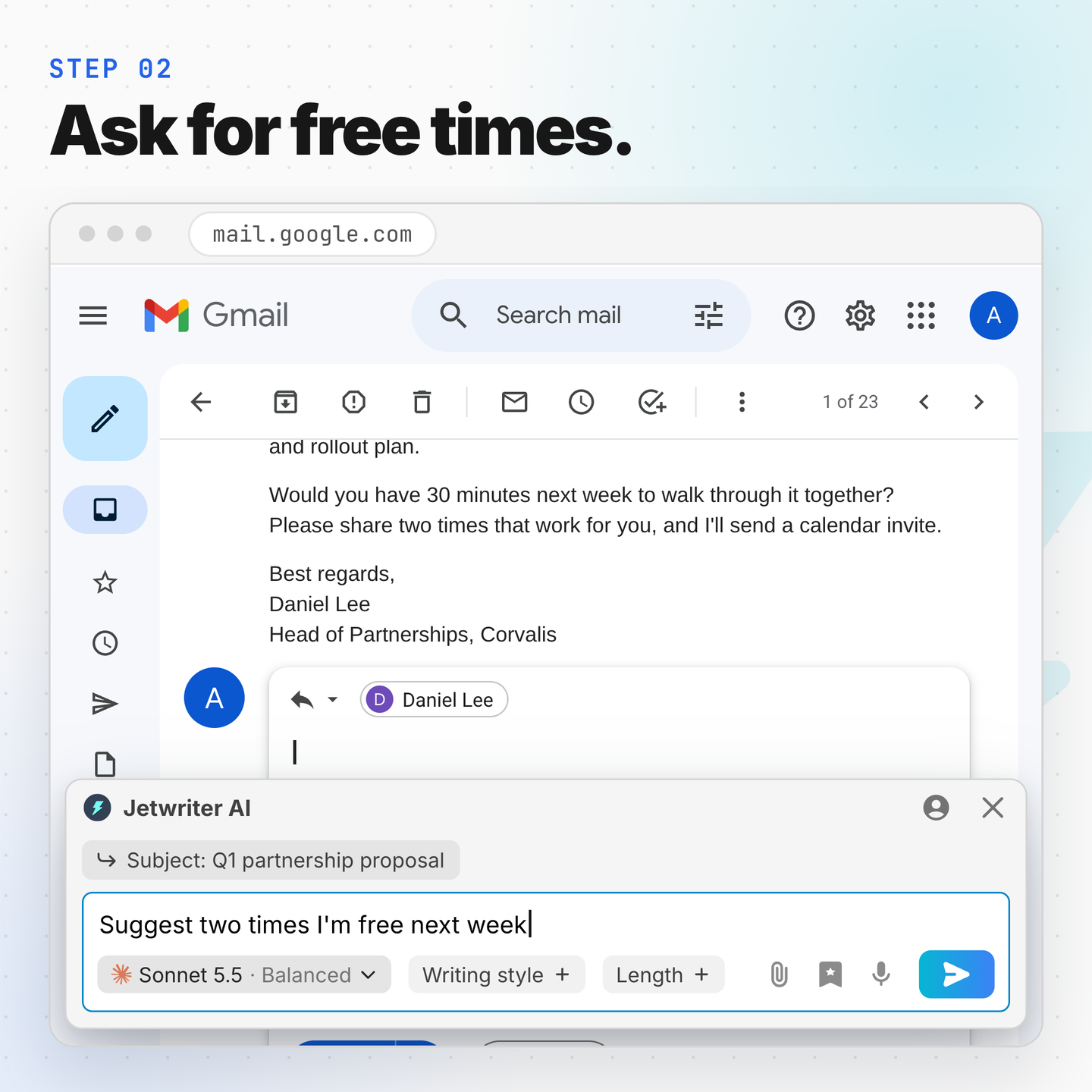
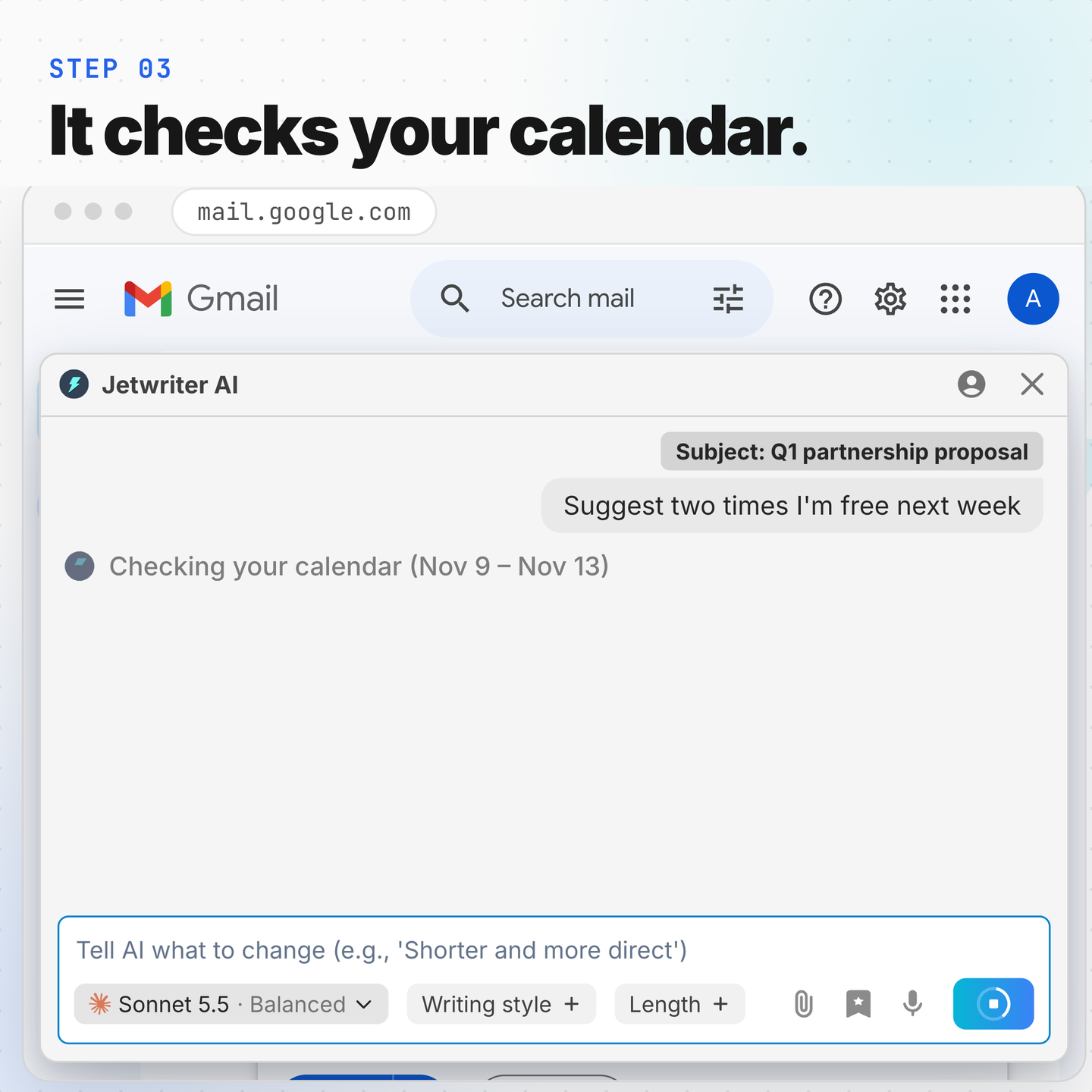
Step 3: Jetwriter checks your calendar
Jetwriter sees that the reply depends on your time, so it reads your calendar for the days it needs. While it works, the panel shows "Checking your calendar (Nov 9 – Nov 13)". Then it writes a reply with two times that are free on your calendar.
Step 4: Insert the reply
Click Insert. The reply goes straight into Gmail's reply box. Read it, change anything you like, and click Send.
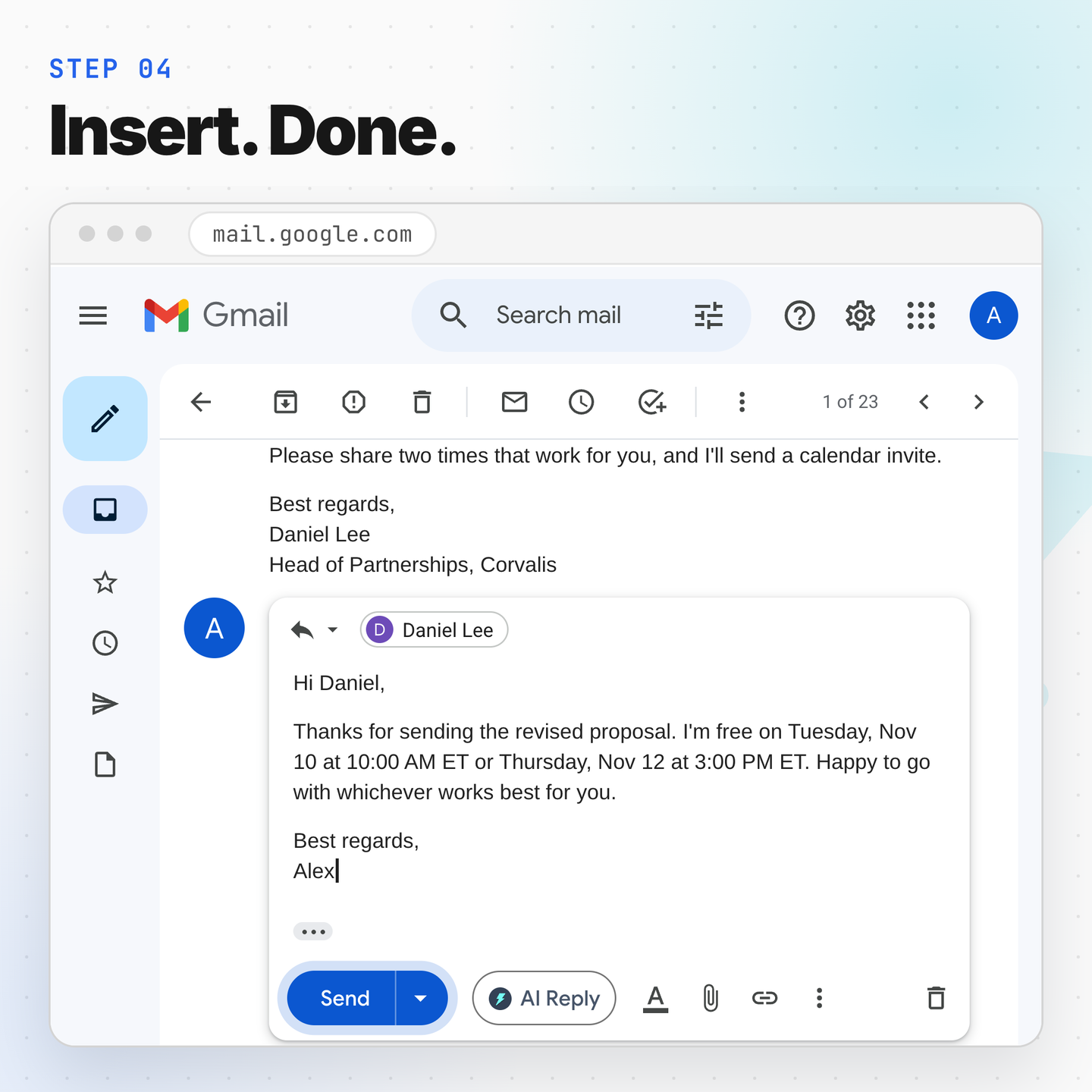
Notice what the reply does not say. It does not list your other meetings or explain why a time is busy. Jetwriter uses your events only to pick the right times. It does not tell the other person what is on your calendar, unless you ask it to.
It checks your calendar only when it needs to
Jetwriter does not read your calendar for every message. It checks your calendar when your reply:
- accepts or declines a meeting,
- suggests a time,
- says whether you are free,
- or needs the details of an event, like its start time or its meeting link.
If you already gave the answer, for example "Reply that Thursday at 3 PM works," Jetwriter simply writes the reply. There is nothing to check.
It helps with time zones
Sometimes the other person lives in a different time zone. If their email says where they are, for example "I'm based in London," Jetwriter can add the time in their time zone too. So nobody has to do the math.
It can find any event
You can also ask Jetwriter about your own calendar. For example:
- "What does my Thursday look like?"
- "When is my dentist appointment?"
- "Send me the meeting link for my call with Daniel."
When you ask about a specific event, Jetwriter can search up to a year ahead.
Where You Can Use It
Calendar-Aware Replies works everywhere you use Jetwriter AI:
- Jetwriter AI extension: Use it in Gmail, Outlook, LinkedIn and other websites. Click AI Reply or open Jetwriter, then ask it to reply with times you are free.
- Jetwriter AI web app: Ask in the chat at jetwriter.ai/app.
- Auto-Draft in Gmail: If you use Auto-Draft, the drafts it writes for meeting requests use your calendar too. When someone asks to meet, the draft waiting in your inbox can already suggest times when you are free.
How to Connect Your Google Calendar
It takes less than a minute. Here is how:
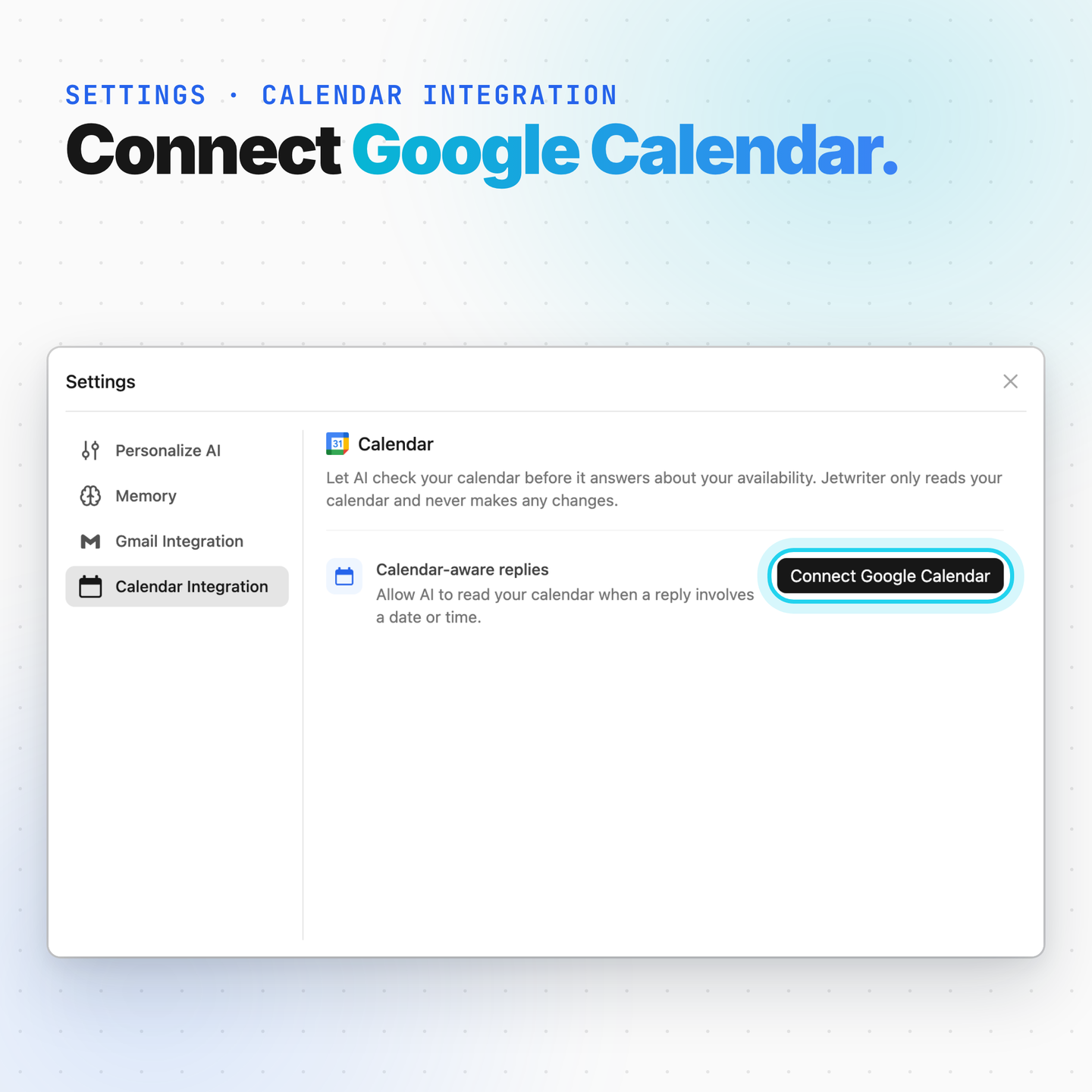
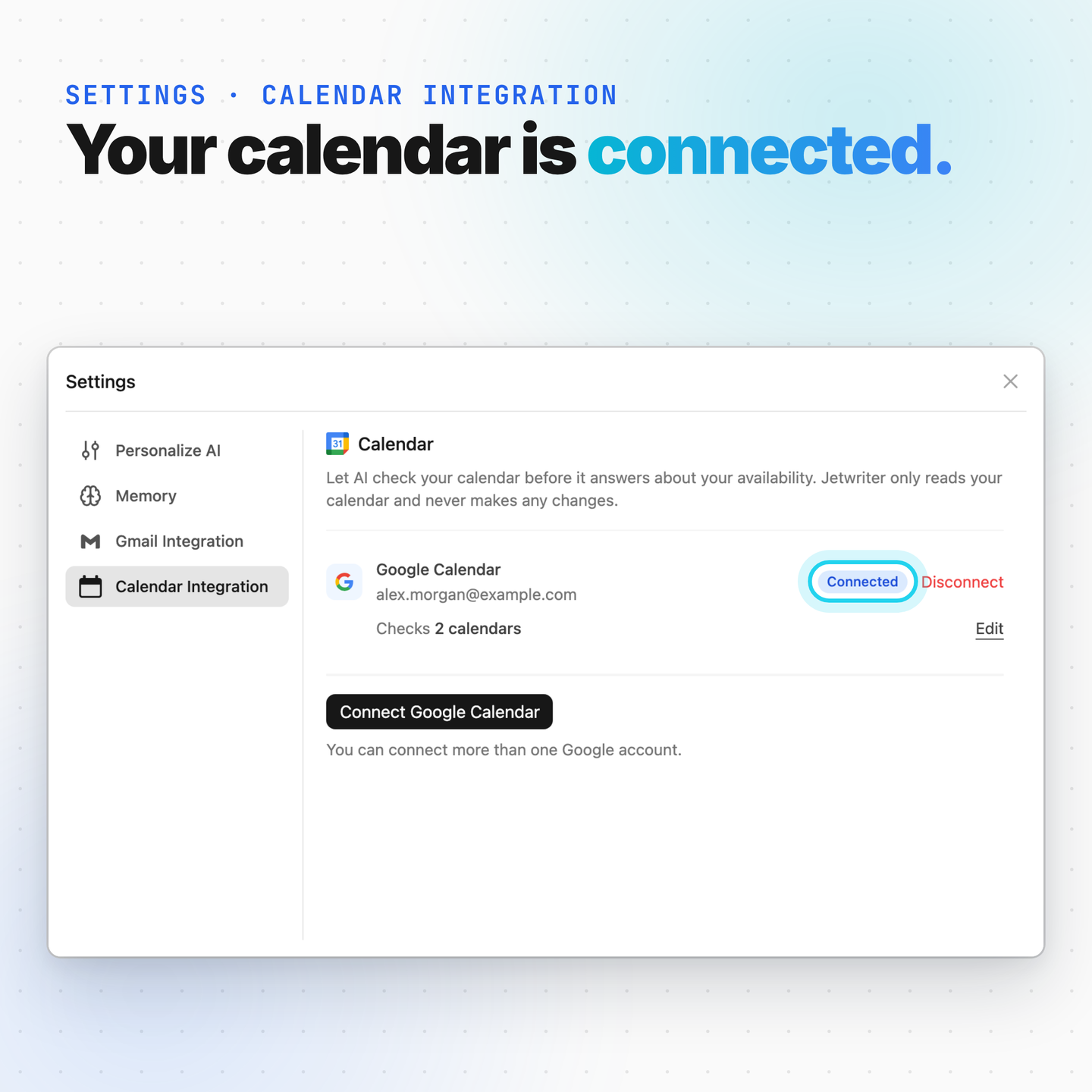
Step 1: Open Calendar Integration settings. Log in if Jetwriter asks you to.
Step 2: Click Connect Google Calendar.
Step 3: Choose your Google account. Google shows what Jetwriter wants to access. If you see a checkbox for your calendar, make sure it is ticked. Then click Continue.
Step 4: That is it! You are back in Jetwriter, and your account shows as Connected. Jetwriter can now check your calendar in the extension, the web app and Auto-Draft.
Choose which calendars to check
By default, Jetwriter checks your main calendar. Do you also use other calendars, like a team calendar or a family calendar? You can add them:
- Click Edit next to "Checks main calendar only".
- Turn on the calendars you want Jetwriter to check.
- Click Save.
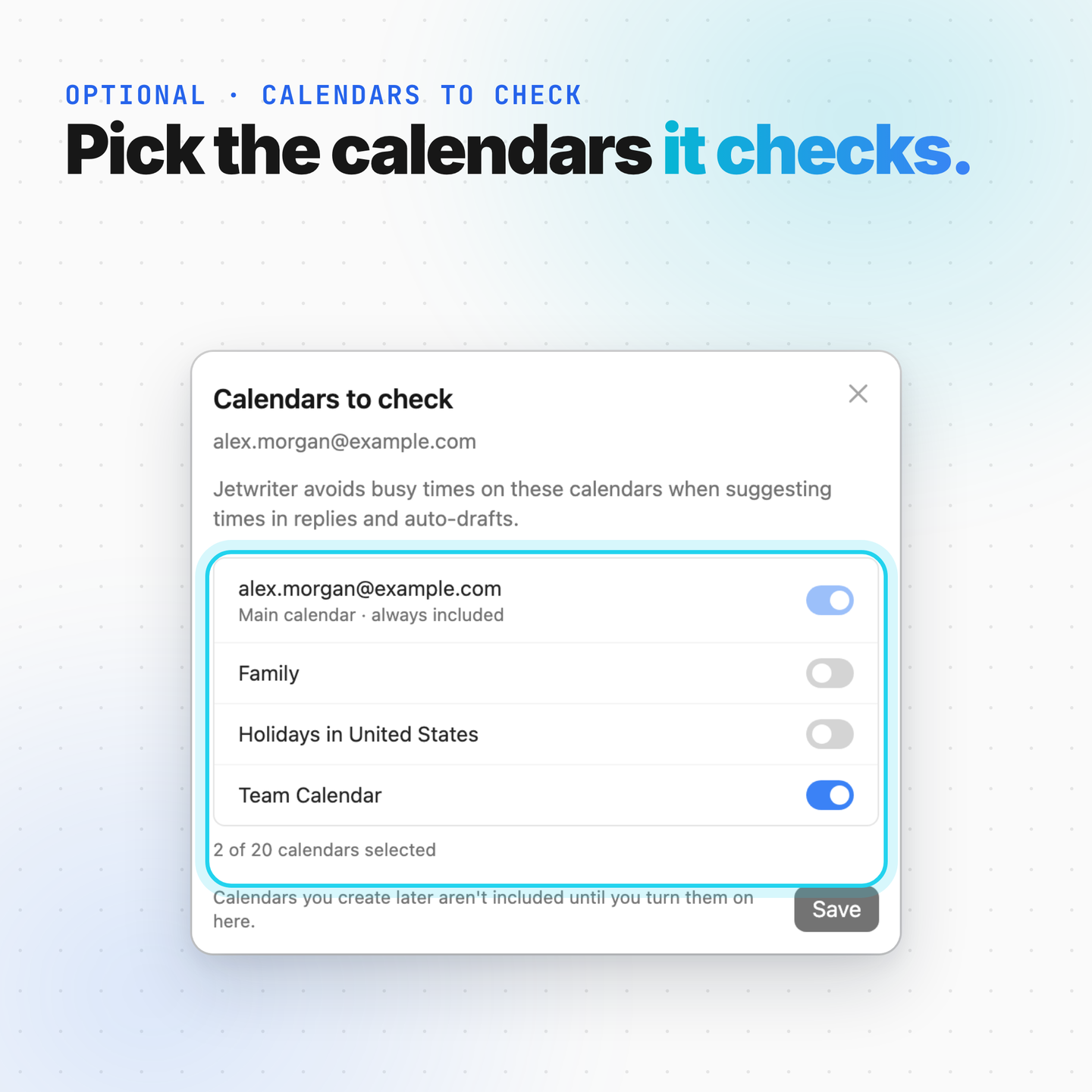
Your main calendar is always included. You can choose up to 20 calendars for each Google account. Calendars you create later are not added on their own, so turn them on here when you need them.
Connect more than one account
Do you keep your work calendar and your personal calendar in different Google accounts? Just click Connect Google Calendar again and pick the other account. Jetwriter checks all your connected calendars before it suggests a time.
Privacy: Your Calendar Stays Yours
Your calendar is personal. Here is how we keep it safe:
- Read-only access: Jetwriter only reads your calendar. It never creates, changes or deletes your events.
- Only when needed: It reads your calendar only when a reply depends on a date or time, and only for the days it needs.
- Your events stay private: It does not tell the people you write to about your other meetings.
- No AI training: We never use your calendar to train AI models. We never sell your data, and we never use it for ads.
- You are in control: You can disconnect your calendar at any time.
How to Disconnect Your Calendar
Want to take a break? Open Calendar Integration settings and click Disconnect next to the account. Jetwriter stops reading that calendar right away. You can connect it again whenever you like.
If an account ever shows Needs reconnect, it means Google access stopped working. Click Reconnect and sign in to that Google account again.
Conclusion
Setting up a meeting should not take five emails and three trips to your calendar.
With Calendar-Aware Replies, Jetwriter AI checks your calendar for you. It finds the times that work, writes the reply, and keeps your other meetings private. You just read the reply and click send.
Ready to try it? Open Calendar Integration settings and connect your Google Calendar. New to Jetwriter AI? Add the free extension and reply to emails in Gmail, Outlook and LinkedIn.
Frequently Asked Questions (FAQ)
Is Calendar-Aware Replies free?
Yes. You can connect your Google Calendar on every Jetwriter AI plan, including the free plan. Auto-Draft, which writes Gmail drafts for you in the background, is only available on paid plans.
Can Jetwriter add events or send invites for me?
No. Jetwriter only reads your calendar. It cannot create, change or delete events, and it does not send calendar invites.
Does it work with Outlook Calendar or Apple Calendar?
Not right now. Calendar-Aware Replies works with Google Calendar. You can still use it while you write in Outlook or on other websites, as long as your meetings are in Google Calendar.
Do I need to connect my Gmail first?
No. Your calendar is a separate connection. You can connect your Google Calendar without connecting Gmail.
Will Jetwriter tell people what my other meetings are?
No. Jetwriter uses your events only to decide which times work. It does not share event names, people, places or links with the person you are writing to, unless you ask it to or they are part of that event.
Does Jetwriter keep a copy of my calendar?
No. Jetwriter does not keep a copy of your calendar. When it checks your calendar in a chat, the details it looked up are saved in that chat's history, like the rest of the conversation. Events it reads for an Auto-Draft are not kept.
How far ahead can it look?
When it checks your free time, it looks at up to about a month at once. When you ask about a specific event, like "When is my dentist appointment?", it can search up to a year ahead.
What if I see "Calendar permission needed"?
This means Jetwriter did not get permission to read your calendar. Usually, the calendar box on Google's screen was not ticked. Go back, click Connect Google Calendar again, and make sure the calendar permission is ticked.