Do you look at your email inbox and want to hide? You open Gmail and see thirty new messages waiting for you.
Replying to all of them takes too much time. First, you have to read the message. Then, you have to think about what to say. Finally, you have to type it all out.
For example, a customer asks a simple question. You know the exact answer. But you still have to sit there and type it. Doing this ten times a day is boring. It stops you from doing your real work.
Jetwriter AI has a new feature to fix this. It is called Auto-Draft.
Now, if a new email needs a reply, Jetwriter AI drafts one for you right away. When you open the email, a draft is already there. You do not have to start from a blank screen. You just read the draft, and click send.
How Does Auto-Draft Work
When you get a new email, and it needs a reply, Jetwriter AI reads it and writes a reply for you. But it does not just read the very last message. It reads the whole email chain.
For example, let us say you and a client sent five emails back and forth about a new project. Jetwriter AI reads all five of those emails. This helps it write a really good reply. It knows exactly what you were talking about yesterday.
Next, you might be wondering, "Will the AI send an email without asking me?"
The answer is no. This is very important. Jetwriter AI only writes the draft. It will never click the send button.
Here is how you use it. The AI writes the reply and leaves it ready for you in your Inbox. You open the email and read the draft. You can fix words or add things if you want to. Finally, you click the send button yourself.
You skip the hardest part of writing. You never have to stare at a blank screen again.
How to Turn On Auto-Draft
Turning this feature on is very easy. It only takes a minute! Here is what you need to do:
- First, log into the Jetwriter AI Web App.
- Go to your "Settings" page.
- Click on the option that says "Gmail Integration".
- Find the "Auto Draft" option and click on "Enable".
After you click “Enable”, a new window from Google will pop up on your screen. You will need to sign in to your Gmail account.
Google will ask if it is okay for Jetwriter to "View and manage draft messages." You just say yes and click allow.
That is it! You are done. The feature is now on, and Jetwriter will start writing email drafts for you right away.
How to Control Auto-Draft
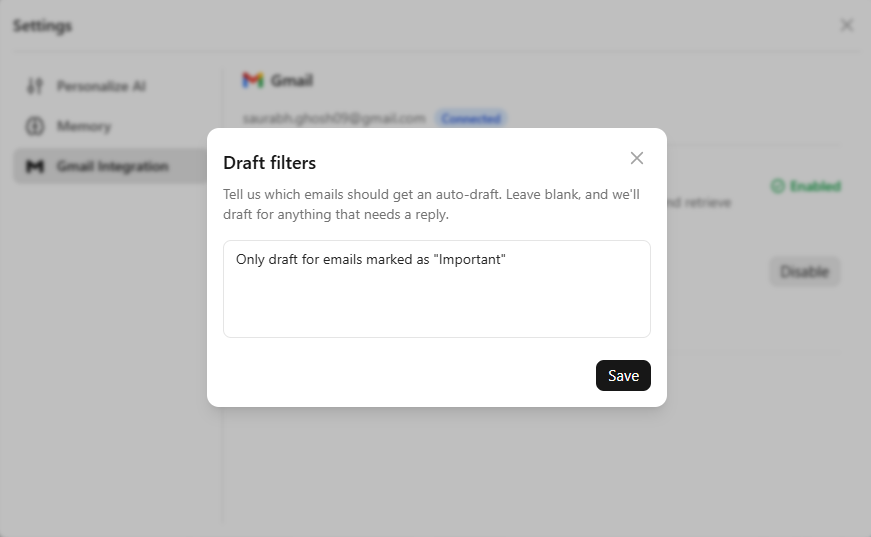
For emails that needs a reply, not all emails are important. You might not want a draft for every single message you get. Because of this, we give you choices. You can tell Jetwriter AI exactly which emails to answer.
You can change these choices in the "Auto Draft" settings. Here is what you can do:
- Answer Everything: If you leave the settings blank, Jetwriter will write a draft for every email that needs a reply.
- Answer Important Emails: You can tell Jetwriter to only draft replies for emails marked as "Important.", or, for emails with a specific label, such as "Clients”.
- Skip Certain Jobs: You can tell Jetwriter to skip emails from certain types of people. For example, you can tell it to skip drafting replies for recruiters or for promotional emails.
- Pick Exact Email Addresses: You can type in exact email addresses. You can tell Jetwriter to always write a draft for "boss@company.com". Or, you can tell it to never write a draft for "coupons@shop.com".
How to Turn It Off
What if you want to take a break from this feature? You are always in charge.
Turning “Auto Draft” off is very simple. Just go back to your settings page. Find the "Auto Draft" under "Gmail Integration" option. Click the "Disable” button. Jetwriter will stop making drafts right away. You can always turn it back on later.
Write In Your Real Voice
You might be thinking, "Will these drafts sound like a robot?" The answer is no.
Remember the "Connect Gmail" feature? That feature lets Jetwriter AI read your old emails to learn your style. It learns the words you like to use. It learns if you write short notes or long lists.
The new Auto-Draft feature uses everything it learned about you. The drafts waiting in your inbox will not sound generic. They will use your exact style.
For example, if you always start emails with "Hi team," the draft will start with "Hi team." If you always sign off with "Cheers," the draft will end with "Cheers."
The draft will look exactly like something you typed yourself. This means you do not have to spend time fixing the AI's words. You can just read it and click send!
Privacy: Keeping Your Emails Safe
You might worry about who can see your emails. We want to be very clear about this. Your emails belong to you.
When Jetwriter AI reads your emails to write a draft, it only does this to help you save time.
We never use your emails to train any AI models. We also do not sell your data to anyone, ever.
We use industry-standard encryption to keep all your information safe and locked up. Your private notes will always stay private. No one else will ever see your emails.
Conclusion
Replying to emails every day takes a lot of time. But it does not have to be that way anymore.
With the new Auto-Draft feature, Jetwriter AI does the hard work for you. It writes perfect, smart replies while you are busy doing other things. You get to skip the blank screen and get right to the easy part.
You will save hours every week. You can use that extra time to do real work, or just take a break!
Log into your Jetwriter AI Web App today. Go to your settings, and turn on Auto-Draft. Try it out and see how easy your inbox can be!
Frequently Asked Questions (FAQ)
Can Jetwriter AI write email drafts in other languages like Spanish or French?
Yes, it can. Jetwriter AI supports all languages. It will naturally detect the language of the incoming email and draft a reply in that same language for you.
Will the AI write drafts for me even if my computer is turned off?
Yes, it will. The Auto-Draft feature works in the background through your connected Gmail account. For emails that needs a reply, the drafts will be waiting in your inbox the next time you log in, no matter when the emails arrived.
Does this Auto-Draft tool work with Outlook, or is it only for Gmail?
Right now, the Auto-Draft feature is built specifically for Gmail. While Jetwriter AI works as an extension on Outlook, this background drafting tool is currently a Gmail-only feature.
Can I connect two different Gmail accounts to Jetwriter AI at the same time?
No, you cannot. Currently, you can only link one Gmail account to your Jetwriter AI profile at a time.
Can I just delete the AI draft and type my own email from scratch?
Yes, absolutely. If you do not like the draft, you can just delete it like any normal text. You are always in control and can start from a blank screen whenever you want.
Is the Auto-Draft feature free to use?
No, this feature is only available on our paid plans. If you are using the free version of Jetwriter AI, you will need to upgrade your account to turn it on.