To reply to a LinkedIn message with AI, add the free Jetwriter AI extension to your browser and open the conversation on linkedin.com. Click AI Reply, next to LinkedIn's Send button, type in a few words what you want to say, and Jetwriter AI writes the whole reply from the conversation. Click Insert to put it in LinkedIn's message box, then read it and click Send yourself.
It works in Chrome, Edge, Brave, Opera and Vivaldi on a computer, with free and Premium LinkedIn accounts, on LinkedIn's Messaging page and in the chat windows at the bottom of LinkedIn. In a new conversation, the same button says AI Compose and writes your first message.
How to Reply to a LinkedIn Message with AI
- Add Jetwriter AI to your browser. It's free.
- Sign in, or create a free account.
- Open the conversation you want to answer on linkedin.com/messaging, or in a chat window at the bottom of LinkedIn.
- Click AI Reply, in the bar under LinkedIn's message box, next to Send. Jetwriter AI's window opens with "Conversation with" and the person's name above its box: it has read the conversation.
- Type in a few words what to say, the facts and your answer, and press Enter.
- Read the reply, then click Insert. Jetwriter AI puts it in LinkedIn's message box, in place of anything you had typed there.
- Change anything you like, and click Send.
The Free plan includes 15 AI responses a month. Each reply or new message uses one, and so does each change or new version you ask for.
Example: A Client Asks About Your Fees
The situation: Priya Nair, head of brand at a granola company, messages Maya Brennan, who runs a packaging design studio, on LinkedIn. Her company is launching six granola bar flavors in March, and she asks whether Maya can take the packaging on in January, and what it would roughly cost.
What Maya typed
Yes, can start Jan 12. Six flavors usually runs $9–12k depending on print. Suggest a 30-min call Tue or Thu afternoon next week.
What Jetwriter AI wrote
Hi Priya,
Thank you for reaching out, and I'm glad the work resonated with you. A March launch for a new granola line sounds like a great project.
Yes, I can start on January 12. For six flavors, the fee usually runs between $9,000 and $12,000, depending mainly on the print specifications. Once I know more about your needs, I can give you a firmer number.
Would you be open to a 30-minute call next week to talk through the details? I'm available Tuesday or Thursday afternoon. Let me know which day and time suit you, and I'll send an invite.
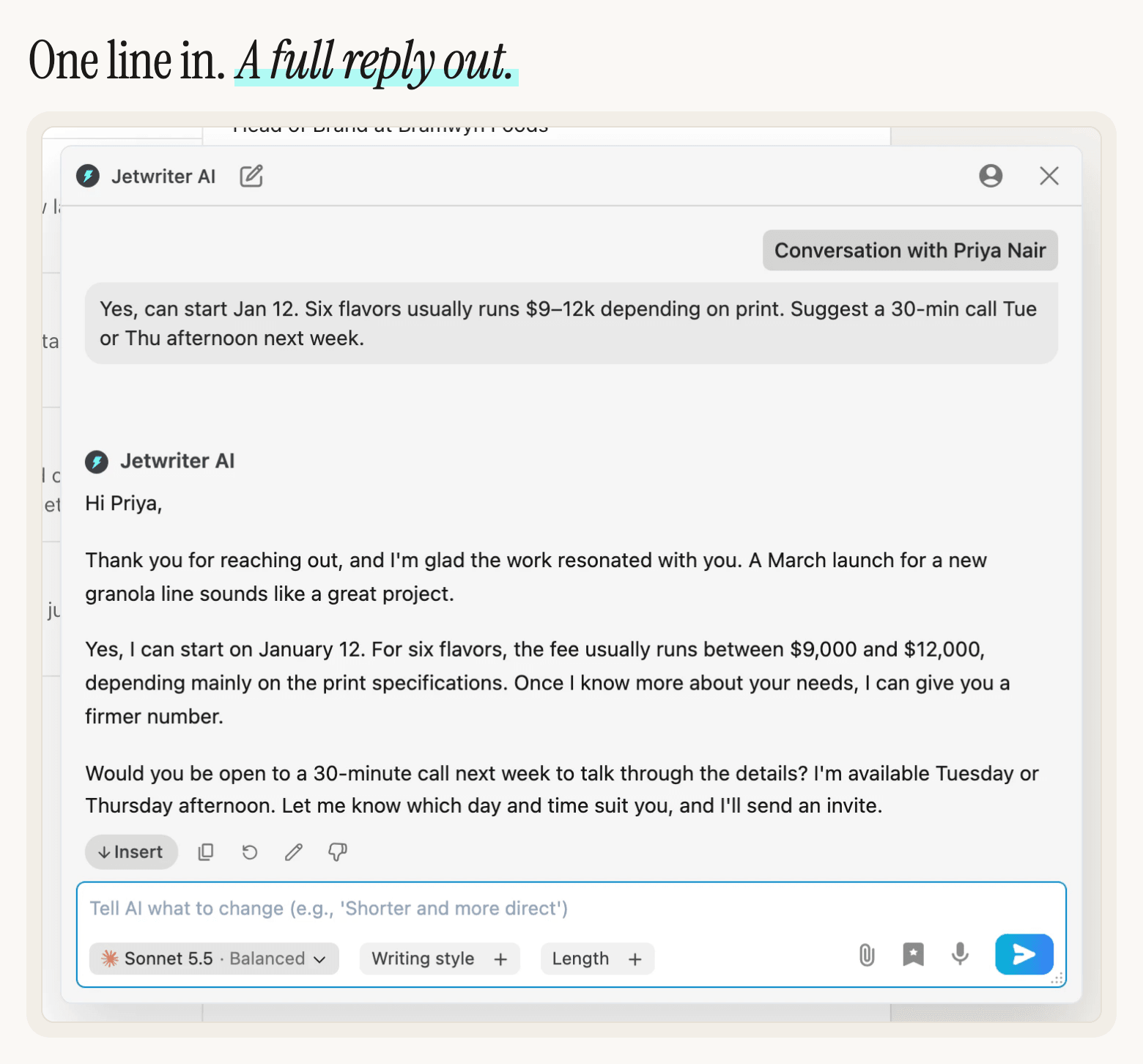
Jetwriter AI answered both of Priya's questions and proposed the call. It leaves the sign-off to you.
Change the Reply Before You Insert It
In the Jetwriter AI window, type what to change in the box under the reply, such as "Make it shorter", "More casual" or "Offer Thursday at 2 PM instead", and press Enter. Jetwriter AI rewrites it with the conversation still in mind. For a different version of the same reply, click the circular arrow under it.
Write a New LinkedIn Message with AI Compose
Start a new message on LinkedIn and choose who it's for. In a conversation with no messages yet, Jetwriter AI's button says AI Compose: click it, say in a sentence or two what the message is for, and press Enter. There's nothing to read in a new conversation, so put the names and facts in your note. Click Insert to put the message in LinkedIn's message box, then send it.
What Maya typed in a new message to Daniel, who runs production at the print shop she works with
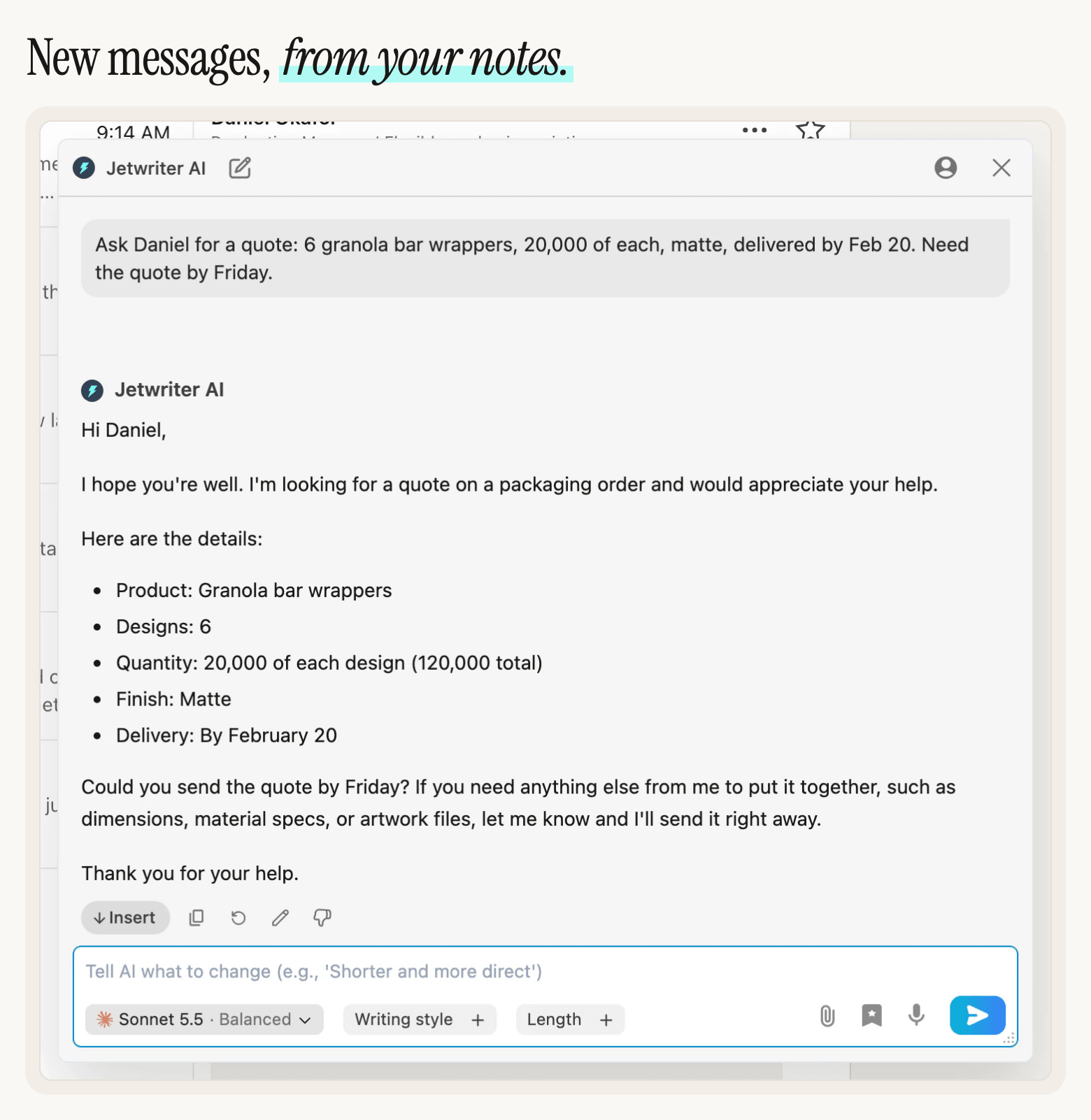
Ask Daniel for a quote: 6 granola bar wrappers, 20,000 of each, matte, delivered by Feb 20. Need the quote by Friday.
What Jetwriter AI wrote
Hi Daniel,
I hope you're well. I'm looking for a quote on a packaging order and would appreciate your help.
Here are the details:
- Product: Granola bar wrappers
- Designs: 6
- Quantity: 20,000 of each design (120,000 total)
- Finish: Matte
- Delivery: By February 20
Could you send the quote by Friday? If you need anything else from me to put it together, such as dimensions, material specs, or artwork files, let me know and I'll send it right away.
Thank you for your help.
What to Type for Common LinkedIn Messages
A few words are enough when they hold your answer. Some notes that work for messages people get often:
- A recruiter asks whether you're open to a role: "Interested. Ask for the salary range and whether it's remote."
- A sales pitch you don't need: "Not a fit for us right now. Thank them, no need to follow up."
- A client asks for an update: "Designs are 80% done, first round goes out Friday."
- Someone asks you for an introduction: "Happy to introduce them to Sam. Ask for two lines on what they need."
- A congratulations on your new role: "Thank them, and say we should catch up in January."
AI Reply reads the conversation, so you don't need to repeat what the other person wrote.
Reply in Another Language
End your note with the language, such as "Reply in Spanish", and the reply comes back in Spanish, whatever language the conversation is in. To have every reply follow the same rule, write it once in Personalize AI, for example "Reply in the language of the message I'm answering." See How to Reply to Emails in Another Language with AI and Write in another language, or stop unwanted translation.
Say It Instead of Typing
Click the microphone at the bottom right of the Jetwriter AI window's box, say your answer, and click the check mark when you're done. Your words appear in the box, where you can change them; press Enter, and Jetwriter AI writes the reply from them. The first time, your browser asks whether linkedin.com can use your microphone: allow it. See How to Use Voice Typing in Gmail on a Computer: the microphone works the same way on LinkedIn.
Make Replies Sound Like You
Three settings, set once, shape every reply and new message you write with AI Reply and AI Compose:
- Writing style, under the box in the Jetwriter AI window. Pick Professional, Casual, Straightforward, Persuasive or Friendly, or click Add Style and describe your own.
- Personalize AI, in the profile menu at the top of the window. Tell it who you are and how you like to write, such as your role, your company and your tone.
- Files and links, on paid plans. Add your price list, FAQ or policy pages in the web app, under Personalize AI's Files and links. When a reply needs one of those facts, Jetwriter AI checks them first, so it answers with your real prices and terms.
See Tell Jetwriter about you, and how to reply (Personalize AI) and How to Get AI to Write Emails in Your Own Tone.
Write LinkedIn Posts and Comments
AI Reply is in LinkedIn's messages. To write a post, a comment or your profile's About section, open Jetwriter AI from its icon in your browser's toolbar, or press Ctrl+Shift+K (Cmd+Shift+K on a Mac), say what to write, and copy the text into LinkedIn. To comment on a post, select the post's text first, right-click it and choose Jetwriter AI, so it writes with that post in mind. See Open Jetwriter on any page, and change the shortcut.
You Check the Reply and Send It Yourself
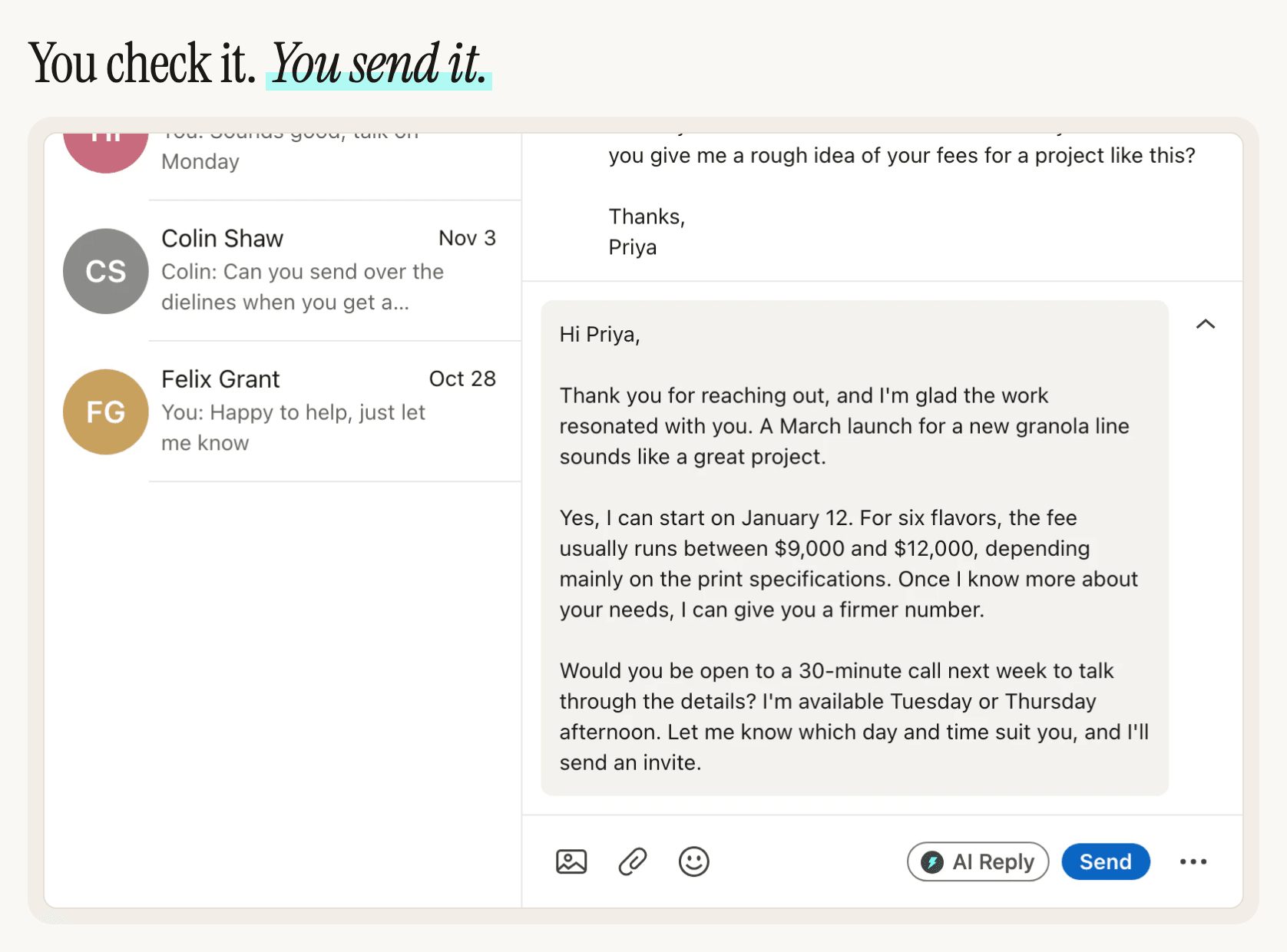
Jetwriter AI writes a reply only when you click AI Reply or AI Compose, and the reply waits in LinkedIn's message box until you click Send. It never sends a message, accepts a connection or does anything else on LinkedIn by itself.
Frequently Asked Questions (FAQ)
Can I use AI on LinkedIn for free?
Yes. Jetwriter AI's Free plan includes 15 AI responses a month. Each LinkedIn reply or new message uses one, and so does each change or new version you ask for. Paid plans add advanced AI models and Files and links: see the pricing page.
Do I need LinkedIn Premium to use AI Reply?
No. Jetwriter AI is a browser extension, so AI Reply and AI Compose work the same with a free LinkedIn account as with Premium.
Is it safe to use AI on LinkedIn?
Jetwriter AI writes a draft when you ask for one and puts it in LinkedIn's message box when you click Insert. You read every message and send it yourself, as if you had typed it. It doesn't send messages, invite people or browse LinkedIn on its own.
Does Jetwriter AI read all my LinkedIn messages?
No. AI Reply reads the conversation you click it in: the messages LinkedIn shows in it, with names and times, and your name. It doesn't read your other conversations. See Is Jetwriter AI safe? What it reads and keeps.
Why don't I see the AI Reply button on LinkedIn?
Check that you're on linkedin.com in your browser on a computer, then reload the page. That fixes it in most cases, especially right after you install or update Jetwriter AI. If it's still missing, see The AI Reply button isn't showing.
Does it work in group conversations?
Yes. In a group conversation, AI Reply reads the messages and writes a reply to the group, and its label says "Group Conversation" instead of a person's name.
Can I use it in the LinkedIn app on my phone?
No. The extension only runs in a browser on a computer. On a phone, paste the message into the Jetwriter AI web app and copy the reply back into LinkedIn. See Use Jetwriter on your phone.
Does it work in Gmail and WhatsApp Web too?
Yes. AI Reply works the same way in Gmail, Outlook on the web, WhatsApp Web and Zoho Mail. See How to Use AI in Gmail and How to Use AI in WhatsApp Web.
New to Jetwriter AI? Add the free extension, open LinkedIn and click AI Reply in any conversation.