Example: One Client Email, Three Replies
Nadia Okafor is a project manager at Tinderwell Studio, a small studio that builds online stores. Daniel, a client whose new store launches on December 4, emails her:
Hi Nadia,
Quick question before the launch on December 4. Our team would love to sell gift cards on the new store for the holidays. Could you add a gift card page? Would that push back the launch, and what would it cost?
Thanks, Daniel
She clicks AI Reply under the email and types five words: "Yes, we can add it". Jetwriter AI writes the whole reply from Daniel's email and those five words. Here is what it wrote three times, each time with more of Nadia to go on.
Reply 1: With Nothing Set
With nothing set, Jetwriter AI knows Daniel's email and Nadia's five words, and nothing else about her:
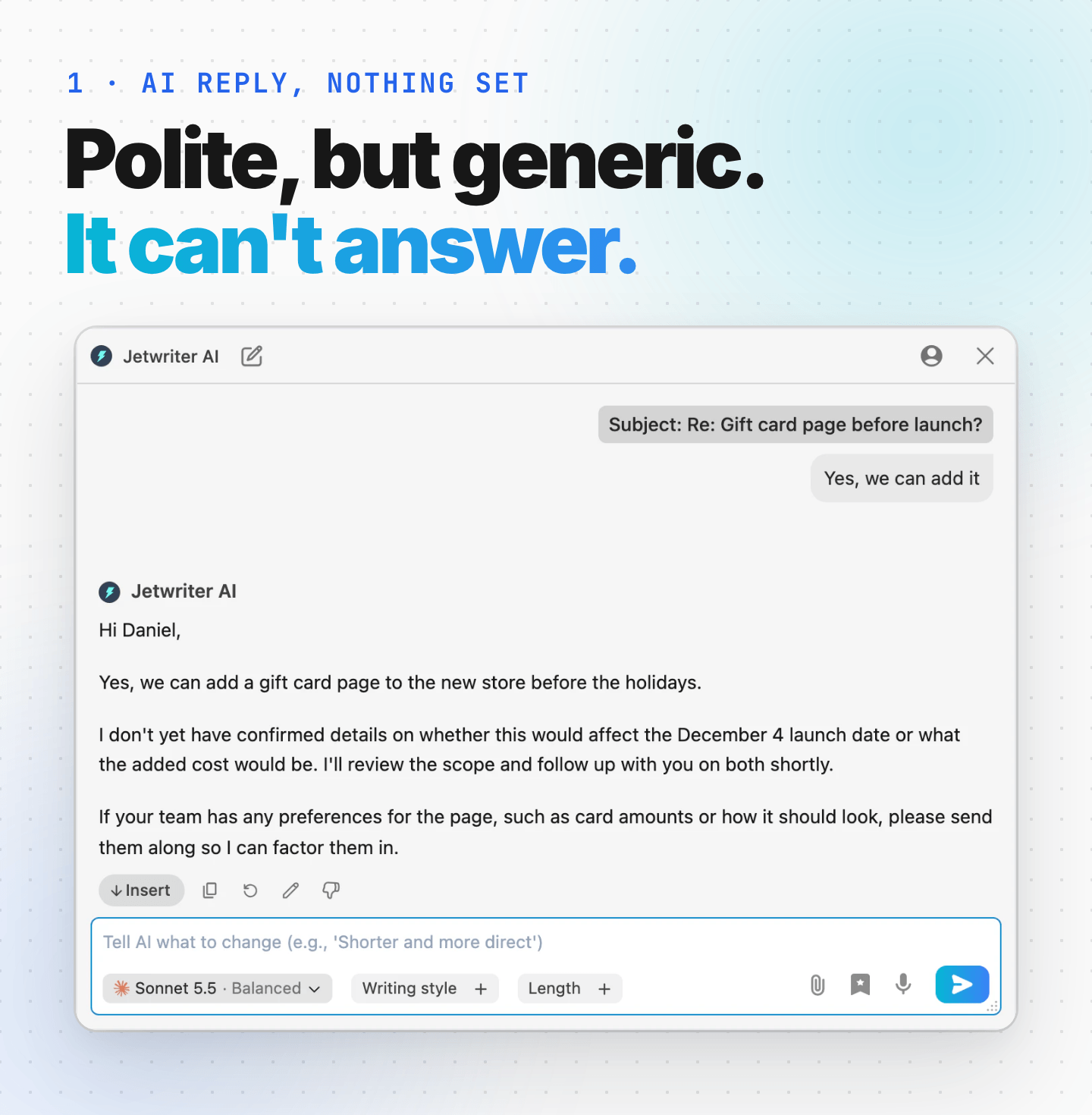
The reply is polite and clear, and anyone could have sent it. It can't tell Daniel what the page costs or whether the launch moves, so it promises to "review the scope and follow up with you on both shortly."
Reply 2: With Personalize AI
In Personalize AI, Nadia wrote who she is and how she likes her emails:
- What should AI know about you? "I'm Nadia Okafor, project manager at Tinderwell Studio. We design and build online stores for small home and lifestyle brands. Clients write to me about timelines, launches and changes to their store."
- How should AI respond to you? "Warm but professional. Use the client's first name. Keep emails short and clear. No exclamation marks. Always end with a clear next step."
The same five words now gave:
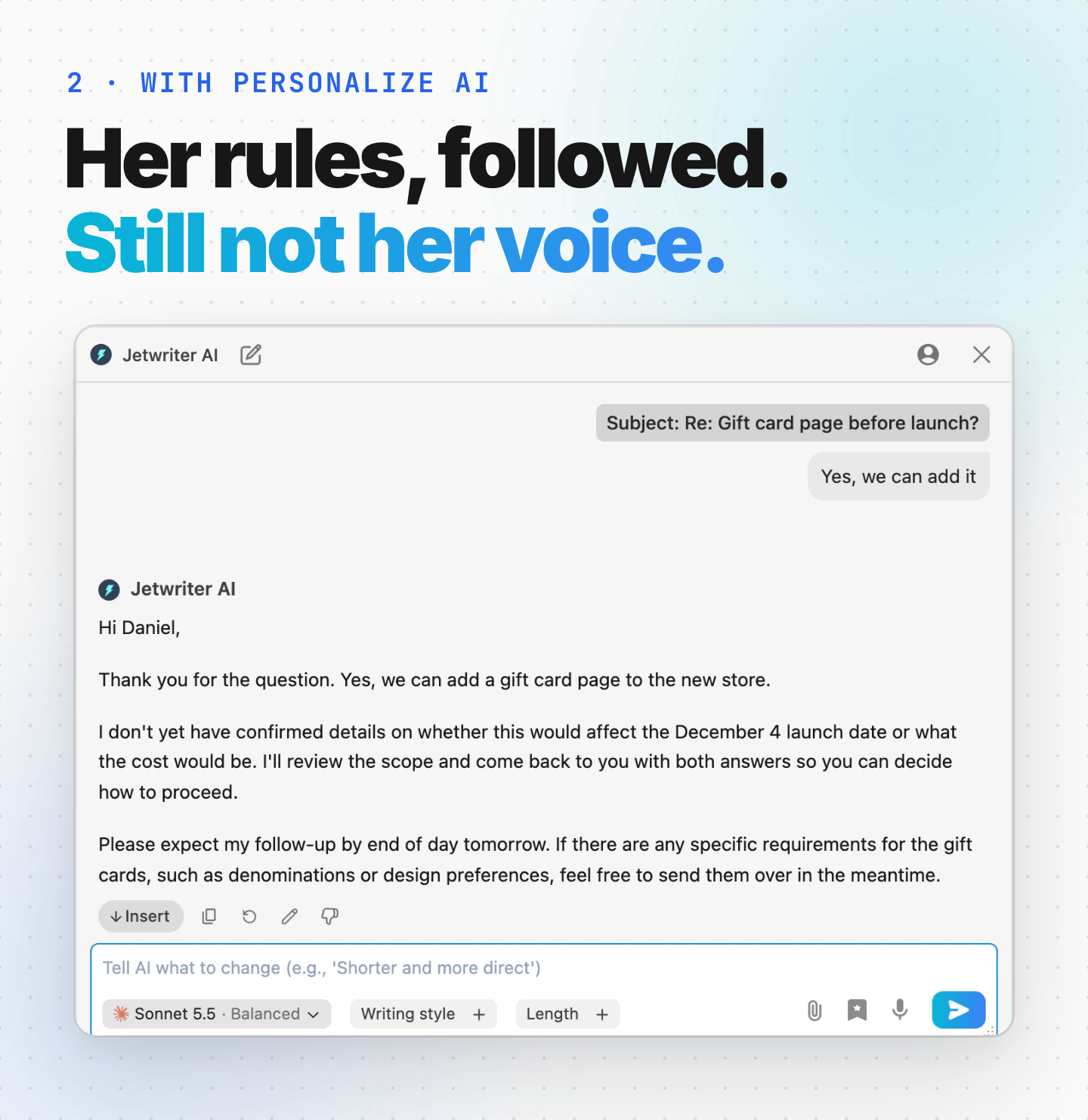
The reply follows her rules: it's warm, uses Daniel's first name, has no exclamation marks and ends with a next step, "Please expect my follow-up by end of day tomorrow." That's a deadline Nadia never set, so she'd check she can keep it. And it still can't answer Daniel: rules describe a tone, but they don't show Jetwriter AI how Nadia actually writes, or what she charges.
Reply 3: With Gmail Connected
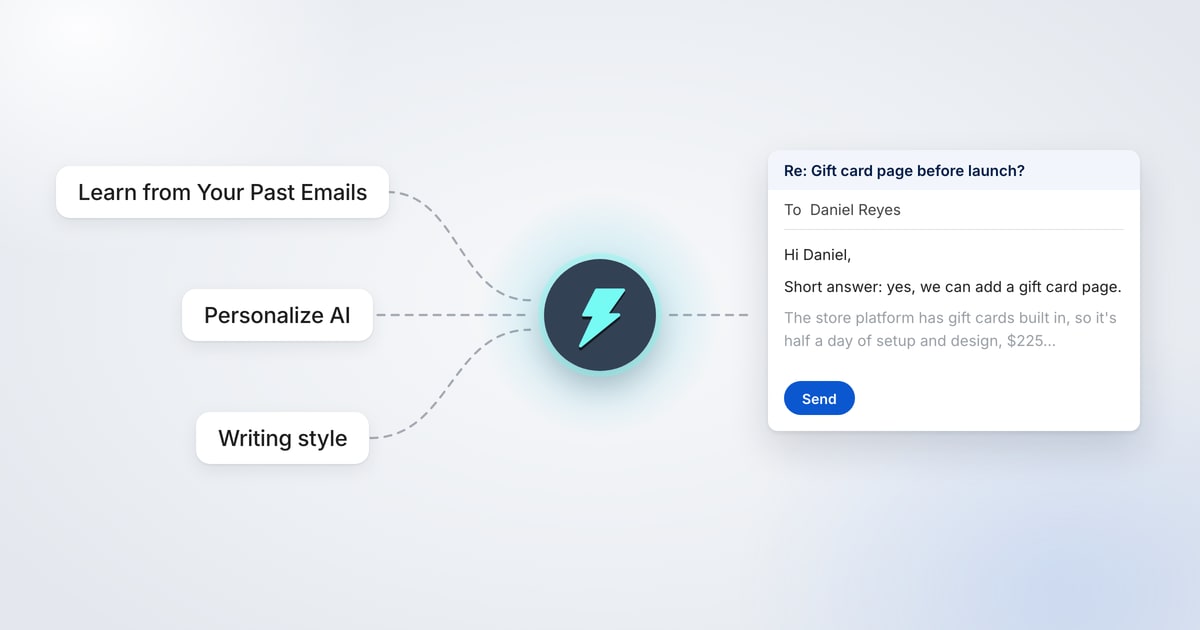
Then Nadia connects her Gmail. Now Jetwriter AI also reads emails she has sent, read-only, and writes the way she writes in them. Nadia opens most client emails with "Short answer:", keeps them to a few short lines and ends with what she'll do next. A week earlier, she had answered the same question for another client: a gift card page is half a day of setup and design, $225, and it doesn't move the launch.
The same five words now gave:
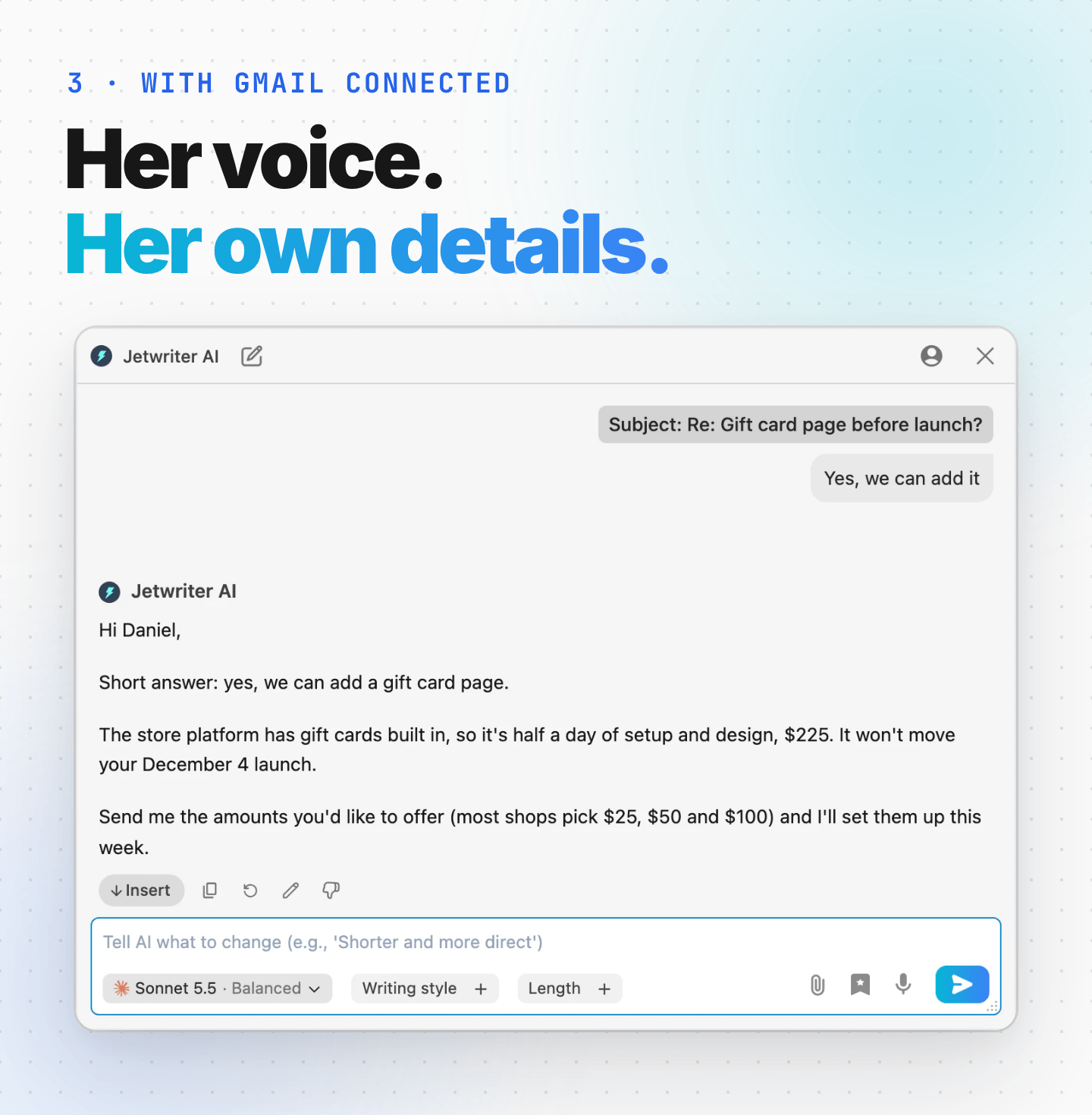
The reply sounds like Nadia and answers both of Daniel's questions: "Short answer: yes, we can add a gift card page," then "half a day of setup and design, $225. It won't move your December 4 launch." The price, the half day and the launch date come from her email to another client, so Nadia checks they still hold for Daniel before she clicks Insert and sends it.
All three replies are what Sonnet 5.5, the default model on paid plans, wrote with the prompt AI Reply uses in Gmail. Personalize AI stayed on for the third reply. The people, companies and emails are made up.
How Does Jetwriter AI Learn Your Tone from Sent Emails?
Once you connect Gmail, AI Reply and AI Compose in Gmail read emails you've sent, read-only, before they write. The reply follows how you write in them, such as how you open an email, how long you write and the words you choose, and it can use details from them, such as a price you've quoted before.
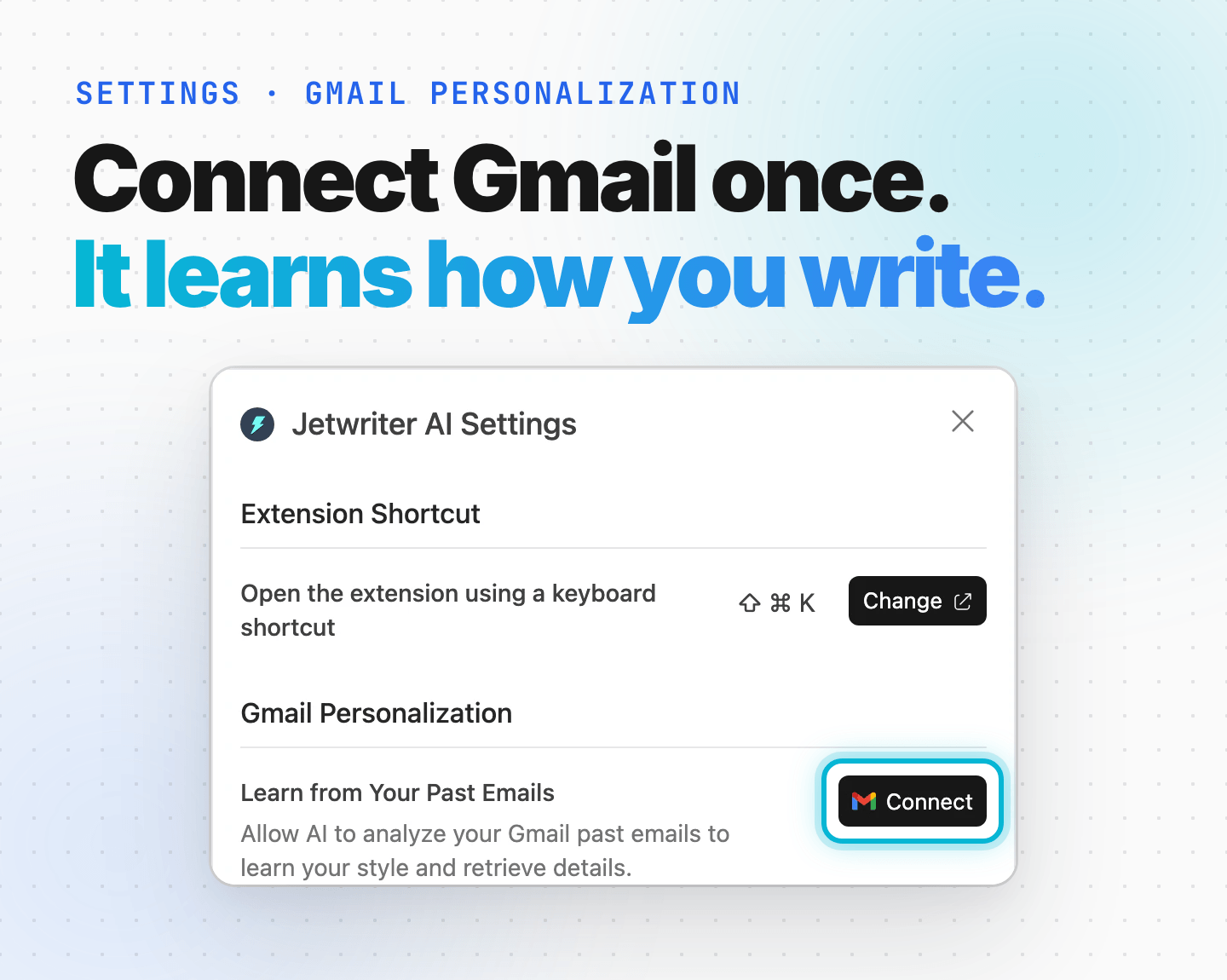
To connect it, open the Jetwriter AI window in Gmail, for example by clicking AI Reply under an email. Click your profile icon at the top right of the window, then Settings, and click Connect under Gmail Personalization. Then click Connect Gmail, choose the Google account you write from, and allow the read-only access Google asks for.
It works on every plan, including Free, and only in Gmail: with AI Reply, AI Compose and, on paid plans, Auto-Drafts, which writes replies as emails arrive. For every step, and what to do if connecting doesn't work, see Connect Gmail so replies use your past emails, or disconnect it.
Tell Jetwriter AI How You Write, on Every Site
Learning from your sent emails works in Gmail. Two settings shape every reply on every site, Gmail included: Personalize AI and writing styles.
Save Who You Are in Personalize AI
Personalize AI tells Jetwriter AI who you are and how you like to write, and every reply follows it while it's on. Open the Jetwriter AI window, click your profile icon at the top right, click Personalize AI, fill in What should AI know about you? and How should AI respond to you?, and click Save.
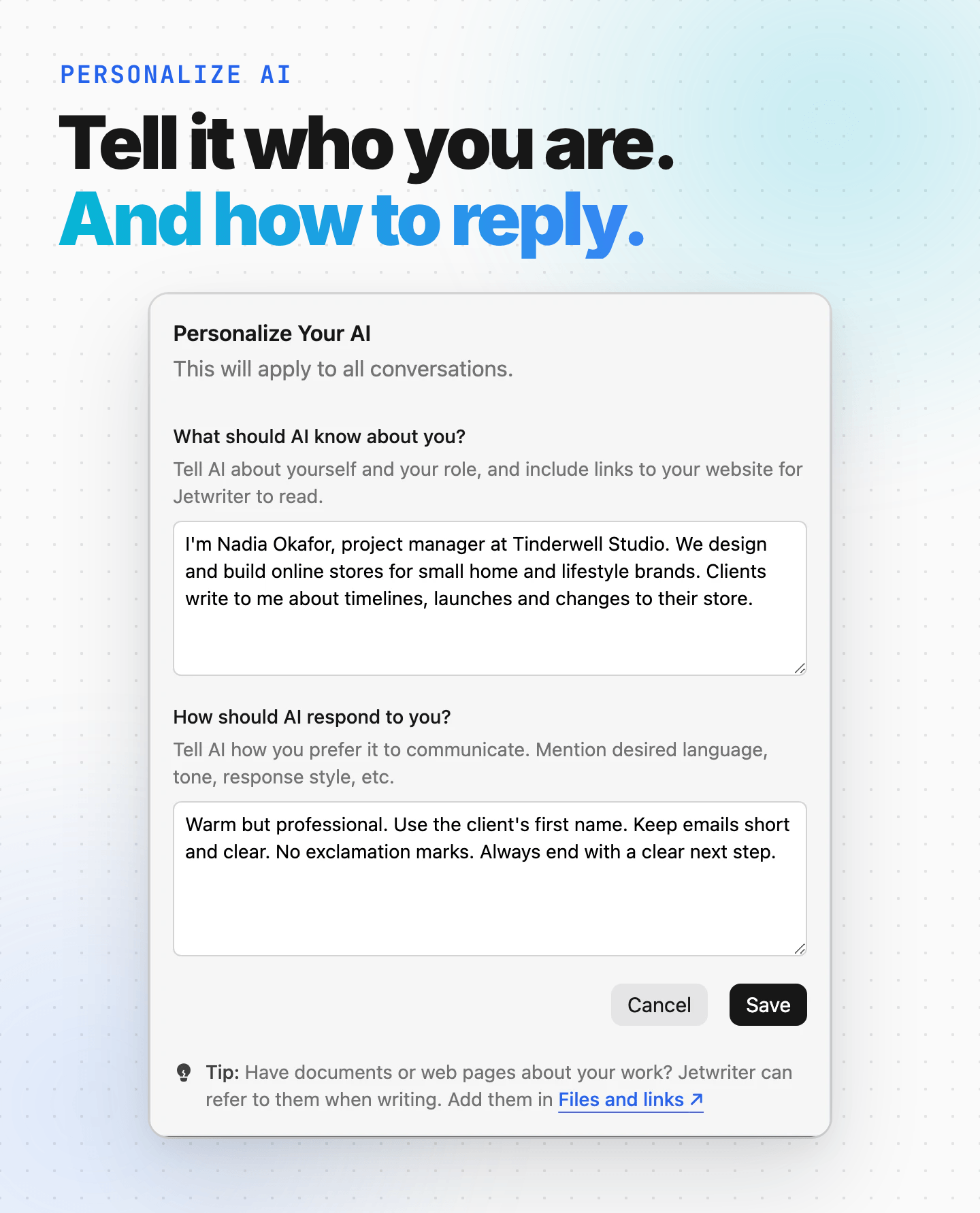
Write your role, who you usually write to and a few rules for your emails, such as "Use the client's first name. No exclamation marks." For more, see Personalized AI: How to Make AI Sound Exactly Like You and Tell Jetwriter about you, and how to reply.
Pick a Writing Style When an Email Needs a Different Tone
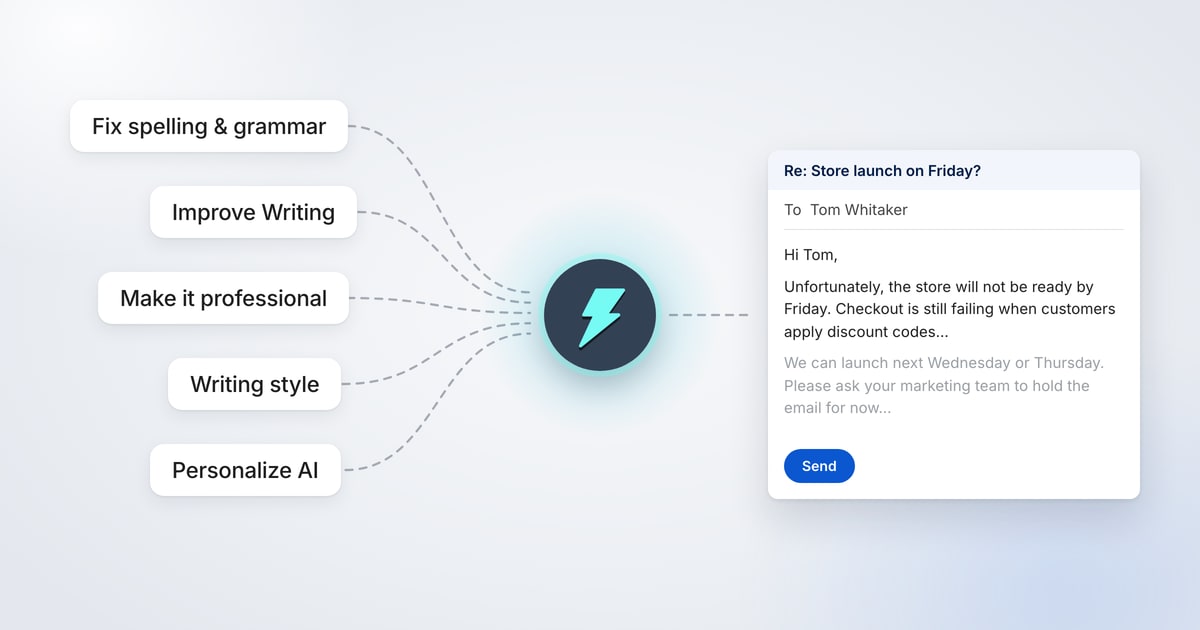
Click Writing style under the box where you type, and pick Professional, Casual, Straightforward, Persuasive or Friendly. Or click Add Style, give it a Style Name and describe the tone under Style Instructions. You can save up to 20 styles of your own. The style stays picked until you remove it with the x next to its name. See Get the reply you want.
Does Jetwriter AI Read or Send Your Emails?
It reads, and it never sends. AI Reply reads the email you're answering. If you connect Gmail, Jetwriter AI can also read your other emails, read-only: it can't send, delete or change them, and your emails are never used to train AI models. Each reply waits in the Jetwriter AI window until you click Insert, and you send it yourself. On paid plans, Auto-Drafts writes replies as new emails arrive and saves them as drafts in Gmail, and it never sends one either.
To stop it from reading your Gmail, click Disconnect under Gmail Personalization in Settings. It stops right away. See Is Jetwriter AI safe? What it reads and keeps.
Try It on Your Next Reply
Already using Jetwriter AI? Connect Gmail in Settings, then click AI Reply under the next email you need to answer and type in a few words what to say.
New to it? Add the free extension, open Gmail and click AI Reply under any email. For everything else it does in Gmail, see How to Use AI in Gmail.
Frequently Asked Questions (FAQ)
Can AI write emails in my own tone?
Yes, when it has something of yours to go on. With Jetwriter AI, connect Gmail and it learns your tone from emails you've sent. On every site, it also follows what you tell it in Personalize AI and the writing style you pick. With nothing set, it writes in a neutral, professional tone.
Is there a free AI that learns my email tone?
Yes. Connecting Gmail, Personalize AI and writing styles are on every Jetwriter AI plan, including the Free plan, which includes 15 AI responses a month. Each reply uses one, whether or not Gmail is connected. The paid plans are on the pricing page.
Does it learn my tone in Outlook?
Learning from your sent emails works in Gmail only. In Outlook on the web, AI Reply follows Personalize AI and the writing style you pick, so tell it how you write there. See Use Jetwriter in Outlook on the web and How to Use AI in Outlook.
Does it copy my old emails?
It uses them as a guide and writes a new reply to the email you're answering. When you've answered the same question before, the reply can reuse your wording and numbers from that email. Check that every detail fits the person you're writing to before you send it.