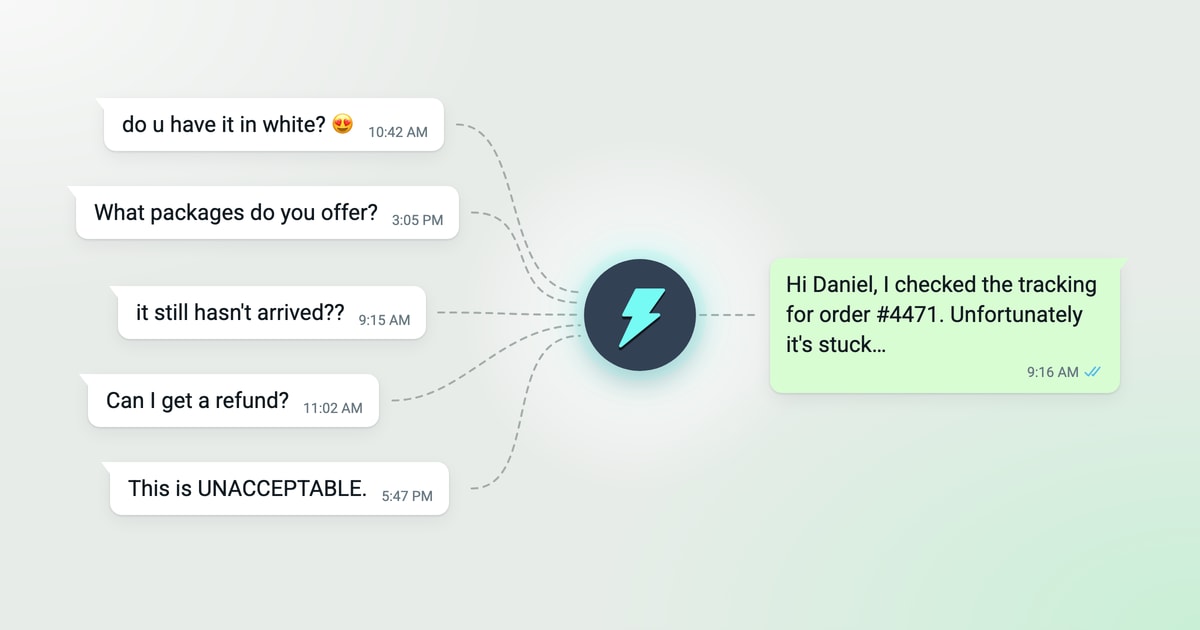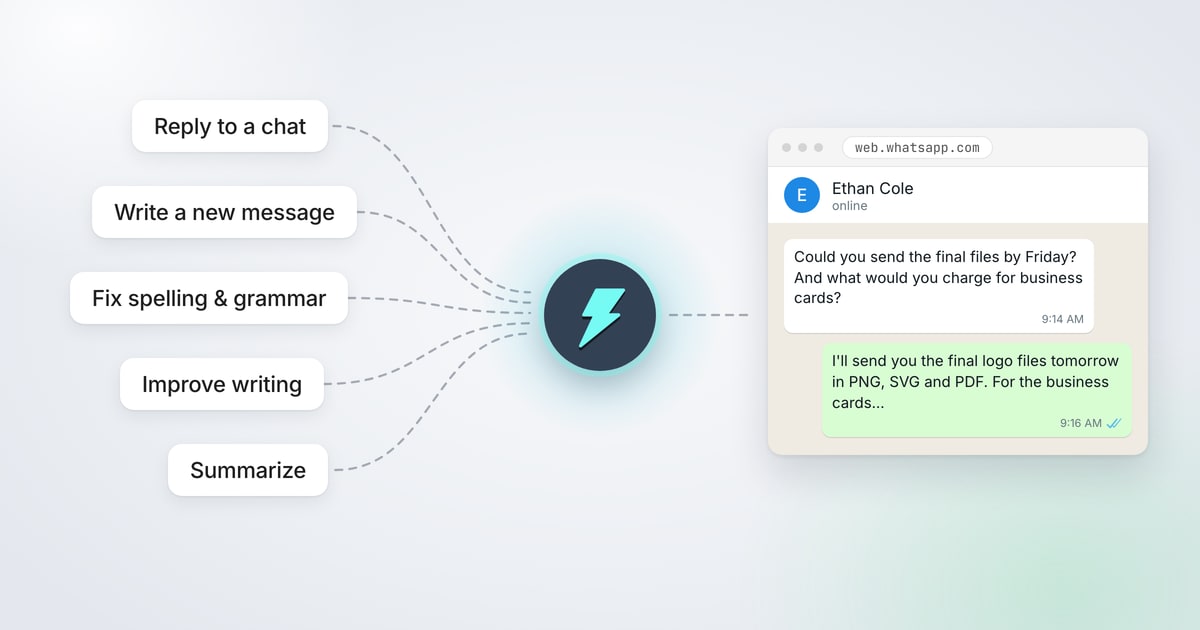
To use AI in WhatsApp Web, add the free Jetwriter AI extension to your browser and open WhatsApp Web. An AI Reply button appears in every chat's message bar: click it, type in a few words what you want to say, and Jetwriter AI writes the whole message. Select any text in WhatsApp Web to fix its spelling and grammar, improve it or summarize it.
It works on a computer, in Chrome, Edge, Brave, Opera or Vivaldi, with personal and WhatsApp Business accounts. Jetwriter AI never sends anything: you check each message and send it yourself.
Get Started in Three Steps
- Add Jetwriter AI to your browser. It's free.
- Sign in, or create a free account.
- Open web.whatsapp.com and open any chat. AI Reply is at the right end of the message bar, next to the microphone.
The Free plan includes 15 AI responses a month. Each reply, fix or summary uses one.
Reply to a Message
Open the chat and click AI Reply. In the box that opens, type in a few words what to answer: the facts and your decision. Jetwriter AI reads the chat, so you don't have to repeat what the other person wrote, and it writes the whole reply. Click Insert to put it in WhatsApp's message box, check it, and send it.
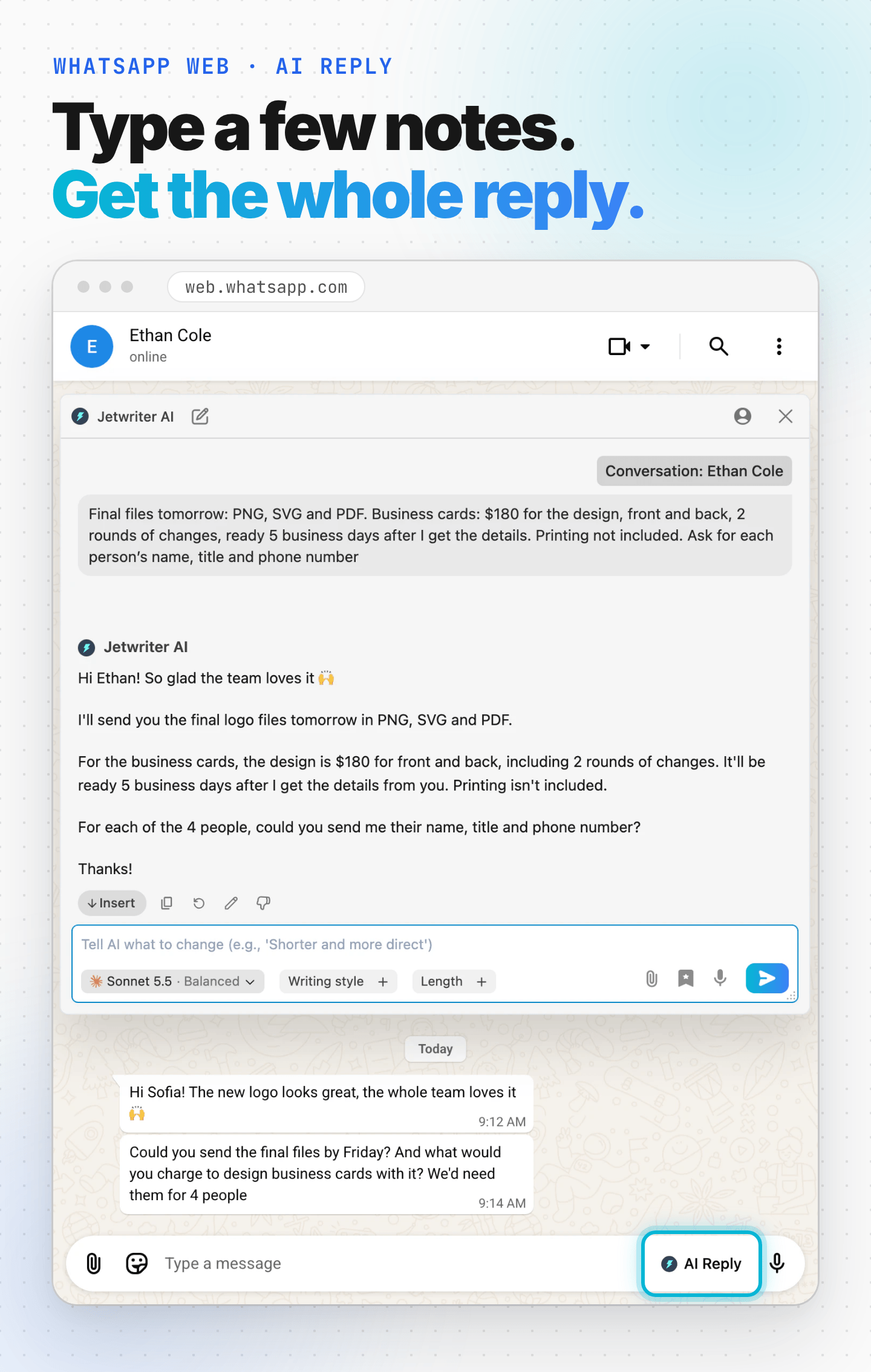
To change the reply, type what to change in the box under it, such as "Shorter" or "More formal", and press Enter. For every setting in the window, see Reply in WhatsApp Web with Jetwriter AI.
Write a New Message
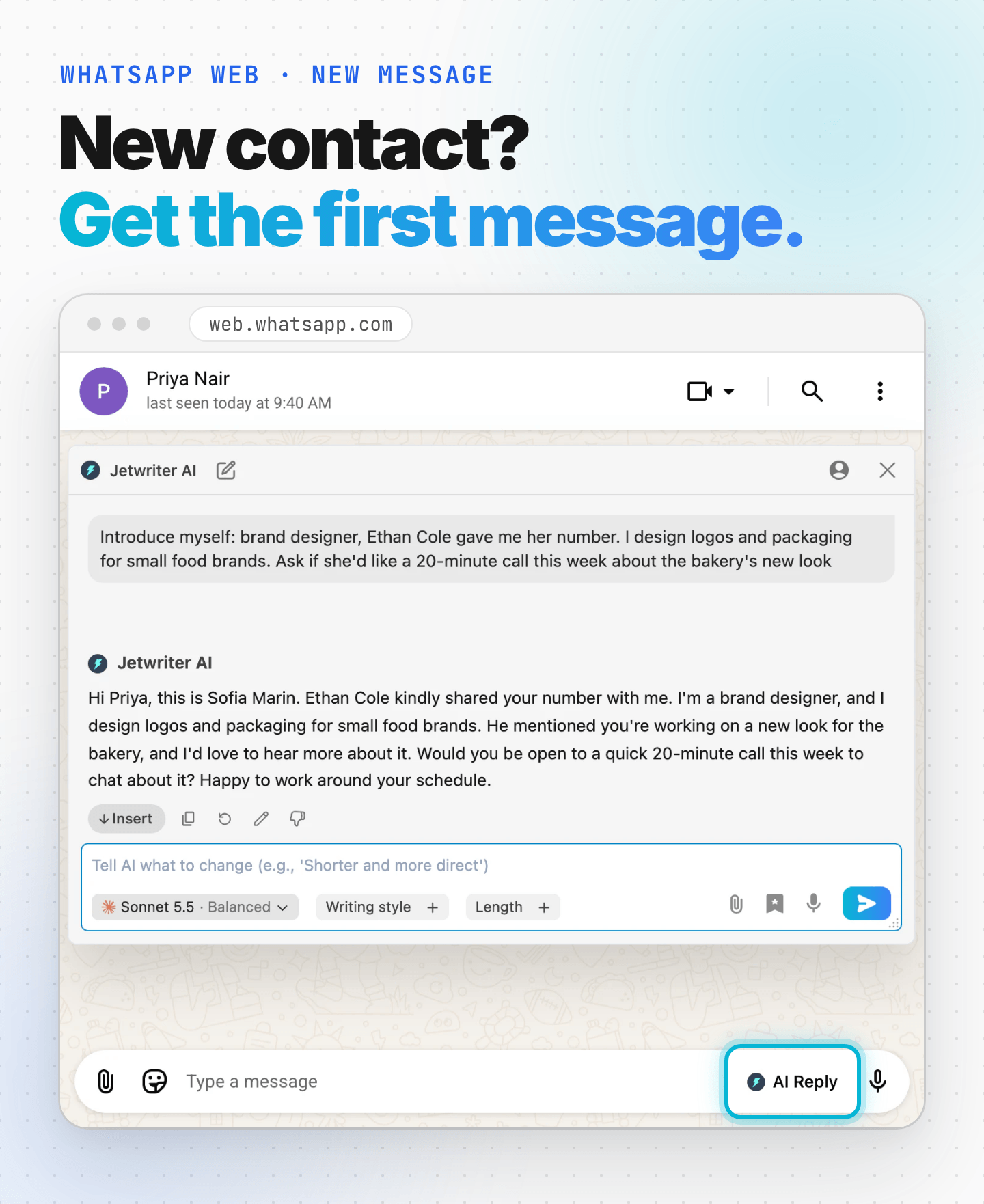
Open the chat with the person, even one with no messages yet, and click AI Reply. Say who the message is for and what it should say. With no chat to read, Jetwriter AI writes the message from your words alone.
The situation: Sofia Marin, a brand designer, got the number of a bakery owner, Priya Nair, from a client, and wants to introduce herself.
What Sofia typed
Introduce myself: brand designer, Ethan Cole gave me her number. I design logos and packaging for small food brands. Ask if she'd like a 20-minute call this week about the bakery's new look
What Jetwriter AI wrote
Hi Priya, this is Sofia Marin. Ethan Cole kindly shared your number with me. I'm a brand designer, and I design logos and packaging for small food brands. He mentioned you're working on a new look for the bakery, and I'd love to hear more about it. Would you be open to a quick 20-minute call this week to chat about it? Happy to work around your schedule.
Fix Spelling and Grammar Before You Send
Type your message in WhatsApp's message box and select it. A small blue dot appears next to the pointer: point at it within 2 seconds, and click Fix spelling & grammar on the toolbar that opens. Jetwriter AI corrects the mistakes and changes nothing else. Click Replace to put the corrected text in the message box.
The situation: Sofia types a quick update to a client, Ethan, in a hurry.
What Sofia typed
hi ethan, sending the final files tmrw morning. the busines card design will take 5 bussiness days once i have everyones details
What Fix spelling & grammar wrote
Hi Ethan, sending the final files tomorrow morning. The business card design will take 5 business days once I have everyone's details.
To select everything in the message box at once, click in it and press Ctrl+A (Cmd+A on a Mac).
Make a Message Read Better
Select your message, point at the blue dot, and open More actions, the down arrow on the toolbar. Click Improve Writing: Jetwriter AI rewrites the message so it's clearer and easier to read. Click Replace to use it.
The situation: a client asked to meet on Friday and mentioned the wrong price, and Sofia typed her answer fast.
What Sofia typed
cant do friday. monday works. also the price is 180 not 150 like u said
What Improve Writing wrote
I can't do Friday. Monday works for me. Also, the price is $180, not $150 as you mentioned.
If you use it often, pin it: in More actions, click the pin next to Improve Writing and it stays on the toolbar. See Fix, rewrite or translate selected text.
Summarize a Long Message
Select the message, point at the blue dot, and click Summarize. Jetwriter AI shows a short title and the main points as a list, in its window. Nothing changes in the chat.
The situation: a client, Ethan, sends the details for four business cards and three requests in one long message.
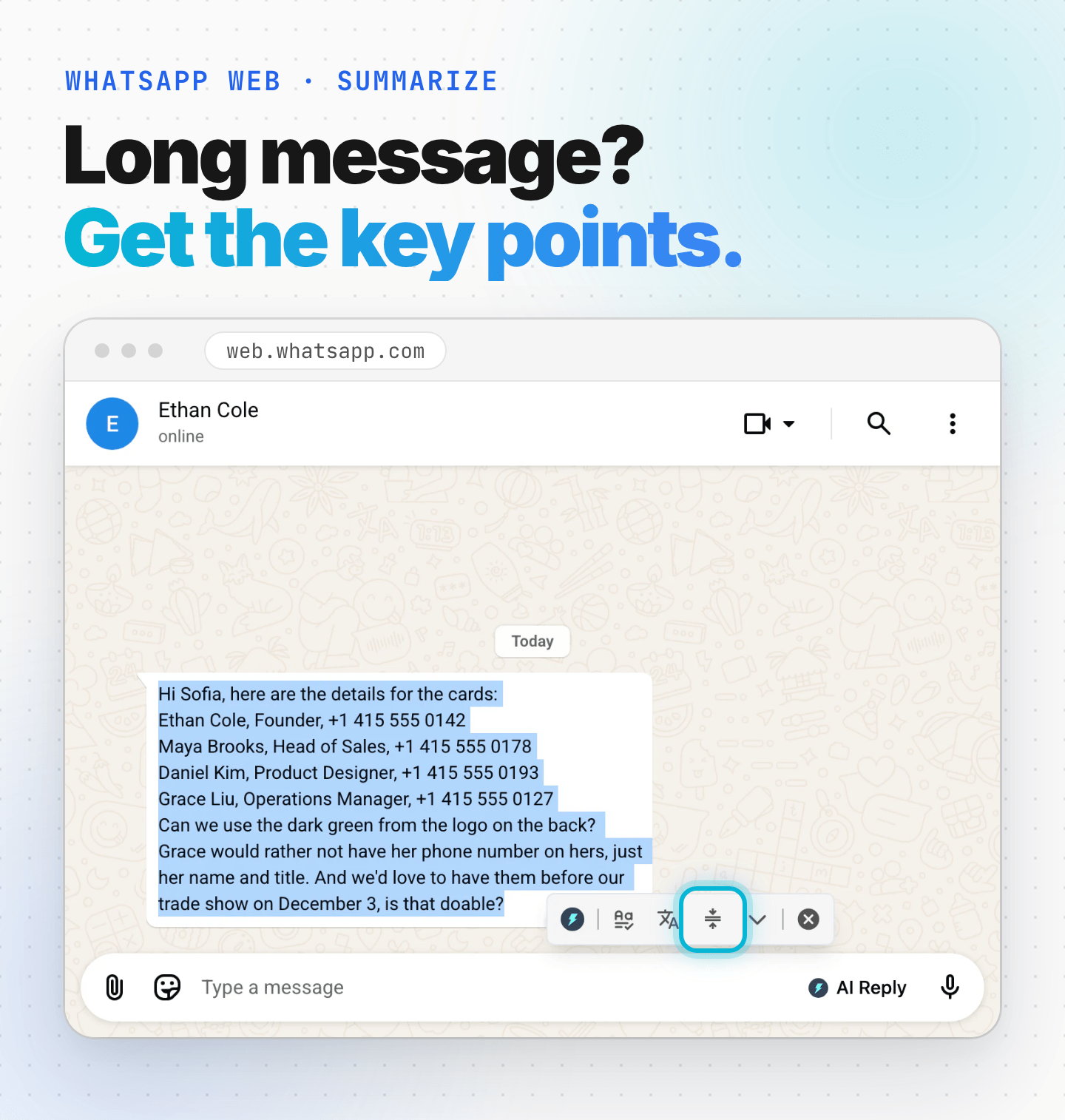
What Summarize wrote
Business Card Details and Requests
- Four cards are needed: Ethan Cole (Founder), Maya Brooks (Head of Sales), Daniel Kim (Product Designer), and Grace Liu (Operations Manager).
- The client wants to use the dark green from the logo on the back of the cards.
- Grace's card should show only her name and title, without a phone number.
- The cards are needed before the trade show on December 3.
- The sender asks if this timeline is possible.
More You Can Do in WhatsApp Web
- Reply in another language. End your request with the language, such as "Reply in Spanish". See Write in another language, or stop unwanted translation.
- Answer with your own prices and policies. On paid plans, Jetwriter AI can check your price list, FAQ or policy pages before it replies. See Jetwriter AI Can Now Check Your Files and Links Before It Replies.
- Sound like you. Tell Jetwriter AI about yourself and how you like to reply, once, and every message follows it. See Tell Jetwriter about you, and how to reply (Personalize AI).
- Answer customers. For five replies to real customer situations, see How to Reply to Customers on WhatsApp with AI: 5 Examples.
What Jetwriter AI Doesn't Do in WhatsApp Web
- It doesn't send messages. Insert and Replace put the text in WhatsApp's message box. You send it.
- It reads text only. It can't see photos or hear voice messages.
- It works in WhatsApp Web on a computer. The extension doesn't run in the WhatsApp phone app or the desktop app.
Frequently Asked Questions (FAQ)
Can I use AI in WhatsApp Web for free?
Yes. Jetwriter AI's Free plan includes 15 AI responses a month, and each reply, fix or summary uses one. Paid plans include more: see the pricing page.
Does Jetwriter AI send WhatsApp messages for me?
No. It writes the message and puts it in WhatsApp's message box when you click Insert or Replace. You read it and send it yourself.
Does it work with WhatsApp Business?
Yes. AI Reply and the toolbar work the same way with WhatsApp Business accounts in WhatsApp Web.
Does Jetwriter AI read all my chats?
No. AI Reply reads only the chat you click it in, and only the messages loaded there. Fix spelling & grammar, Improve Writing and Summarize read only the text you select. See Is Jetwriter AI safe? What it reads and keeps.
Can I use it on my phone?
The extension runs in a browser on a computer, so AI Reply doesn't appear in the WhatsApp phone app. On a phone, paste a message into the Jetwriter AI web app and copy the reply back. See Use Jetwriter on your phone.
New to Jetwriter AI? Add the free extension, open WhatsApp Web and click AI Reply in any chat.