To use AI in Zoho Mail, add the free Jetwriter AI extension to your browser and open Zoho Mail. Click AI Reply under any open email, next to Zoho Mail's Reply, type in a few words what you want to say, and Jetwriter AI writes the whole reply for you to check and send. In a new email, the same AI Reply button, in the toolbar where you write, writes the email from your notes.
It works in Chrome, Edge, Brave, Opera and Vivaldi on a computer, with personal and company Zoho Mail accounts. You add it to your own browser, so there's nothing for your Zoho admin to turn on. Jetwriter AI never sends an email: you read it and send it yourself. Below are the questions people ask most about AI in Zoho Mail, each answered in its own section.
How Do I Get AI in Zoho Mail?
Add the Jetwriter AI extension, sign in, and open Zoho Mail in your browser:
- Add Jetwriter AI to your browser. It's free.
- Sign in, or create a free account.
- Open Zoho Mail at mail.zoho.com, or at your region's address, such as mail.zoho.eu or mail.zoho.in, and open any email. AI Reply is in the bar under it, between Zoho Mail's Reply and Reply All.
The Free plan includes 15 AI responses a month. Each reply or new email uses one.
Do I Need My Zoho Admin to Turn It On?
No. There's nothing to switch on in Zoho Mail's settings or in its admin console: Jetwriter AI is a browser extension you add yourself, and AI Reply shows up in Zoho Mail as soon as it's installed. It works the same with a personal Zoho Mail account and with your company's, whatever Zoho Mail plan your company has. If your company manages your browser, it can limit which extensions you're allowed to add.
How Do I Reply to an Email with AI in Zoho Mail?
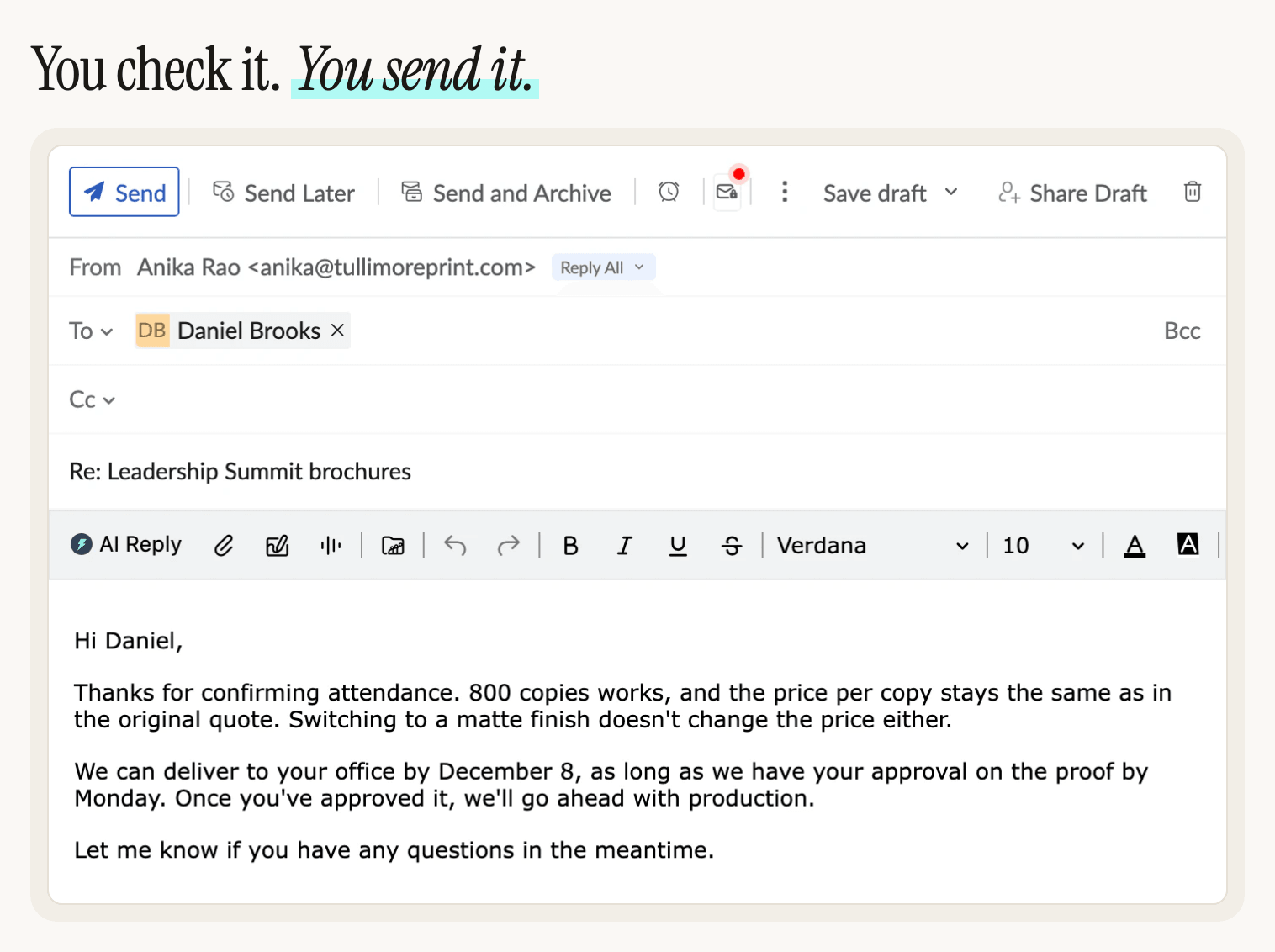
Open the email and click AI Reply under it. Zoho Mail opens a reply to everyone on the email, as its Reply All does, and the Jetwriter AI window opens over it, already knowing the email. Type in a few words what to say, the facts and your decision, or click the microphone and say them, and press Enter. Jetwriter AI writes the whole reply and leaves the sign-off to you. Click Insert to put it in Zoho Mail's reply box, then read it, sign it and click Send.
The situation: Daniel Brooks, events coordinator at a consulting firm, emails Anika Rao, who runs a print studio. His company now needs 800 brochures for its December 10 summit instead of 500, in a matte finish instead of gloss, and he asks whether she can still deliver by December 8 and whether matte changes the price.
What Anika typed
800 is fine, same price per copy. Matte costs the same. Dec 8 works if you approve the proof by Monday.
What Jetwriter AI wrote
Hi Daniel,
Thanks for confirming attendance. 800 copies works, and the price per copy stays the same as in the original quote. Switching to a matte finish doesn't change the price either.
We can deliver to your office by December 8, as long as we have your approval on the proof by Monday. Once you've approved it, we'll go ahead with production.
Let me know if you have any questions in the meantime.
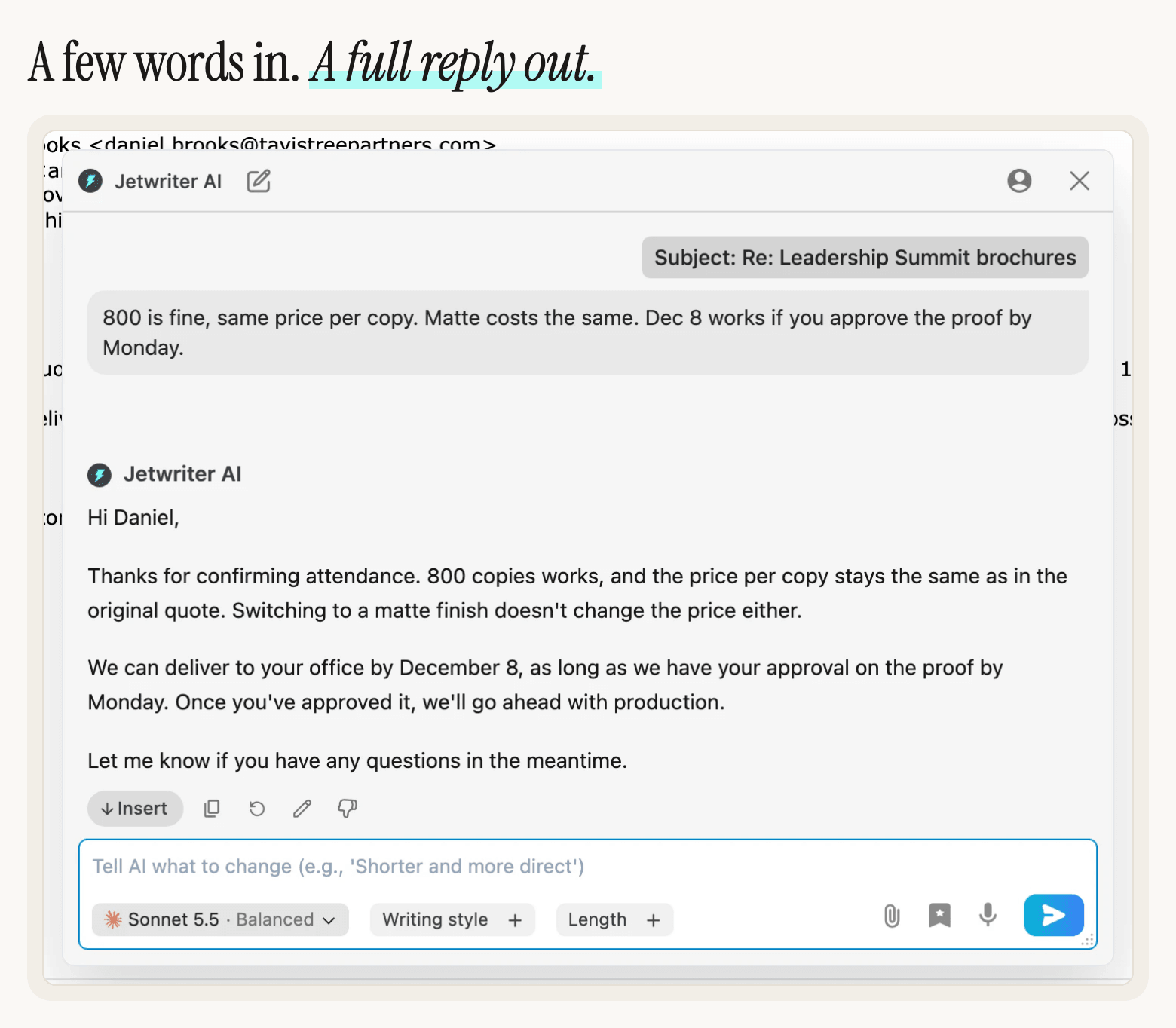
To change the reply, type what to change in the box under it, such as "Make it shorter" or "More formal", and press Enter. For a different version, click the circular arrow under the reply. To answer only the sender instead of everyone, click Zoho Mail's Reply first, then AI Reply in the reply's toolbar, next to the paperclip.
Can AI Write a New Email in Zoho Mail?
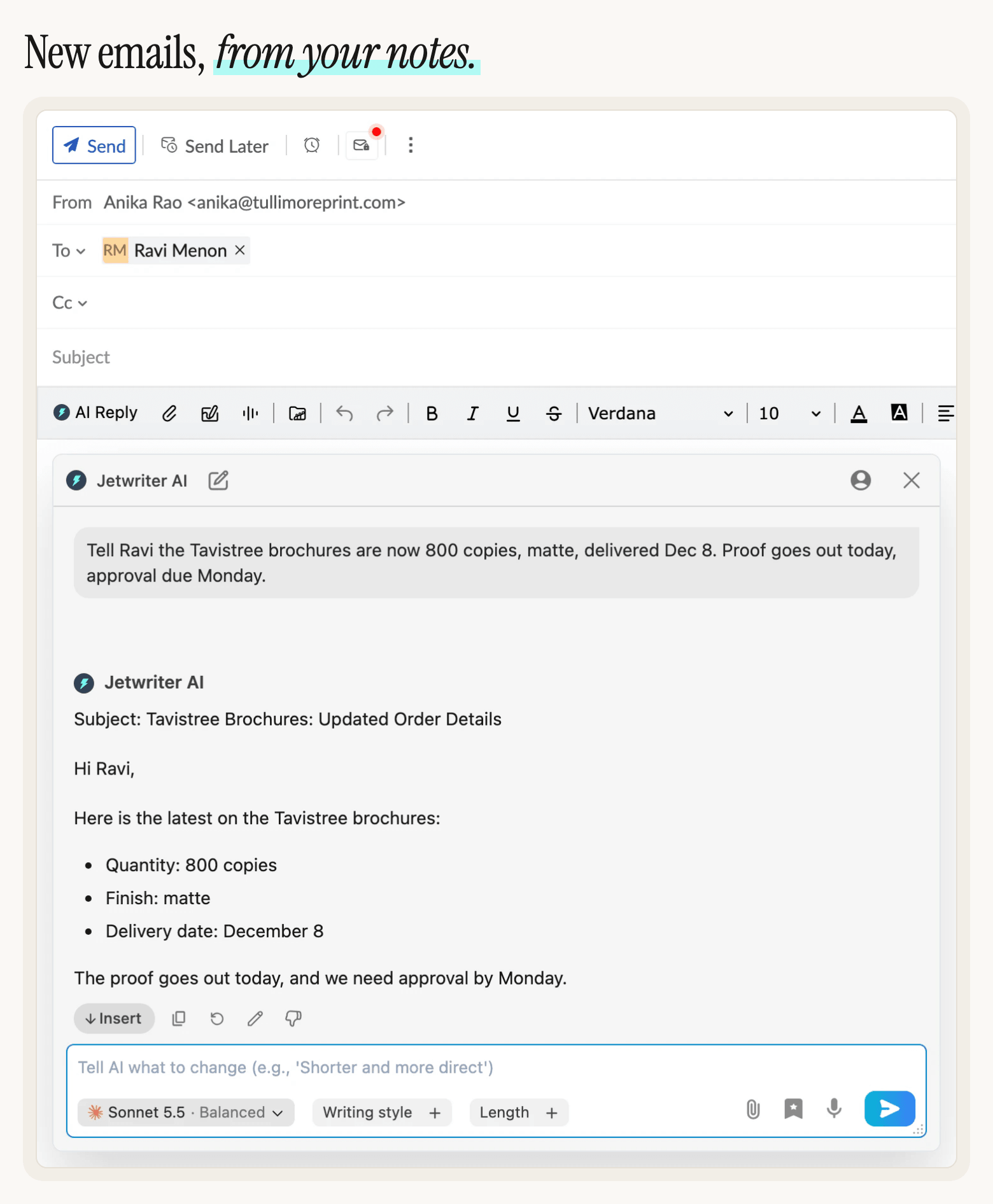
Yes. Click New Mail, then AI Reply in the toolbar of the new email, next to the paperclip, and say in a sentence or two what the email is for. Jetwriter AI writes it, starting with a suggested subject line. Click Insert to put it in the email, move the subject line into Zoho Mail's Subject field, add who it's for and send it. If you type a subject first, Jetwriter AI uses it.
What Anika typed in a new email to Ravi, who runs production at her studio
Tell Ravi the Tavistree brochures are now 800 copies, matte, delivered Dec 8. Proof goes out today, approval due Monday.
What Jetwriter AI wrote
Subject: Tavistree Brochures: Updated Order Details
Hi Ravi,
Here is the latest on the Tavistree brochures:
- Quantity: 800 copies
- Finish: matte
- Delivery date: December 8
The proof goes out today, and we need approval by Monday.
Which Zoho Mail Does It Work In?
Jetwriter AI works in Zoho Mail in the browser, with personal and company accounts, when the address bar shows mail.zoho.com or your region's mail.zoho address, such as mail.zoho.eu or mail.zoho.in. AI Reply also works when you open a reply or a new email in its own window, and in Zoho Mail's dark theme. It doesn't show yet on Zoho Mail's Canadian address, mail.zohocloud.ca.
It doesn't work in the Zoho Mail apps for your computer or your phone, because the extension only runs inside a browser on a computer. If you use one of those apps, open your mailbox in the browser instead. On a phone, paste an email into the Jetwriter AI web app and copy the reply back. See Use Jetwriter on your phone.
Can It Reply in Another Language?
Yes. End your note with the language, such as "Reply in German", and the reply comes back in German, whatever language the email is in. To have every reply follow the same rule, write it once in Personalize AI, for example "Reply in the language of the message I'm answering." See How to Reply to Emails in Another Language with AI and Write in another language, or stop unwanted translation.
Can It Write in My Style and Use My Own Facts?
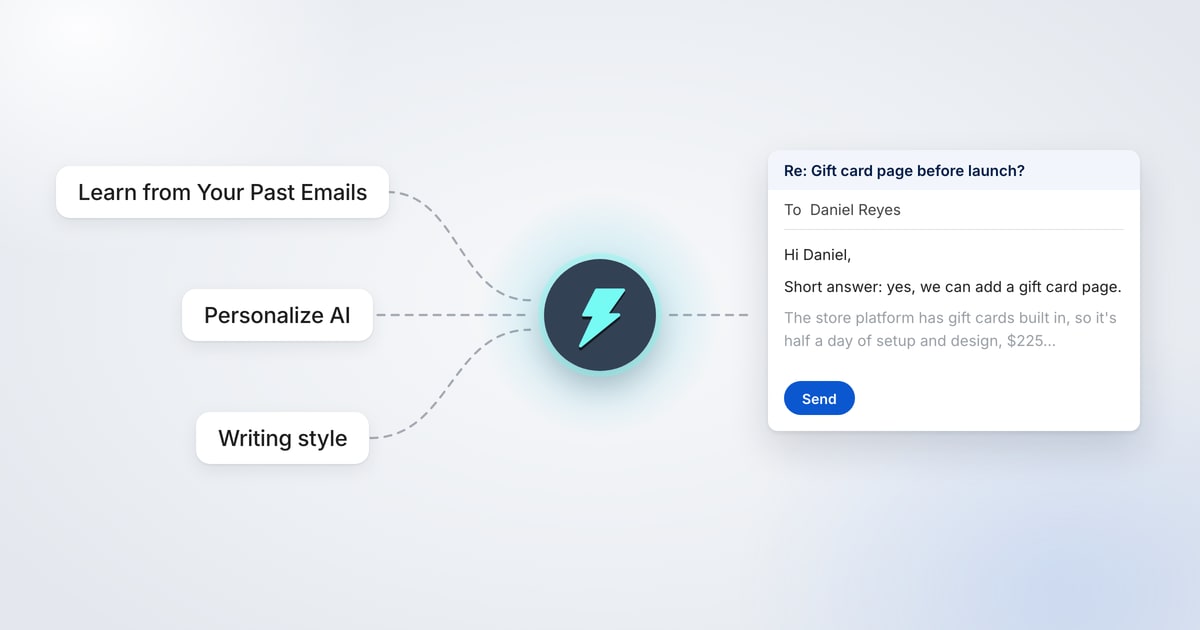
Yes. Three settings, set once, shape every reply and new email you write with AI Reply:
- Writing style, under the box in the Jetwriter AI window. Pick Professional, Casual, Straightforward, Persuasive or Friendly, or click Add Style and describe your own.
- Personalize AI, in the profile menu at the top of the window. Tell it who you are and how you like to write, such as your role, your company and your tone.
- Files and links, on paid plans. Add your price list, FAQ or policy pages in the web app, under Personalize AI's Files and links. When a reply needs one of those facts, Jetwriter AI checks them first, so it answers with your real prices and policies.
See Tell Jetwriter about you, and how to reply (Personalize AI) and Jetwriter AI Can Now Check Your Files and Links Before It Replies.
Can AI Reply to Zoho Mail Emails Automatically?
No. In Zoho Mail, Jetwriter AI writes a reply when you click AI Reply, and the reply waits in Zoho Mail's reply box until you click Send yourself. Nothing is ever sent for you.
Replies drafted before you open the email, with Auto-Drafts, work only with Gmail accounts, on paid plans. See How to Use AI in Gmail.
Frequently Asked Questions (FAQ)
Can I use AI in Zoho Mail for free?
Yes. Jetwriter AI's Free plan includes 15 AI responses a month, and each reply or new email uses one. Paid plans add advanced AI models and Files and links: see the pricing page.
Does Jetwriter AI send emails from Zoho Mail?
No. It writes the email and puts it in Zoho Mail when you click Insert. You read it and send it yourself.
Does Jetwriter AI read my whole mailbox?
No. AI Reply reads the email you're answering, as Zoho Mail quotes it in your reply, along with the subject, who the reply goes to and the address you send from. In a new email, it reads the same fields, the subject, who the email goes to and the address you send from, once you've filled them in. See Is Jetwriter AI safe? What it reads and keeps.
Why don't I see the AI Reply button in Zoho Mail?
Check that the address bar shows mail.zoho.com or your region's mail.zoho address, then reload the Zoho Mail tab. That fixes it in most cases, especially right after you install or update Jetwriter AI. If it's still missing, see The AI Reply button isn't showing.
Can I save requests I use often?
Yes. In the Jetwriter AI window, click the bookmark icon next to the paperclip, under the box, then Add Prompt Template, and give it a name and the text. After that, one click puts it in the box. See How to Use Prompt Templates to Speed Up Your Daily Writing Tasks.
Do I need my own AI account or API key?
No. Jetwriter AI comes with its AI models, so AI Reply works in Zoho Mail without an AI subscription or an API key. On the Free plan you can add your own key if you have one, and replies written with it don't count toward your 15: see Use your own OpenAI, Gemini or Claude key on the Free plan.
Does it work in other Zoho apps?
AI Reply is in Zoho Mail only. In other Zoho apps, such as Zoho Desk or Zoho CRM, open Jetwriter AI from its icon in your browser's toolbar, or press Ctrl+Shift+K (Cmd+Shift+K on a Mac), and copy what it writes into the app. See Open Jetwriter on any page, and change the shortcut.
Does it work in Gmail and Outlook too?
Yes. In Gmail, AI Reply sits under every email and AI Compose writes new ones, and on paid plans Auto-Drafts writes replies before you open the email. In Outlook on the web, AI Reply sits under every email. See How to Use AI in Gmail and How to Use AI in Outlook.
New to Jetwriter AI? Add the free extension, open Zoho Mail and click AI Reply under any email.