Email support@jetwriter.ai, or send a report from Jetwriter AI itself: in the extension, click your profile icon at the top of the Jetwriter window, then Support and Report issue; in the web app, click Support in the sidebar. Every message reaches the same support team, and the answer comes by email. Include the details below, so the first answer can solve it.
Email support
Write to support@jetwriter.ai. Send it from the email address of your Jetwriter account if you can, so we find your account straight away. If you write from another address, include your account's email in the message.
This works even when you can't sign in.
Report a problem from the extension
- On any website, open Jetwriter: click the Jetwriter icon in your browser's toolbar, or press Ctrl+Shift+K (Cmd+Shift+K on a Mac).
- Click your profile icon (1) at the top right of the Jetwriter window.
- Click Support (2), then Report issue.
- In the Report Issue box, describe what happened, in at least 10 characters.
- Click Submit. Jetwriter says "Thank you for reporting the issue. We will look into it."
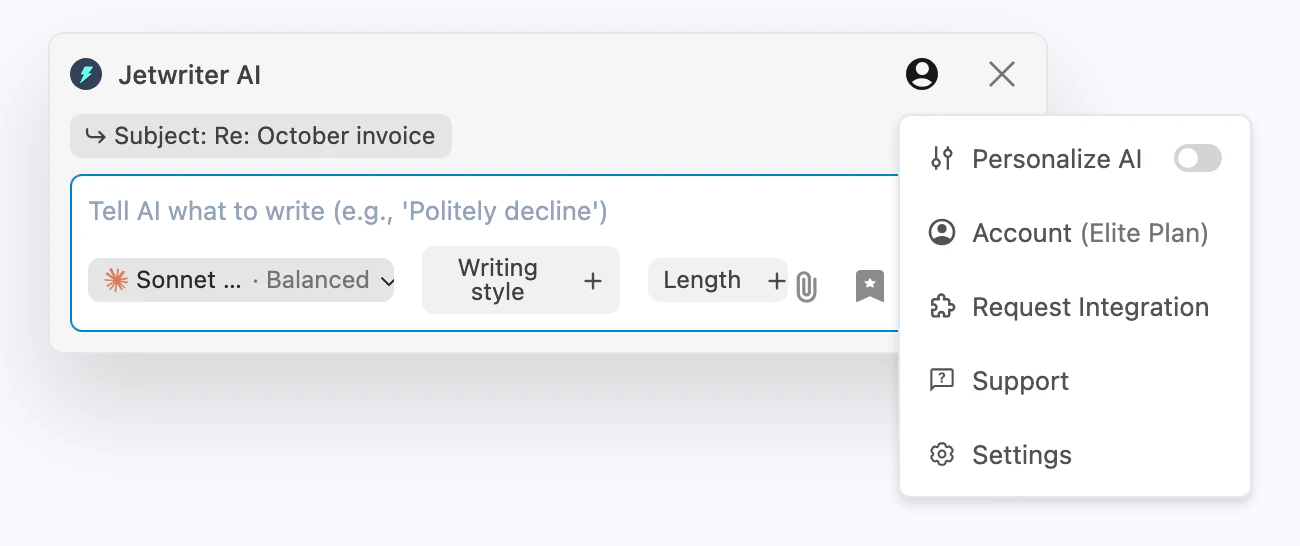
Support is in the menu under your profile icon, at the top right of the Jetwriter window.
- Profile icon
- Support
A report from the extension also sends technical details about the last error Jetwriter hit, which helps us find the cause. We answer at the email address of your Jetwriter account.
The same Support menu has Give feedback, for ideas and suggestions, and Enquiry, which shows our email address with a Copy Email button. To ask for Jetwriter on a new website, choose Request Integration in the profile menu instead. The profile icon shows only while you're signed in.
Report a problem from the web app
- Go to jetwriter.ai/app or your account page at jetwriter.ai/dashboard, signed in.
- Click Support in the sidebar, then Report issue.
- Describe what happened, in at least 10 characters.
- Click Submit.
What to include
The more of these your first message has, the sooner it's solved:
- What you were doing, what you expected, and what happened instead.
- The exact error message, copied or in a screenshot. Take one with Win+Shift+S on Windows, or Cmd+Shift+4 on a Mac.
- Where it happened: the site, such as Gmail or WhatsApp Web, or the web app, and what you clicked.
- Your browser and computer, such as Chrome on Windows.
- Your version of Jetwriter AI: type
chrome://extensionsin the address bar and turn on Developer mode; the version shows next to the name. - Your account's email address, if you write from another one.
- For a payment question: the email address on the receipt, or the date and amount of the charge.
Never send your password, or a full card number: we don't need them.
Before you write
Many problems have a quick fix: