To install Jetwriter AI (formerly ChatGPT Writer), open Jetwriter AI in the Chrome Web Store and click Add to Chrome. In Microsoft Edge, use Jetwriter AI on Edge Add-ons instead. Brave, Opera and Vivaldi install it from the Chrome Web Store. Installing it is free, and it works on Windows, Mac, Linux and Chromebooks.
Jetwriter starts in the tabs that are already open, such as Gmail. If one of them doesn't show it, reload that tab.
Install in Chrome, Brave, Opera or Vivaldi
- Open Jetwriter AI in the Chrome Web Store.
- Click Add to Chrome. In Brave or Opera, the button can name your browser instead, and Opera may first ask you to allow extensions from other stores.
- In the box that opens, click Add extension. The box lists what the extension can access: Why the extension asks to read and change data on websites explains why.
Install in Microsoft Edge
- Open Jetwriter AI on Edge Add-ons. In Edge's store it's called "Jetwriter AI: Email Reply & Writing Assistant".
- Click Get.
- In the box that opens, click Add extension.
What happens after you install
A new tab opens on jetwriter.ai and says Jetwriter AI is installed. Create your free account there with Continue with Google (1), or with an email and a password and Get started for free (2). If you already have an account, click Log in. Either way, the extension signs in with you. If you were already signed in on jetwriter.ai, the page says You're all set instead: open Jetwriter and click Login once to sign the extension in. See Sign in to the extension.
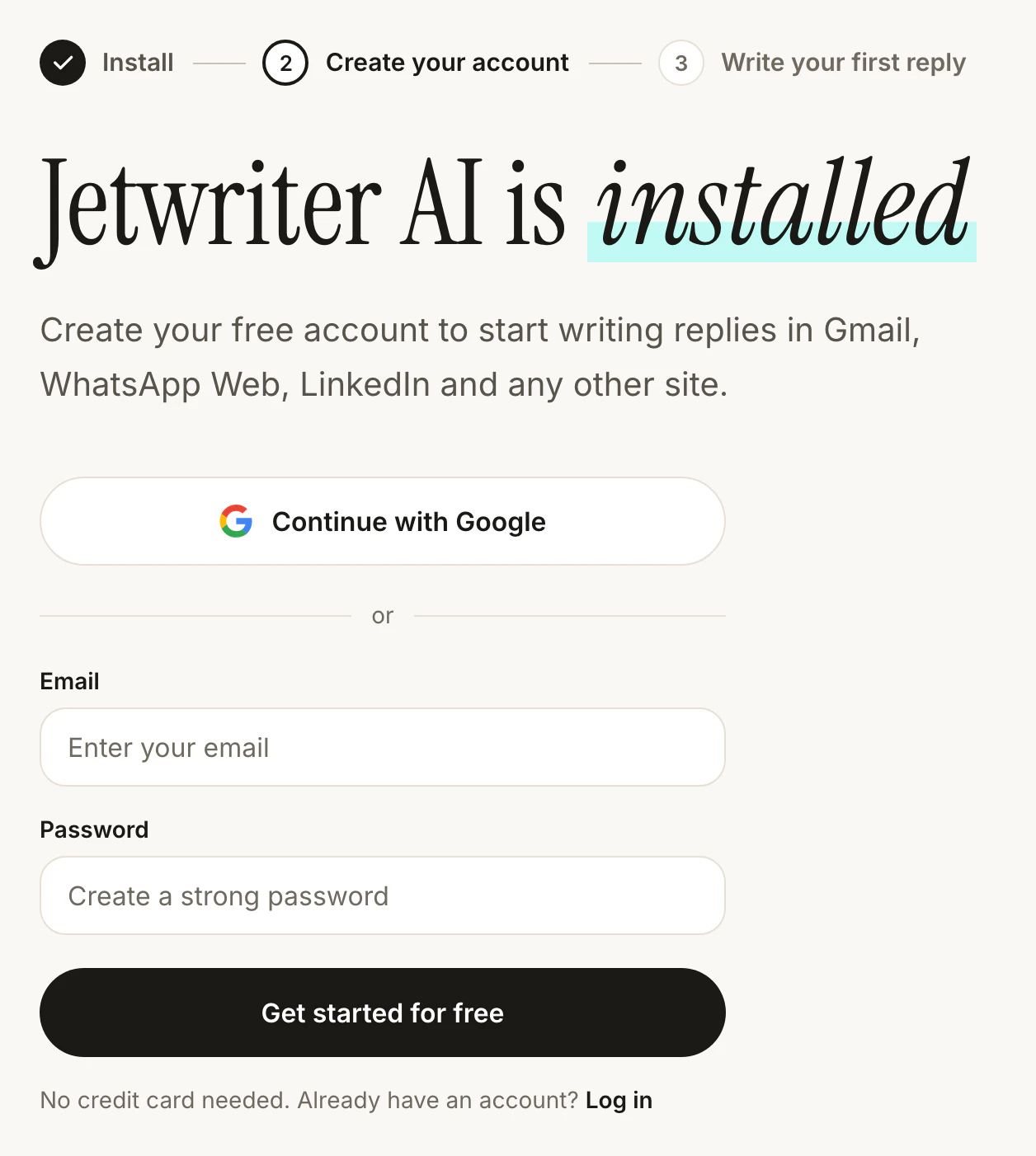
Right after you install it, jetwriter.ai asks you to create your free account.
- Continue with Google
- Get started for free
Reload the tabs that were already open
Jetwriter starts itself in the tabs that are open when you install it, but a tab that was asleep or still loading can miss it. If a tab you want to use it in, such as Gmail or WhatsApp Web, doesn't show Jetwriter, reload it: press F5, or Cmd+R on a Mac.
If clicking the Jetwriter icon shows "Could not load the extension. Please reload the page and try again.", reload that tab.
Pin Jetwriter to the toolbar
Pinning keeps the Jetwriter icon next to the address bar, so you can open it with one click. It's optional: the keyboard shortcut works either way.
- Click the Extensions button (the puzzle piece) at the right of the address bar.
- Find Jetwriter AI in the list and click the pin next to it. In Edge, click the eye icon next to it (Show in toolbar).
Until you pin it, Jetwriter shows a "Pin for Quick Access" tip at the top right of the page the first few times you open it with the icon or the shortcut.
Open Jetwriter
On any website, press Ctrl+Shift+K (Cmd+Shift+K on a Mac), or click the Jetwriter icon in the toolbar. In Gmail, click AI Reply under an email. For every way to open it, see Open Jetwriter on any page, and change the shortcut.
If you click the icon on the Chrome Web Store or on one of the browser's own pages, Jetwriter says "Extension is not supported on this page. Please visit a regular website like Gmail and then launch this extension." Open a website such as Gmail and try again.
If you can't install it
- On a phone or tablet: browsers there can't run the extension. Use the web app at jetwriter.ai/app instead: see Use Jetwriter on your phone.
- In Firefox or Safari: there's no version of the extension for them. Install it in Chrome, Edge, Brave, Opera or Vivaldi, or use the web app. See Where Jetwriter works: browsers, sites and devices.
- On a work or school computer: your organization can block extensions in the browsers it manages. Ask your IT team to allow Jetwriter AI.