To sign out of Jetwriter AI, go to your account page at jetwriter.ai/dashboard and click Logout under My Account. That signs you out of the web app and of the extension in the same browser. To switch accounts, sign in again with the other account: the extension always uses the account you sign in with on jetwriter.ai.
The extension's profile menu has no sign-out option, so you sign out on the account page.
Sign out from your account page
- In the browser where you use the extension, go to jetwriter.ai/dashboard. From the extension, click your profile icon at the top of the Jetwriter window, then Account. From the web app, click Account in the sidebar.
- Under My Account, below your email address, click Logout (1).
- The Login page opens. You're signed out of the web app, and the extension in this browser is signed out too: its window now shows a Login button at the top.
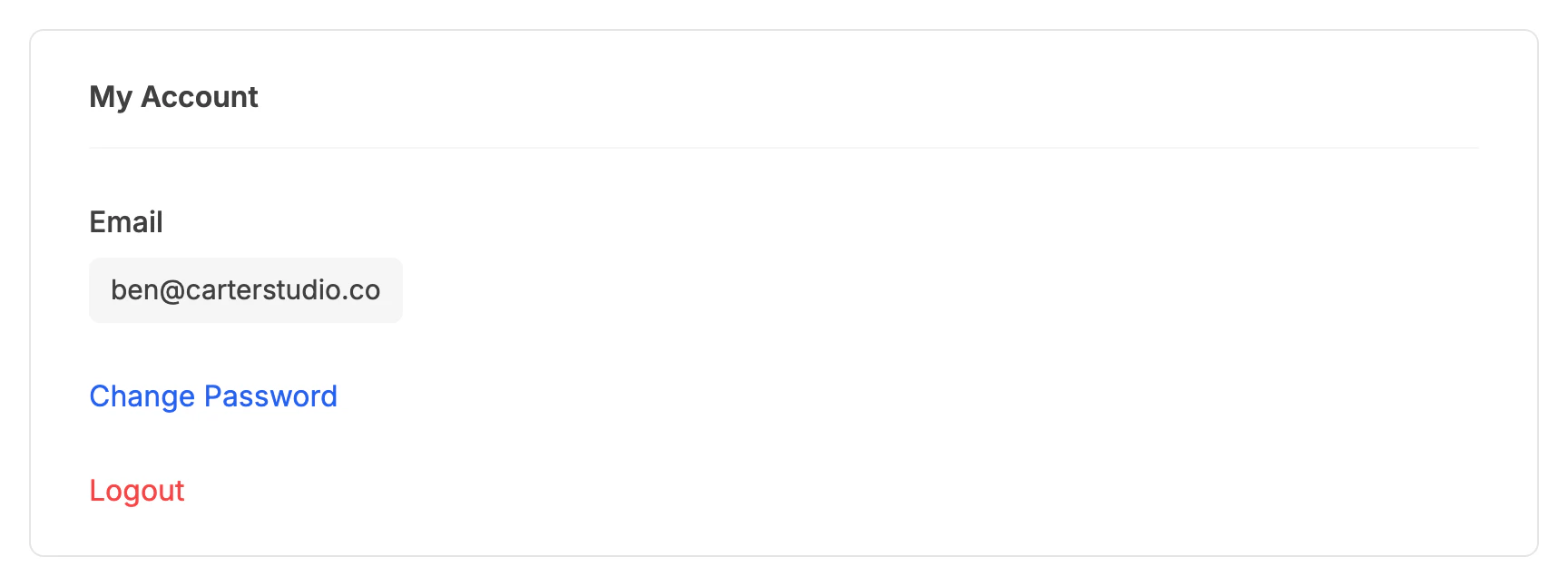
Logout, under My Account on the account page, signs out the web app and the extension.
- Logout
Switch to another account
- Sign out from your account page, as above.
- On the Login page that opens, sign in with the other account: click Continue with Google, or enter its email and password and click Login.
- The extension in this browser signs in with the same account. To check which account it uses, open Jetwriter, click your profile icon, and hold the pointer over Account: it shows the email address you're signed in with. Your plan shows next to Account, for example "Account (Elite Plan)".
Why the extension follows the web app
The extension has no sign-in form of its own. Its Login button opens jetwriter.ai, and whichever account you sign in with there, the website signs the extension into it. If you're already signed in on jetwriter.ai, clicking Login in the extension signs it straight into that account, without asking.
So to use a different account in the extension, sign out on jetwriter.ai/dashboard first, then sign in with the account you want.
If you paid with another email address
Your plan belongs to the account you paid with. If Jetwriter shows Free after you paid, you may be signed in with a different email: sign out, then sign in with the email address on your receipt. See You paid, but your account still shows Free.
If the extension still shows the old account
- Reload the page you use Jetwriter on, then check the email under Account again.
- Use the same browser. Signing out on jetwriter.ai only reaches the extension in the same browser, and in Chrome the same profile.
- Sign in again on jetwriter.ai. Every sign-in on the website also signs the extension in, with the same account. Sign out on the account page, then sign in with the account you want.
Other computers and your phone
Signing out works one browser at a time. Each other computer and your phone stay signed in until you sign out there too, on jetwriter.ai/dashboard.
If Jetwriter asks you to verify your email
If you signed up with an email and a password and haven't verified it yet, the extension shows Email Verification Required, and the web app asks you to verify too. Both messages have their own Logout link: use it if you signed up with the wrong address. The extension's Logout also opens jetwriter.ai and signs you out there. See Verify your email address.