Copy the reply and paste it yourself: point at the reply in the Jetwriter AI window, click the copy icon under it, then click into the text box and press Ctrl+V (Cmd+V on a Mac). Insert only works when you opened Jetwriter from a site's AI Reply or AI Compose button, and only while that reply box is still open. If Insert fails, reload the tab and start again from the site's button.
Copy the reply and paste it
- In the Jetwriter window, point at the reply. A row of icons shows under it, after Insert (1) when there is one.
- Click the copy icon (2). Its tip says "Click to copy". To copy and close the Jetwriter window at once, hold Ctrl (Cmd on a Mac) as you click it.
- Click into the site's text box where the reply should go.
- Press Ctrl+V, or Cmd+V on a Mac.
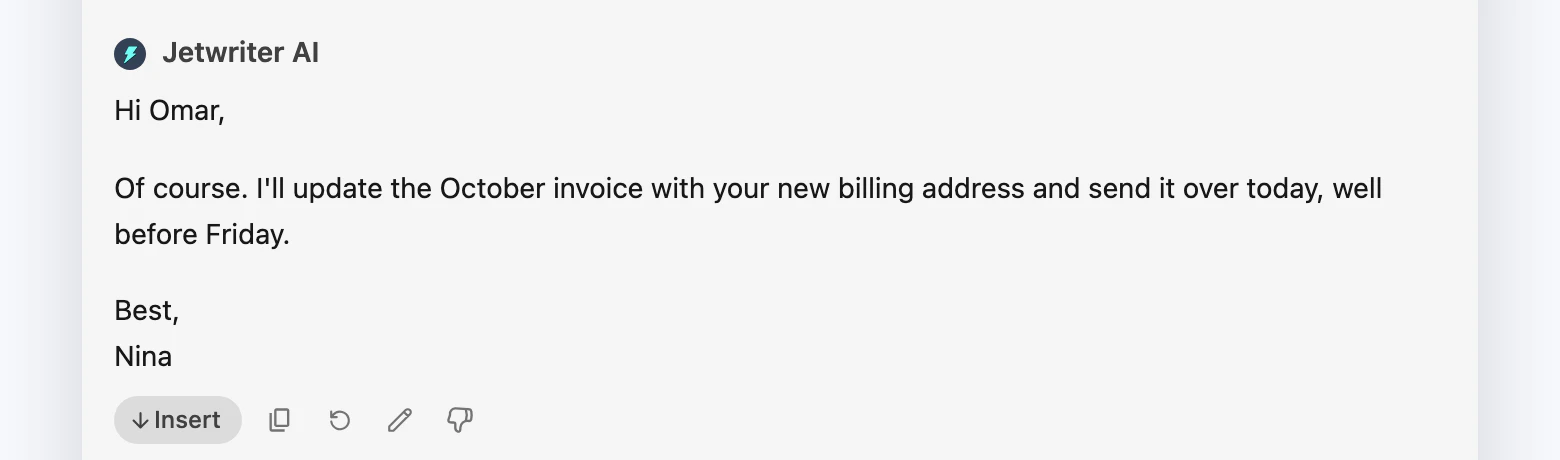
When Insert can't reach the text box, the copy icon next to it puts the reply on your clipboard instead.
- Insert
- Copy
In an email, the pasted reply keeps its formatting, such as bold words and lists.
There's no Insert button
Insert appears only when you open Jetwriter from a site's own button: AI Reply or AI Compose in Gmail, Outlook on the web, WhatsApp Web, LinkedIn, Slack, X, Zoho Mail, Zendesk and Freshdesk. Jetwriter then knows which box the reply goes into.
When you open Jetwriter another way, use the copy icon instead:
- The toolbar icon, the keyboard shortcut or the right-click menu: there's no Insert button. Copy the reply and paste it.
- The toolbar on selected text: if you selected text inside a text box, the button is called Replace, and it swaps the text you selected for the reply. If you selected text that isn't in a text box, such as an email you're reading, there's no Replace button.
"Oops, couldn't insert the generated response"
The full message is "Oops, couldn't insert the generated response. Please copy paste the response instead." It shows under the reply when Jetwriter can't find the box the reply belongs in. That happens when:
- the reply box closed after you opened Jetwriter: you sent, discarded or closed the draft;
- you opened another email or chat before clicking Insert;
- the site changed its page, so Jetwriter can't find its text box until we release an update.
To fix it:
- Copy the reply and paste it, as above.
- Next time, reload the tab, open the email or chat again, and click AI Reply in it. Keep that reply box open until you've clicked Insert.
Click Report this issue under the message to tell us which site it happened on.
What Insert does on each site
Insert puts the reply into the box you opened Jetwriter from. It never sends anything: you check the reply and send it yourself.
| Site | What Insert does |
|---|---|
| Gmail and Outlook on the web | Adds the reply, with its formatting, to the reply box or new email. |
| Zoho Mail, Zendesk and Freshdesk | Adds the reply, with its formatting, to the reply box. |
| WhatsApp Web | Replaces whatever you had typed in the message box with the reply, as plain text. |
| Replaces what's in the message or comment box with the reply, as plain text. | |
| Slack | Replaces what's in the message box with the reply, as plain text. |
| X | Adds the reply to the reply box, as plain text. |
On WhatsApp Web, LinkedIn and Slack, Insert replaces what you had typed in the box: copy your text first if you want to keep it.
The reply shows asterisks or other symbols
In boxes that take plain text, such as WhatsApp Web, LinkedIn, Slack and X, formatting from the reply turns into symbols: bold words get two asterisks around them, and list items start with a dash. Delete the symbols in the box, or ask Jetwriter for the reply "without formatting" before you insert it.
Replace didn't change the text you selected
Replace needs the text you selected to still be there, selected the same way. If you typed in the box, clicked elsewhere in it, or the page changed while Jetwriter was writing, Replace shows the "Oops, couldn't insert" message instead.
- Copy the reply.
- Select the text you want to replace again.
- Press Ctrl+V (Cmd+V on a Mac).
Still not working?
Email support@jetwriter.ai with:
- the site, and whether you used Insert or Replace;
- what you clicked to open Jetwriter, such as AI Reply under an email or in the reply box;
- a screenshot of the page after you clicked Insert.