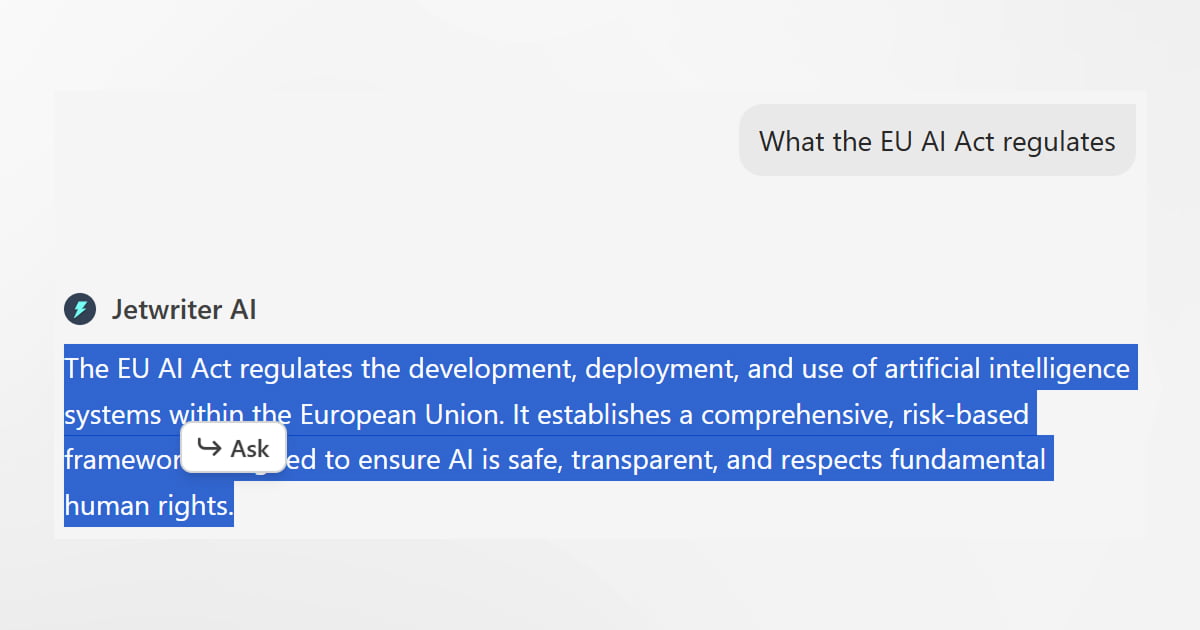
Have you ever asked an AI to help you research a topic? It gives you a great answer. But maybe there is one line you do not understand. Or maybe you want to know more about one specific fact.
In most AI tools, doing this is annoying. You have to go to the bottom of the chat and type a brand new prompt. You have to say, "Can you explain that one point in the second paragraph?"
This slows down your work. We wanted to fix this. We want your research workflow to be easy and simple.
That is why we built the "Ask" feature in Jetwriter AI. It lets you ask questions about small details instantly, right where you are reading. You do not have to type long prompts anymore. You just “Ask”, and keep your research moving fast.
How the "Ask" Feature Works
Using the "Ask" feature is very easy. Here is exactly how it works:
- Highlight your text: Read the answer Jetwriter AI gives you. Find a word or sentence you want to know more about. Use your mouse to highlight it.
- Click the “Ask” button: A small "Ask" button pops up right next to the text you just highlighted. Click this button.
- Type your question: The text you highlighted is instantly added down into your main chat box. It shows up as a small tag to give the AI context. Now, you just type your question right next to it. For example, you can type, "Explain this word (or sentence)."
How This Helps
This feature makes your research workflow simple and keeps things moving.
- No more copy and paste: You do not have to copy text manually. You just highlight and click, and the tool drops the text into the chat for you.
- Keep things clear: The AI knows exactly what part of the response you are asking about because of the context. You do not have to type a long message to explain yourself.
- Work faster: You spend less time typing extra prompts and more time getting the information you need.
Practical Ways to Use the "Ask" Feature
Here are a few simple ways you can use this feature.
- Improve Writing: Sometimes the AI writes a good draft, but one line sounds too angry or serious. You do not have to start all over again. Just highlight that one sentence. Click the "Ask" button and type, "Make this sound more friendly." The AI changes just that one line for you. The rest of your text stays exactly the same. You fix the tone fast and keep working.
- Understand hard words: Let's say you are reading an answer from the AI about how websites work. It uses technical words like "encryption" that you do not know. You do not need to feel stuck. You just highlight that word. Click the "Ask" button and type, "What does this mean?" The AI explains it to you instantly in simple terms. You learn fast and keep reading.
- Get more details: The AI might give you a short fact during your research. For example, it says that the first computer mouse was made of wood. You want to learn more about it. You just highlight that exact fact and click "Ask". Then you type, "Who made this wooden mouse?" You get your new details right in the chat without starting a whole new search.
- Deep Dives: You might read a big claim and want to know if it is true. For example, the AI says sales went up by fifty percent last year. You highlight that sentence. Click "Ask" and type, "Where did you get this number? Show me the math." The AI will share its sources or do the calculation for you. This helps you trust the facts you use in your work.
Conclusion
Doing research does not have to be slow or annoying. The main idea of using AI is to help you work faster, not make you type the same things over and over again. You should always be in control of your work.
Try the "Ask" feature in Jetwriter AI today. See how easy it is to find out more about small details and get quick answers. It is the best way to keep your research moving fast and save yourself a lot of extra typing.
Frequently Asked Questions (FAQ)
Does the “Ask” feature work on normal websites, or just inside the extension?
This feature is built only for responses generated by Jetwriter AI inside the extension and the Web App. If you want to research on a particular text on a website, you can use the Quick Actions feature instead.
Does the "Ask" tool use Live Web Search to find facts happening right now?
Yes, it does. When you ask a question about your highlighted text, the tool can search the live web to get the newest information.
Can I highlight text and use the "Ask" button if I am using the Slack or WhatsApp integrations?
Yes, you can. You can use the "Ask" button anywhere the extension works, including Slack and WhatsApp Web.
Can I highlight computer code to get help fixing it?
Yes, you can. Just highlight any line or block of code in the AI response and click "Ask". You can then ask the tool to explain the code, find mistakes, or help you fix it.